
Update Android: 7 Easy Steps to Get the Latest Version Safe
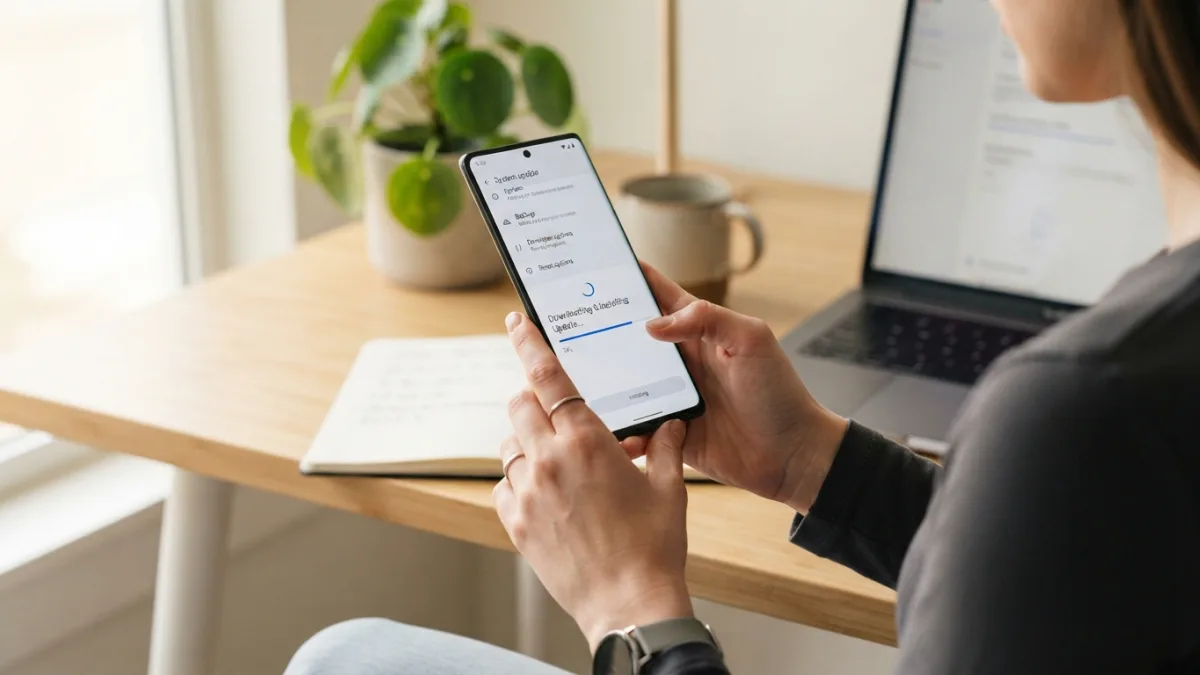
Your phone feels a little slower, some apps look outdated, and you keep seeing that small notification about a new system version. If you have been putting it off, learning how to update android correctly can save you time and keep your data safer. Most people wait too long and miss simple fixes that improve battery life and security. The good news is that the process takes only a few minutes when you know where to look. In this guide, we break down everything in plain language, so you can move from that reminder to a fresh, smooth system without stress or guesswork. You don’t need special tools or technical skills, just your phone, a stable connection, and a few easy taps to get started.
Why You Shouldn’t Skip Android Updates
Every new Android release does more than change how your home screen looks. It patches security holes that hackers could use to steal passwords or personal photos. It also fixes bugs that make apps crash or drain your battery faster than normal. When you update android regularly, you get the latest privacy controls and performance improvements that Google has tested for months. Think of it like a health check for your phone. Skipping it leaves you exposed, while installing it helps everything run faster and more reliably. You can learn more about current features and security improvements on the official Android site, which explains what each major release includes. If you run into related issues on your phone, our step-by-step guide on how to phone Wont Turn On walks through the safest fixes.
Updates also bring features you will actually notice in daily use. You might get better camera processing, smarter battery management, or new ways to control notifications and permissions. Older versions slowly lose support from app developers, so banking apps or games may stop working well if you stay behind. Staying current means your phone stays compatible with the apps you love. It also helps your device keep its value longer if you plan to sell or trade it later. Most users feel the difference right after restarting, with smoother scrolling and quicker app launches.
What to Do Before You Update
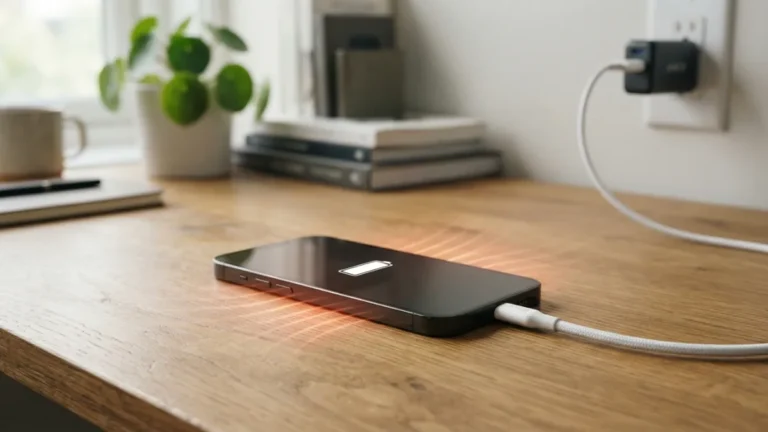
Before you tap that install button, a little preparation can prevent problems. First, make sure your phone has at least 50% battery or plug it in while it installs. An update that stops halfway because the battery died can cause errors. Second, connect to a strong Wi-Fi network. System files are large, often over one gigabyte, and using mobile data can be slow and expensive. Finally, free up space if your storage is almost full. Delete old videos or unused apps, or move photos to cloud storage. If you update android without enough space, the download may fail or take much longer than needed.
You should also back up what matters most. While most updates keep your data safe, a backup gives you peace of mind. Use Google Backup or copy photos and documents to Google Drive. It is also smart to check android version before you start, so you know what you are running now and what is new. Go to Settings, then About phone, and note the Android version and security patch date. This helps you confirm the update worked later and understand if your device is still receiving support from the manufacturer.
- Charge to at least 50% or keep the charger connected
- Connect to reliable Wi-Fi and keep the phone nearby
- Back up photos, chats, and important files to your Google account
- Make sure you have at least 3-5 GB of free storage
How to update android in 7 Easy Steps
Step 1: Check Your Current Version and Compatibility
Open your phone and check android version to see if an update is even available for your model. Different brands like Samsung, Pixel, and OnePlus release updates on different schedules, and older phones may not get the newest Android release anymore. Go to Settings, then About phone, and look for Android version. You will also see the security patch level. If your phone is more than three or four years old, you may only get security updates instead of full version upgrades. Knowing this saves you from waiting for an update that will never arrive. If your device is still supported, you can move to the next step with confidence.
Step 2: Connect to Wi-Fi and Power
A stable connection and enough power are essential for a smooth install. Connect to a Wi-Fi network you trust, preferably at home, and avoid public hotspots that may drop out. Plug your phone into a charger, even if the battery looks okay. Updates can take 10 to 30 minutes, and your screen will be busy during that time. Close heavy apps and pause large downloads so your phone can focus on the system files. When you update android on a strong Wi-Fi and with power connected, you reduce the risk of a corrupted download and you will not be interrupted by a low-battery warning halfway through.
Step 3: Back Up Your Important Data
Even though modern updates rarely erase data, backing up is still the safest habit. Open Settings, then System, then Backup, and make sure Google One Backup is turned on. Check that photos, contacts, and app data show a recent backup time. If you prefer, manually upload important documents or videos to Google Drive. This takes just a minute and protects you if something unexpected happens, like the phone freezing during installation. Once your backup is complete, you will feel much more relaxed about tapping install. It is a simple step that many people skip, but it is the one that saves the most stress if anything goes wrong.
Step 4: update android Through the Android Settings Menu
Now you are ready for the main action. Open the android settings menu by swiping down and tapping the gear icon, or find Settings in your app drawer. Scroll down to System, then tap System update or Software update. The name varies slightly by brand, but the idea is the same. Tap Check for update and wait while your phone contacts the server. If an update is available, you will see its size and a short list of changes. For detailed instructions with screenshots, you can follow Google’s support guide on checking and updating Android. Tap Download and then Install to begin when you are ready.
Step 5: Download and Install the OTA Update
Most phones today use an ota update, which means over-the-air. You do not need a computer or cable, the files come directly through Wi-Fi. Once you tap Download, your phone will fetch the package in the background. You can still use your phone while it downloads, but avoid restarting it. When the download finishes, you will see a prompt to Install Now or Install Overnight. Choose Install Now if you have time to wait. Your phone will restart automatically and show a progress bar. Do not press buttons or try to turn it off during this stage. If you update android this way, the system handles everything for you and keeps your apps and settings in place. While you are adjusting these settings, it is also worth learning how to block a Number on Android to keep everything running smoothly.
Step 6: Restart and Let the Android System Update Finish
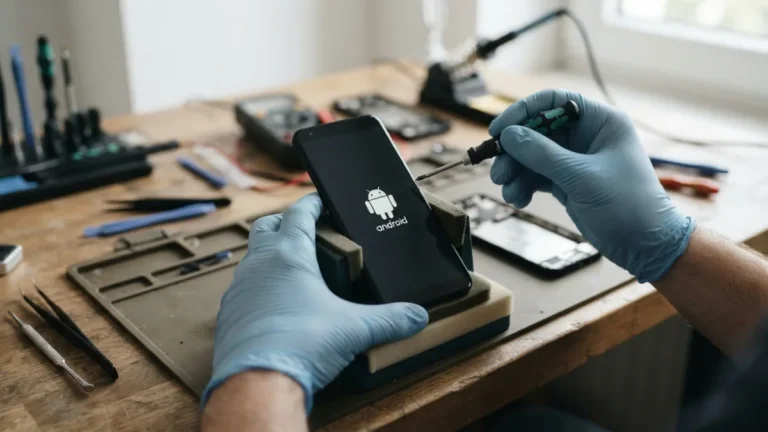
After the initial restart, your phone may reboot one or two more times. This is normal. The android system update is unpacking files, optimizing apps, and applying security patches behind the scenes. You might see the Android logo or a spinning circle for several minutes. Keep the phone plugged in and connected to Wi-Fi, even if it looks like nothing is happening. Do not remove the SIM card or force a restart. Interrupting this stage is the most common cause of update problems. Once it finishes, your lock screen will appear as usual. Unlock your phone and give it a minute to settle, as apps may update themselves right after the system does.
Step 7: Verify the Android Software Update Was Successful
The last step is to make sure everything worked. Go back to Settings, then About phone, and confirm that the Android version number and security patch date have changed. Open a few apps to check that they launch correctly. If something feels off, like Wi-Fi not connecting, try restarting once more. You should also open the Play Store and update any apps that show pending updates, since they are often tuned for the new system. To understand how versions differ over time, you can browse the Android version history on Wikipedia. When you update android and verify it this way, you know you are running the latest, safest version available for your device.
FAQ About How to Update Android to the Latest Version
How do I know if my phone needs an android system update?
Go to Settings, then System, then System update and tap Check for update. If a new version is available, your phone will show the download size and details. You can also check android version in About phone to see your current version and security patch date.
Can I update android without Wi-Fi?
You can use mobile data, but it is not recommended. System files are large and may use a lot of data. Wi-Fi is faster, more stable, and helps prevent download errors or extra charges.
Will I lose my photos or apps when I install an android software update?
No, a standard ota update keeps your photos, apps, and settings. Still, back up your data to your Google account before you start, just in case something unexpected happens during installation.
Why does my phone say no update available?
Your device may already be on the latest version for its model, or the manufacturer has not released the new update for your region yet. Older phones eventually stop receiving major updates and only get occasional security patches.
How long does an update take?
Downloading takes 5 to 20 minutes depending on your Wi-Fi speed and file size. Installation and restarting usually takes another 10 to 20 minutes. Keep your phone plugged in and do not turn it off until it finishes completely.
Related guide: Enable Developer Options on Android: 5 Quick and Easy Steps


3 Comments
Comments are closed.