Screen Record on Android: 5 Easy Ways to Capture Sound
You spot a funny clip, a confusing settings menu, or a perfect moment in a mobile game, and you want to save it right now. If you want to screen record on android with sound, the good news is that most modern phones can do it without extra gear. The tricky part is the audio. Sometimes you capture the game music, sometimes only your voice, and sometimes nothing at all. This guide walks you through five simple methods, explains the sound options in plain language, and shows you how to solve the most common problems. Whether you own a Pixel, a Samsung, or another brand, you will find a method that fits. Grab your phone and let’s get started.
Record Internal Audio or Your Voice? Know the Difference
To record internal audio, your phone captures the sounds that play inside the device itself, such as game music, video sound, and app effects. Microphone audio is different. It picks up your voice and anything else in the room around you. Many people want both, like a gamer who plays a level and talks over it. Android lets you choose, but the exact options depend on your phone and software version. Android 11 introduced a recorder with sound choices, and newer versions have refined it. If you run into related issues on your phone, our step-by-step guide on how to update Android walks through the safest fixes.
One limit applies almost everywhere. Some apps block capture of their video or audio, and streaming services often do this to protect their content with digital rights management. If you get a black screen or silence in one particular app, that is the likely reason. Your phone is not broken. Knowing this up front saves a lot of frustration later, especially when you try to screen record on android from a protected app.
5 Easy Ways to Screen Record on Android (With Sound)
The five methods below run from the simplest to the most advanced. Start with the first one, because it works on most recent phones and takes under a minute. If it does not suit you, move down the list. Each method has its own strengths. Some give you the fastest result, some give you more control over sound, and one lets you record straight to your computer. Read the short descriptions, pick the one that matches your phone, and you will be recording in no time.
1. Use Android’s Built-In Screen Recorder
The built-in screen recorder is the best first stop because you need no download and no account. It is available on phones running Android 11 or newer, though the layout can differ slightly between brands. It is also the cleanest way to screen record on android, since it adds no ads and no logos to your video.
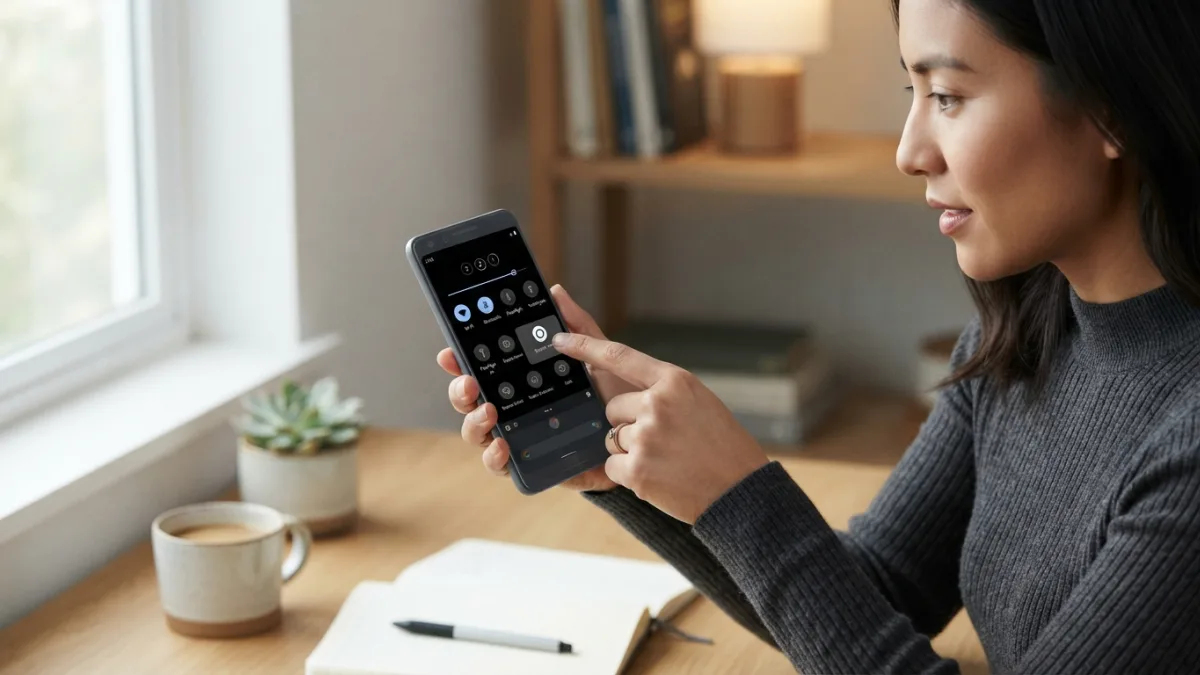
- Swipe down from the top of the screen twice to open Quick Settings.
- Find the Screen record tile. If it is missing, tap the pencil or edit icon and drag the tile into place.
- Tap the tile and choose your sound option, such as device audio, microphone, or both.
- Tap Start, wait for the short countdown, and do what you want to capture.
- Pull down the notification shade and tap the stop button when you finish.
Your clip lands in your gallery or photos app, ready to watch.
2. Samsung Galaxy Screen Recording With Sound Settings
Samsung Galaxy screen recording works through a tool that comes with the company’s One UI software. Open the Quick panel by swiping down, then tap Screen recorder. Before recording starts, a small window asks about sound. You can usually pick no sound, media sounds, or media sounds plus the microphone. You can also choose video quality and, on many models, add a small selfie video of your face in the corner. A pen tool lets you draw on the screen while you record, which helps when you teach someone how to do something. Samsung explains its features on its official support site, and menu names can change a little between models. Finished videos usually appear in the Gallery app.
3. Record Screen With Microphone to Add Your Voice
If you want to record screen with microphone input, pick the option that includes the mic before you press start. This turns a simple capture into a tutorial, a gameplay commentary, or a quick explanation for a friend. A few habits make a big difference. Find a quiet room, turn on Do Not Disturb so a notification sound does not ruin your take, and keep the phone steady. Wearing headphones helps too. Without them, the microphone may pick up the sound coming from your own speaker, which creates an echo. If you choose both device audio and the mic, test a ten-second clip first and check the volume balance. That small test saves you from recording a long video you then have to redo. While you are adjusting these settings, it is also worth learning how to fix an Android Phone That Won’t Turn On to keep everything running smoothly.
4. Try Third-Party Recorder Apps for Extra Features
Third-party recorder apps make sense when your phone is older or when you want more control. Many offer a floating button, adjustable resolution and frame rate, a countdown timer, drawing tools, and a face camera overlay. Some also help you screen record on android versions that lack a native tool. Be careful when you choose. Download only from your phone’s official app store, read recent reviews, and check which permissions the app asks for. A recorder needs access to audio and screen capture, but it should not need your contacts or location. Also check the developer’s name and how often the app gets updates. A well-maintained app is far less likely to crash in the middle of a long recording.
5. Record From Your Computer With scrcpy
Tech-friendly users can try scrcpy, a free, open-source tool that mirrors your Android screen on a computer. You connect the phone with a USB cable and turn on USB debugging in the developer options. According to the project’s official GitHub page, recent versions can also forward audio from phones running Android 11 or newer. To save a video, you run a command such as scrcpy --record=demo.mp4. The file goes straight to your computer, so your phone’s storage stays free. This method suits long tutorials, app demos, and anyone who wants to screen record on android in higher quality without touching the phone during the session. It takes a little setup, but it is reliable once it works.
How to Fix No Sound Recording Issues
When you need to fix no sound recording problems, start with the basics, because the cause is often simple. A silent clip usually means the audio option was set to off, or the app you recorded blocks capture. Work through this checklist:
- Raise your media volume. Some phones record a very quiet track if the volume is near zero.
- Reopen the recorder and confirm that device audio or microphone is selected.
- Check that the recorder has microphone permission in your phone’s app settings.
- Disconnect Bluetooth headphones and test again, since some setups route sound strangely.
- Try a different app. If the sound returns, the first app likely blocks capture.
- Restart the phone and install any pending system updates.
Phone calls are a special case. Many devices block call audio on purpose, and laws about recording other people’s voices differ from place to place, so always get permission first.
Choosing a Screen Recorder Without Watermark
A screen recorder without watermark gives you clean footage you can use anywhere, and your phone’s native tool is the safest choice. It does not stamp a logo on your video. Some free apps do add one, or they hide the removal option behind a paid upgrade. Before you commit to an app, run a short test recording and watch the result in full. Look at the corners and the end of the clip, where marks often appear. Check the settings menu for a watermark toggle, and read recent user reviews for complaints about branding or intrusive ads. If an app forces a logo on you, delete it and try another. Plenty of capable options exist, so you rarely need to accept a mark on your own video.
How to Trim and Share Recordings
Once you finish, trim and share recordings to turn a raw capture into something people want to watch. Open the clip in your gallery or photos app and tap the edit icon. Drag the handles at each end of the timeline to cut the awkward start, where you open the recorder, and the end, where you tap stop. Save the result as a new copy so you keep the original. Long files can be heavy, so check the size before you send it. Messaging apps and email often compress or reject big videos. Cloud storage links, or a short clip of a few seconds to a minute, tend to work better. After a quick trim, you can screen record on android again with confidence, because fixing a small mistake takes seconds. For another practical way to keep your Android device in great shape, see our walkthrough on how to new Android Phone.
Final Thoughts
You now have five reliable ways to capture your screen and your sound. Start with the native tool on your phone, because it is quick and free. Turn to a Samsung menu, a trusted app, or scrcpy when you need more features. Test a short clip before every important recording, check your audio setting, and respect other people’s privacy and consent. With those habits, you can screen record on android for tutorials, games, bug reports, or memories without any stress. The first try may feel clumsy, and that is normal. By the third clip, the process will feel automatic. If you want to learn more about the platform itself, the Android overview on Wikipedia gives helpful background.
FAQ: Screen Recording on Android With Sound
Can I record the phone’s internal sound without a microphone?
Yes. On most phones with Android 11 or newer, you can choose device audio in the recorder settings. This captures sounds from inside the phone, not from the room. Some apps block this, so a silent result in one app does not always mean a problem with your phone.
Why is my screen recording silent?
The most common causes are a sound option set to off, a very low media volume, missing microphone permission, or an app that blocks audio capture. Check these settings, then test a short clip in a different app.
Where do my screen recordings go?
They usually appear in your gallery or photos app, often in a folder named something like Screen recordings. The exact name depends on your phone brand. If you cannot find the file, search your phone’s file manager for the video.
Is there a time limit for recording?
It depends on your phone, the app, and your free storage. Video files grow quickly, so make sure you have enough space before a long session. If you plan a very long recording, a computer-based method like scrcpy can save the file elsewhere.
Do I need an app to screen record on Android?
Not on most recent phones, since the tool is already built in. Apps become useful on older devices or when you want extras like drawing tools, a face camera, or detailed quality settings.