
App Keeps Crashing on Android? 7 Easy Fixes That Work

You tap the icon, the screen flashes for a second, and you’re dumped back on the home screen. When an app keeps crashing, it can wreck your commute, your banking, or your chat with a friend. The good news is that this problem is usually easy to fix, and you rarely need a repair shop. Most crashes come from a small glitch: a bloated cache, an outdated version, or a phone that has run out of room. Each one has a simple cure. This guide walks you through seven fixes, starting with the fastest and moving toward the more serious. Try them in order, and test the app after each step. Menu names change a little between Samsung, Pixel, Xiaomi, and other brands, so use the search bar in Settings if you can’t find an option right away.
Why Your App Keeps Crashing in the First Place
Apps crash when something they depend on breaks. Sometimes the bug sits inside the app itself, and the developer needs to patch it. Other times your phone is the problem. Low memory, a full storage drive, corrupted temporary files, or an old system component can all push an app over the edge. A recent update to Android or to the app can also create a mismatch that causes trouble. Knowing this helps you pick the right fix. If only one app keeps crashing, the cause is probably inside that app or its data. If several apps fail at the same time, look at your phone’s storage, memory, or system software instead. Google’s Android Help center covers many of these basics for different phone models. Keep that in mind as you work through the steps below, and note which fix helps.
7 Easy Fixes When an App Keeps Crashing on Android
Work through these in order. Each fix takes a few minutes at most, and the early ones put almost no risk on your data.
Fix 1: Force Stop App, Then Reopen It
Sometimes an app gets stuck in a broken state, and closing it from the recent apps screen doesn’t fully end it. A proper stop clears it from memory and gives it a fresh start. Open Settings, tap Apps (or Apps & notifications), choose the problem app, and tap Force stop. Confirm, then open the app again. If nothing changes, restart your whole phone. A reboot clears out background processes and frees memory that other apps may be hogging. It sounds too simple to work, yet it solves plenty of crashes. Hold the power button, tap Restart, and wait for the phone to boot fully before you try again. If the app opens and stays open, you’re done. If the app keeps crashing right after the restart, move on to the next fix.
Fix 2: Clear App Cache, Then Clear Data if Needed
Every app stores temporary files, called a cache, so it can load faster. When those files get damaged, the app can crash the moment you launch it. Go to Settings, then Apps, pick the app, and tap Storage. Tap Clear cache. This removes only temporary files, so your login and settings stay safe. Reopen the app and check. If the crashes continue, return to the same screen and tap Clear data (sometimes labeled Clear storage). This step is stronger. It resets the app to how it looked on day one, so you’ll have to sign in again. You may also lose offline files or local settings that aren’t saved in the cloud. Back up anything important first. Many apps sync with an online account, which makes this step painless. Try it on one app at a time so you can see what actually helped.
Fix 3: Update App Version to Get the Latest Bug Fixes
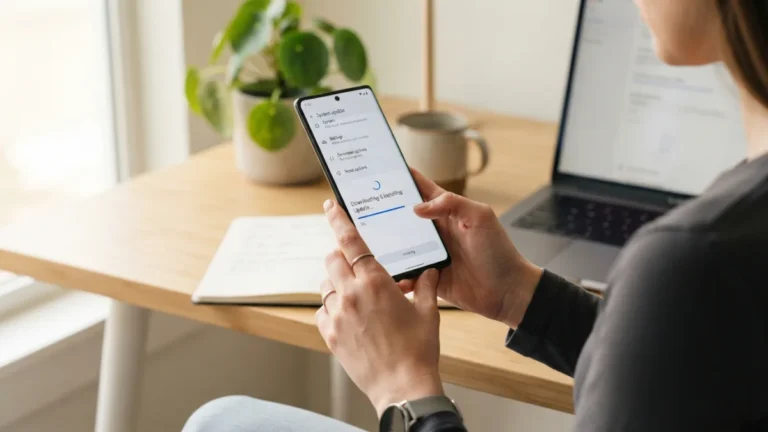
Developers release updates to repair bugs, so a crash you’re seeing may already have a patch waiting. Open the Google Play Store, tap your profile picture, choose Manage apps & device, and look for pending updates. Tap Update next to the troubled app. You can also search for the app by name and update it from its page. Turn on auto-updates if you haven’t already, so you stay current without thinking about it. Google Play Help explains how updates work in more detail. Your phone’s system software matters too. Open Settings, then System, then System update, and install anything that’s waiting. If the crashes started right after an update, read the app’s recent reviews in the Play Store. Other users may report the same bug, which tells you to wait for the developer’s next patch.
Fix 4: Free Up Storage So Apps Can Breathe
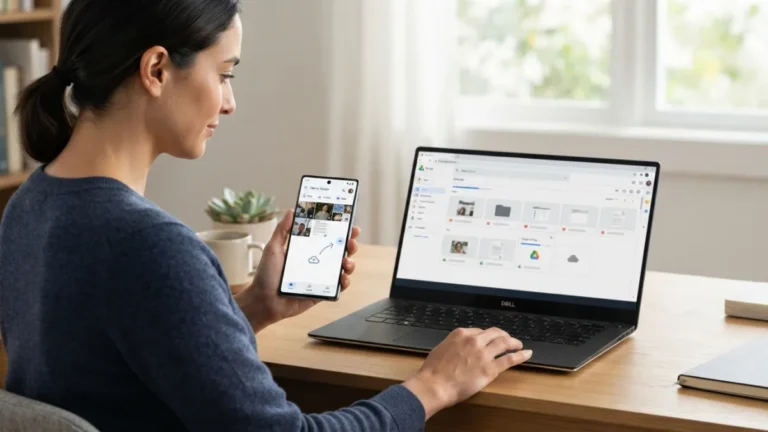
Android needs spare room to run apps. When storage is nearly full, apps can’t save temporary data, and they may freeze or close without warning. Check by opening Settings and tapping Storage. If you see very little space left, it’s time to clean house. Start with the biggest offenders. Delete videos you’ve already backed up, remove apps you haven’t opened in months, and empty your Downloads folder. The Files by Google app can suggest junk files and large items to remove. Photos and videos can also move to cloud storage if you have room there. Aim to leave a healthy buffer rather than squeezing in every last megabyte. A phone with breathing room runs smoother overall, not only for the app that’s giving you trouble. After the cleanup, restart the phone and open the app again.
Fix 5: Update Android System WebView
Many apps use a built-in component called WebView to show web content inside the app, such as login pages, ads, or articles. If that component is outdated or buggy, every app that relies on it can fail at once. That’s a useful clue. When several unrelated apps crash on the same day, suspect WebView. Open the Play Store, search for Android System WebView, and tap Update if the button appears. On some phones and Android versions, the Chrome browser handles this job, so update Chrome too. You can read more about the technology on the WebView page on Wikipedia. If there’s no Update button, you’re probably already on the latest version. Restart your phone after updating, then test the app again before you move on.
Fix 6: Reinstall App for a Clean Slate
If the earlier steps fail, give the app a fresh start. Uninstalling removes the app’s files, including corrupted ones that clearing data couldn’t fix. Long-press the app icon and tap Uninstall, or go to Settings, Apps, and choose Uninstall. Restart the phone, open the Play Store, and download the app again. Before you begin, make sure you remember your login details and that your data lives in the app’s cloud account. Many games save progress online, but check first so you don’t lose hours of play. Some pre-installed apps can’t be fully removed. For those, choose Uninstall updates or Disable, then update again from the Play Store. On a work or school phone, ask your administrator first, because managed devices may block the process. If an app keeps crashing even after a clean install, the problem probably lies elsewhere.
Fix 7: Boot Into Android Safe Mode to Find the Culprit
Sometimes the real troublemaker is a different app. Android safe mode starts your phone with only the core system and pre-installed apps, and it switches off third-party apps for the time being. On many phones, you hold the power button, then press and hold Power off on the screen until a prompt appears, and tap OK. Steps vary by brand, so check your manufacturer’s support page if this doesn’t work. Once you’re in safe mode, open the app that crashed. If it runs fine, another app is interfering. Common suspects include screen filters, cleaners, and recently installed tools. Restart normally to leave safe mode, then uninstall your newest apps one at a time, testing after each. If the problem remains even in safe mode, the fault sits in the app or in Android itself, which leads to the last option.
Last Resort: Factory Reset Android
If you’ve tried everything and the app still fails, a factory reset Android phone is the final option. It wipes the device and returns it to its original state, so treat it as a last resort. Back up first: photos, contacts, messages, and app data. Use Google’s backup tools or your phone maker’s software, and confirm the backup finished. Then open Settings, go to System, tap Reset options, and choose Erase all data (factory reset). Menu names vary by brand. Your phone will restart and walk you through setup. Restore only what you need, and install the problem app first to test it. If it works, add your other apps slowly. If the crash returns on a clean phone, contact the app’s developer or your phone maker. The bug may be on their side, and only a patch will fix it.
How to Keep Crashes From Coming Back
A few habits make crashes rare. Keep your apps and Android updated, and let your phone install updates overnight on Wi-Fi. Leave some free space on your device, and restart it every now and then. Download apps only from trusted sources like the Play Store, since unknown files cause many stability problems. Skip “booster” and “cleaner” apps, which often cause more trouble than they solve. If one app keeps crashing despite all this, tell the developer. Open the app’s Play Store page, scroll to the developer contact details, and describe what happens, which phone you use, and your Android version. Clear reports help developers find bugs faster, and they help every other user who’s stuck with the same problem. Patience pays off too: a fix often arrives in the next update.
FAQ: App Keeps Crashing on Android
Why does an app crash right after I open it?
The most common causes are damaged cache files, an outdated app, low storage, or a bug in a recent update. Start with a force stop and a restart, then clear the cache and check for updates.
Will clearing the cache delete my data?
No. Clearing the cache removes only temporary files, so your accounts and settings stay in place. Clearing data is different: it resets the app and signs you out.
Can an Android update make apps crash?
Yes, it can happen. A new system version sometimes clashes with an app that hasn’t been updated yet. Check the Play Store for an app update, and install any newer system patch your phone offers.
Is it safe to factory reset my phone to fix one app?
It’s safe if you back up your data first, but it’s a big step for one problem. Try the simpler fixes before you wipe the device, and contact the developer if the issue seems to come from the app.
What if several apps keep crashing at once?
That points to a shared cause. Check your free storage, update Android System WebView and Chrome, install pending system updates, and then try safe mode to see whether a third-party app is to blame.
Related guide: Enable Developer Options on Android: 5 Quick and Easy Steps



2 Comments
Comments are closed.