
Reset Network Settings Android: 5 Easy and Safe Steps
Your phone shows full Wi-Fi bars, yet no page will load. Before you blame your router or book a repair, try to reset network settings android phones can do in under a minute. It is one of the safest fixes you can try, and it often works when restarting the phone does not.
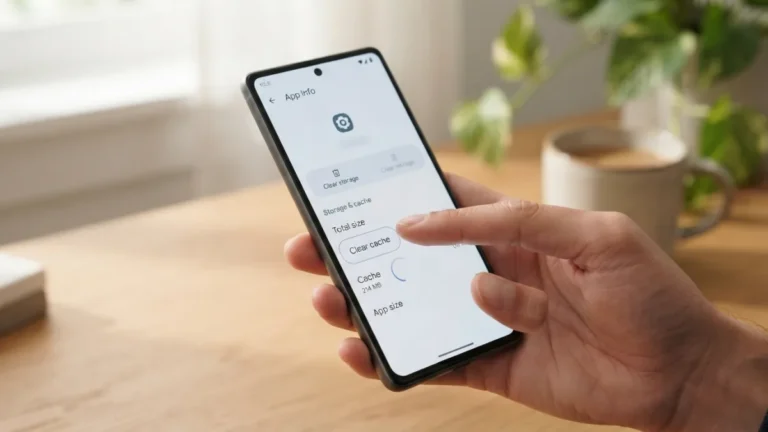
The catch is that the reset wipes more than you might expect. It clears saved Wi-Fi networks, Bluetooth pairings and mobile data preferences. It does not touch your photos, apps or messages. This guide explains what disappears, when the reset makes sense, and exactly how to do it in five clear steps. You will also find notes for Samsung owners, a short section on carrier settings, and answers to the questions people ask most. If you run into related issues on your phone, our step-by-step guide on how to clear Cache on Android walks through the safest fixes.
What Happens When You Reset Network Settings on an Android Phone
Think of this reset as wiping the phone’s connection memory. Over time, your device stores a lot of small details: which Wi-Fi networks you joined, which Bluetooth gadgets you paired, and how your SIM card should talk to the mobile network. Sometimes one of those details gets corrupted or goes out of date, and the phone keeps trying to use it. A reset throws all of that away and lets the phone start fresh. Your personal data stays where it is. Files, apps, accounts, contacts and photos are not part of this process, so you will not lose anything you cannot rebuild in a few minutes.
Saved Wi-Fi Passwords Lost: What to Expect
The most annoying side effect is that saved wifi passwords lost after the reset cannot be recovered from the phone itself. Every network you ever joined, from your home router to the café down the street, disappears from the list. Your phone will act as if it has never seen them. That is fine if you know your passwords, but it can be a headache if your router is in another room or someone else set it up. Many routers print the default password on a sticker. If your phone is signed in to a Google account with backup turned on, some Wi-Fi details may sync, but do not count on it.
VPN Settings After Reset: Check Before You Start
Pay attention to your vpn settings after reset, because many phones clear saved virtual private network profiles along with other network data. The exact behavior can differ by brand and Android version, so assume the worst and plan ahead. If you use a VPN for work, find your server address, username and any certificate details before you begin. Apps from commercial VPN providers usually keep their own login and may only ask you to approve the connection request again. Manual profiles, the kind you add by hand in Settings, are the ones most likely to vanish. Take a screenshot of them first, and you can rebuild them in minutes.
The Factory Reset Difference: Why This Is the Gentler Option
People often mix up the two options, but the factory reset difference is huge. A factory reset erases the whole phone: apps, photos, accounts, downloads and settings. You end up with a device that looks brand new. A network reset only clears connection data and leaves everything else alone. It takes seconds, needs no backup of your personal files, and you can reverse most of its effects by reconnecting to your networks. Because of that, try the network reset first whenever your problem is about Wi-Fi, mobile data, or Bluetooth. Keep the factory reset as a last resort for deeper software problems.
Signs It Is Time for a Network Reset
When Wifi Keeps Disconnecting Android Phones Need a Fresh Start
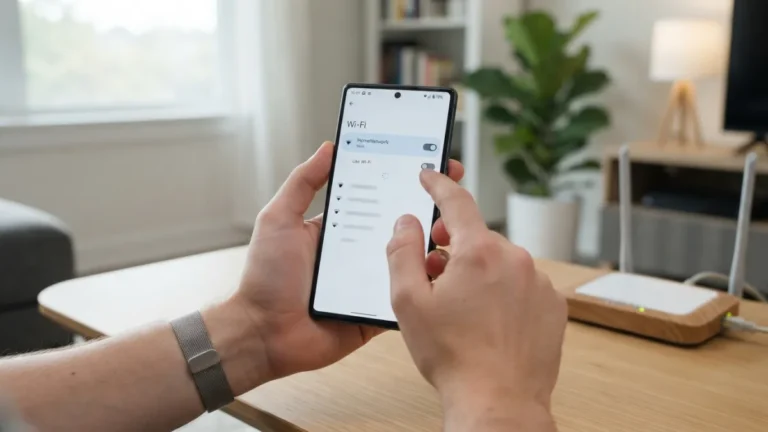
If your wifi keeps disconnecting android devices may be holding on to a bad saved profile for your router. The phone connects, drops a minute later, then tries again in a loop. First check the basics. Restart the router, move closer to it, and test another device on the same network. If other devices work fine and only your phone struggles, the problem likely sits inside the phone. Forgetting the single network sometimes helps, but a full network reset clears every stored profile at once, including hidden settings you cannot see. That makes it a better test when the trouble shows up on several different networks.
Mobile Data Not Working Even With a Good Plan
Few things feel as odd as mobile data not working when your plan is active and your bill is paid. Check that mobile data is switched on, that airplane mode is off, and that you are not out of allowance. If all of that looks fine, the cause may be a damaged network configuration on the phone. Switching a SIM card between phones, installing an update, or traveling abroad can all leave settings in a confused state. A network reset forces the phone to ask your carrier for fresh details. Restart the phone afterward, wait a minute, and see whether the data icon returns.
Fix Android No Signal Problems Before Visiting a Store
You can often fix android no signal trouble yourself, as long as the problem is not physical. Start by ruling out the obvious: a local network outage, a basement with thick walls, or a SIM card that is loose. Take the SIM out, clean it gently, and put it back. If bars still do not appear, or the phone says “No service” in places where others have coverage, a reset is a reasonable next move. It clears the saved mobile network preferences and lets the phone search again. If nothing changes, contact your carrier. The SIM or the phone’s hardware may be at fault, and a reset cannot repair that.
How to Reset Network Settings Android Phones Offer in 5 Steps
Step 1: Save the Details You Will Need
Preparation takes two minutes and saves a lot of frustration. Write down the passwords for the Wi-Fi networks you use most, especially your home and work networks. If you use a manual VPN profile, screenshot its settings. Note any custom carrier settings your provider gave you. Make sure you know your phone’s screen lock PIN, pattern or password too, because Android will ask for it before it lets you continue. Finally, charge the phone a little if the battery is nearly empty. The reset is quick, but you do not want the phone to shut down while you set everything up again.
Step 2: Open Settings and Search for the Reset Menu
Open the Settings app and use the search bar at the top. Type “reset” and look at the results. Android menus change between brands and versions, so searching is faster than guessing. If you want to browse instead, the option usually sits under System or General management. Google keeps a general help hub for Android users at the Android Help Center, which is useful if your phone’s menu looks different from what you read here. Do not worry if the wording is slightly different on your device. You are looking for a reset section that mentions Wi-Fi, mobile, or Bluetooth.
Step 3: Choose the Network Reset Option
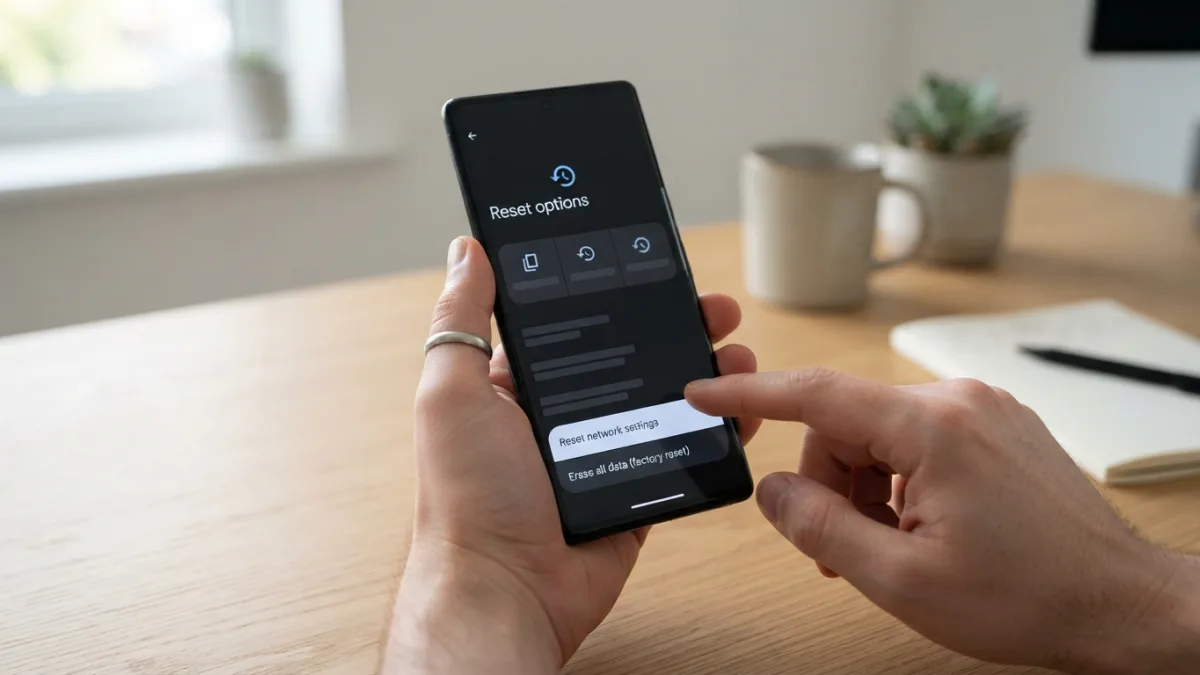
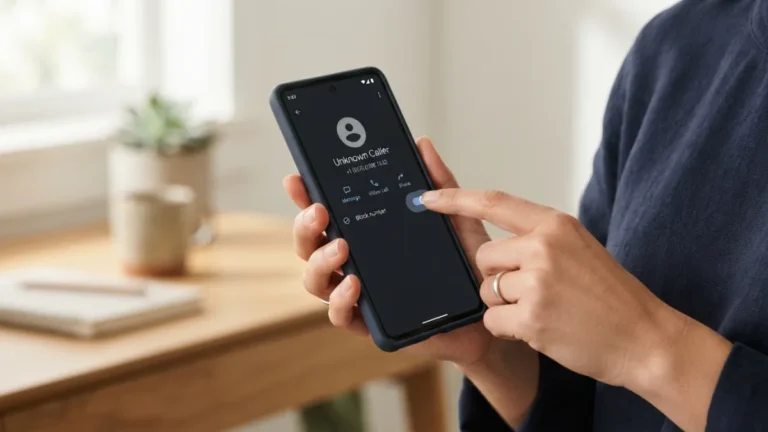
Now find the right button, because the same menu holds more dangerous choices. To reset network settings android phones from Google, go to Settings, then System, then Reset options, and tap “Reset Wi-Fi, mobile & Bluetooth.” Other brands may call it “Reset network settings.” Be careful not to pick “Erase all data” or “Factory data reset,” which wipe the phone. Some phones also show a switch to erase downloaded SIMs, also called eSIMs. Leave that switch off unless you really intend to remove them, since restoring an eSIM may need help from your carrier. While you are adjusting these settings, it is also worth learning how to block a Number on Android to keep everything running smoothly.
Step 4: Confirm With Your Screen Lock
Tap the reset button, then read the warning screen. It lists what will be cleared, such as Wi-Fi, mobile data and Bluetooth settings. Android will then ask for your PIN, pattern or password. Enter it, and tap the final confirmation button. The phone may restart or simply return to the home screen after a few seconds. Do not interrupt it. If you see a message saying the reset is complete, you are done with the hard part. The process does not delete your apps or files, so there is no need to wait through a long progress bar.
Step 5: Reconnect and Test Everything
Now rebuild your connections one at a time. Turn on Wi-Fi, choose your home network, and enter the password. Open a browser and load a page to check that it works. Then switch to mobile data by turning Wi-Fi off and test again. Pair your Bluetooth devices, such as earbuds or a car system, and add back any VPN profile you saved. If a problem remains, restart the phone once more, because some changes only apply after a reboot. Should the problem return within a day or two, you can safely reset network settings android again before trying anything more drastic.
Samsung Network Reset Steps for Galaxy Phones
Galaxy owners will find the menu in a different place, so here are the samsung network reset steps in plain words. Open Settings, scroll to General management, and tap Reset. Choose “Reset network settings,” then tap “Reset settings.” Enter your PIN, pattern or password if asked, and confirm one last time. The phone will clear its Wi-Fi, mobile data and Bluetooth information, then show a short message when it finishes. Menu names can shift slightly with software updates, so use the search bar if you cannot spot them. Samsung also publishes official guidance on its support website for specific models. Once you are done, follow the same reconnect routine described in Step 5 above.
Reset APN Settings Android Users Sometimes Need Instead
Sometimes the simplest fix is smaller than a full reset. If only your mobile internet fails while calls and texts work, you may want to reset apn settings android phones use to reach your carrier. An Access Point Name, or APN, is the gateway your phone uses to get online through your SIM. You can usually find it under Settings, Network and internet, then Mobile network, then Access Point Names. Look for a menu with a “Reset to default” option. Paths differ by phone and carrier, so check your provider’s help page if the menu is missing. The full network reset also restores default carrier settings, so it works as a broader backup plan when the APN tweak does not help.
FAQ: Resetting Network Settings on Android
Will I lose my photos, apps or contacts?
No. A network reset only clears connection data, such as saved Wi-Fi networks, Bluetooth pairings, and mobile data settings. Your photos, apps, messages, contacts and accounts stay on the phone. Only a factory reset removes those.
How long does the reset take?
Usually just a few seconds. Some phones restart afterward, which adds a minute or so. Rebuilding your Wi-Fi connections and Bluetooth pairings takes longer, depending on how many you use.
Can I undo a network reset?
Not with a button. The reset cannot be reversed, but you can restore most of what it removed by joining your Wi-Fi networks again, pairing your devices, and re-entering any VPN details you saved before starting.
Does it remove my SIM card or phone number?
No. Your SIM card and number stay with your carrier account. The only exception is if your phone offers a separate option to erase downloaded eSIMs and you turn it on. Leave that off unless you mean to remove them.
What if the problem is still there afterward?
Restart the phone, install any waiting system updates, and test with a different SIM or Wi-Fi network if you can. If the trouble continues, contact your carrier or router provider, since the fault may not be in your phone.


One Comment
Comments are closed.