
Block a Number on Android: 7 Easy Steps That Work Fast
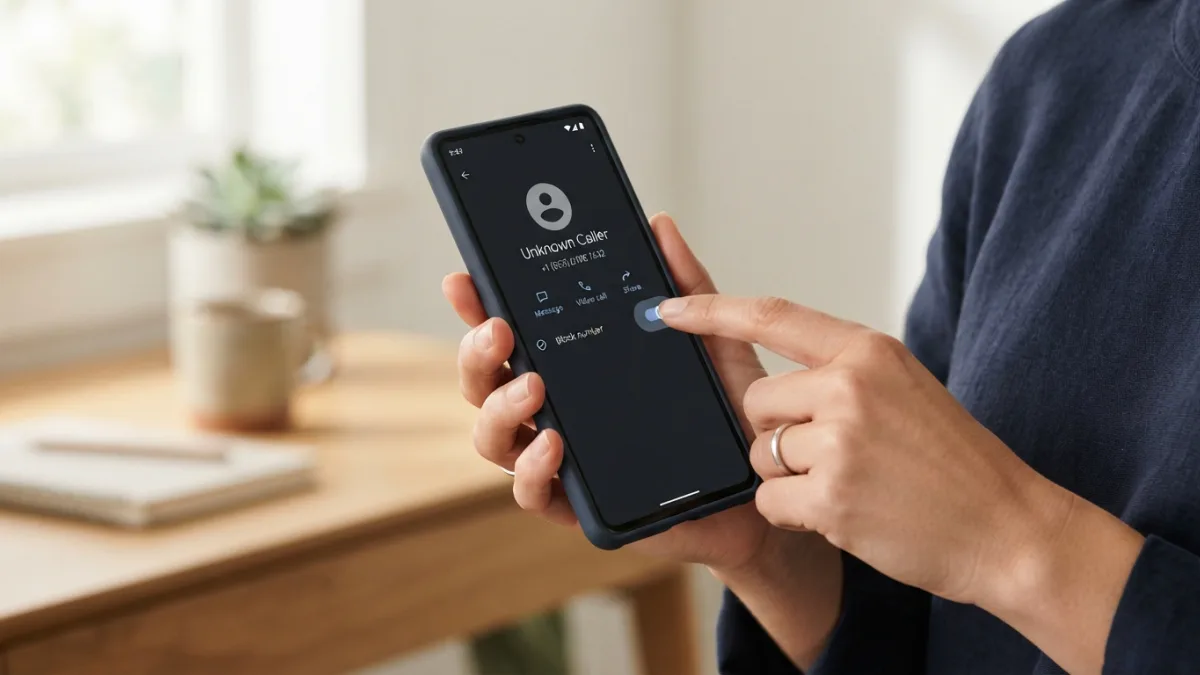
Your phone buzzes again. It’s the same unfamiliar number, the third time today, and you already know it isn’t a friend. The good news is that you can block a number on Android in under a minute, with no extra app. Whether the caller is a pushy salesperson, an ex who won’t take a hint, or a scammer pretending to be your bank, your phone has built-in tools to shut them out. This guide covers seven simple steps, from the basic call-log method to settings that stop whole groups of unwanted callers. The menus look a little different on Pixel, Samsung, and other brands, so we point out where. Pick the step that fits your situation, or follow them all for a much quieter phone.
What Happens When You Block Someone on Android
Before you start, it helps to know what blocking actually does. When you block a number, your phone stops that caller from ringing through. You won’t get a notification, and the caller usually isn’t told they’ve been blocked. Texts from that number are typically held back too, though where they end up depends on your messaging app. Blocking works on your phone only. It doesn’t remove the number from your carrier’s network, and it won’t stop the same person from calling from a new number. That’s why later steps also cover filters for spam and hidden callers. Which app you use matters as well. Many Android phones, including Google Pixel models, use the Google Phone app, while Samsung phones come with their own. If your menus don’t match our description, check the Google Phone app help center or your manufacturer’s support page. If you run into related issues on your phone, our step-by-step guide on how to phone Wont Turn On walks through the safest fixes.
7 Steps to Block a Number on Android
Work through these in order, or jump straight to the one that solves your problem. Each step takes a minute or less.
Step 1: Block a number from your call log
The fastest way to block a number is straight from your recent calls. Open the Phone app and tap Recents (some phones call it Calls or History). Find the unwanted caller, then tap the entry or press and hold it. Choose Block, or Block/report spam, and confirm the prompt. That’s all it takes. From now on, your phone will silence calls from that number. If the caller is saved in your contacts, you can also open the contact, tap the three-dot menu, and look for a block option. On Pixel phones, the prompt may offer to report the call as spam too. Tick that box if you think the caller is a scammer or telemarketer, because it helps flag similar calls for other people. This method works best when the nuisance caller has already rung you at least once. If you want to stop a number that hasn’t called yet, move on to the next step.
Step 2: Add a number in Google Phone app settings
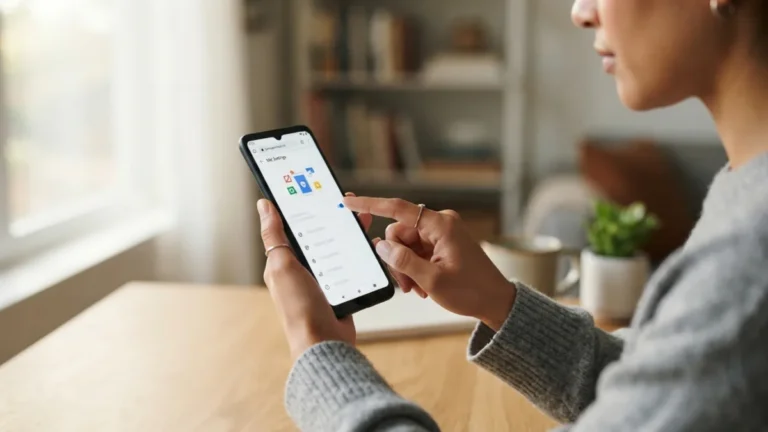
Sometimes you want to stop a number before it ever calls. The Google Phone app settings let you do exactly that. Open the Phone app, tap the three-dot menu or your profile picture in the top corner, and choose Settings. Tap Blocked numbers, then Add a number. Type the full number, including the country code for international calls, and confirm. This route is handy when a friend warns you about a scam number, or when you spot a harassing number in an email or a text and want it gone for good. It also lets you block a number you copied from somewhere else, like a website or a group chat. Menu names change between app versions, so if you don’t see Blocked numbers right away, look for a similar label inside Settings. The search icon at the top of the Settings screen can also save you some tapping.
Step 3: Samsung block number settings on Galaxy phones
Galaxy owners follow a slightly different path. Open the Samsung Phone app and tap Recents. Select the caller, open the details if your version shows them, and choose Block number. Prefer to act in advance? Tap the three-dot menu in the Phone app, open Settings, and select Block numbers. Type the number into the box and tap the plus icon. The list of blocked entries appears right underneath. The same screen often includes extra switches, such as one for calls that show no caller ID, so take a moment to look around. Samsung changes its interface with each One UI update, so labels may shift a little. If you can’t find the option, open the main Settings app and use the search bar to look for “block.” That usually gets you to the right screen fast.
Step 4: How to block text messages Android phones receive
Spam doesn’t only arrive as calls. Scam links, fake delivery notices, and unwanted promotions often show up by text. In Google Messages, open the conversation, tap the three-dot menu, and choose Details, then Block. You may also see a Report spam option, which is worth using for obvious scams. In Samsung’s Messages app, open the thread, tap the three-dot menu, and choose Block number. After that, new messages from that sender should stop reaching your main inbox. Some phones store them in a separate spam or blocked folder instead. Never tap links in texts you don’t trust, even out of curiosity. If a message claims to come from your bank or a delivery company, contact that company using the number on its official website. You can also block a number in your messaging app even if it has never called you, which is useful when the harassment arrives only by text. While you are adjusting these settings, it is also worth learning how to reset Network Settings Android to keep everything running smoothly.
Step 5: Block unknown callers with Do Not Disturb
Blocking one number at a time won’t help much when strangers keep calling from different lines. Do Not Disturb offers a broader fix. Open Settings and look for Do Not Disturb, which often sits under Sound or Notifications. Choose the option for calls, then allow calls only from contacts, or from starred contacts if you want an even tighter circle. Everyone else gets silenced, and they can still leave a voicemail. This setup is strong, but it has a cost. A doctor’s office, a delivery driver, or a school may call from a number you haven’t saved, and you won’t hear the ring. Many people switch it on only at night or during work hours by using the schedule feature. Check your voicemail and missed calls regularly while this mode is active so you don’t lose anything important.
Step 6: Block spam calls with caller ID and spam filters
Android can warn you about suspicious callers and screen many of them out automatically. In the Google Phone app, open Settings and look for Caller ID and spam. Turn on the options that show caller and spam identification and that filter suspected spam calls. Samsung phones offer a similar caller ID and spam protection switch in the Phone app settings. Filters aren’t perfect, so a few unwanted calls may still slip through. When that happens, use Step 1 and report the number. If you live in the United States, you can also add your number to the National Do Not Call Registry. That list helps against legitimate telemarketers, though scammers generally ignore it. Your mobile carrier may also offer free call-filtering tools, so check its website or app for a spam protection option.
Step 7: Block private numbers and hidden callers
Some callers hide their identity, and your screen shows “Private number,” “Unknown,” or “No caller ID.” You can’t add those to a list the usual way, because there’s no number to type. Instead, look for a dedicated switch. In the Google Phone app, go to Settings, then Blocked numbers, and look for a toggle for unknown callers. On Samsung phones, check the Block numbers screen for a similar option. Turn it on, and calls with no caller ID are blocked automatically. Think twice before using this one. Some hospitals, government offices, and companies hide their numbers on purpose, and you could miss a call that matters. If you worry about that, try the setting for a week and watch your call history. You can switch it off any time without losing the rest of your blocked list.
View Blocked Numbers List and Check Who’s on It
Over time, your block list can grow longer than you remember, so it’s smart to review it now and then. To view blocked numbers list entries in the Google Phone app, open Settings and tap Blocked numbers. On a Samsung phone, open the Phone app, tap the three-dot menu, choose Settings, and then Block numbers. Messaging apps often keep their own separate lists, so check the settings inside Google Messages or Samsung Messages as well. Scroll through the entries and look for anything unfamiliar. People sometimes block a number in a rush, then realize it belonged to a clinic, a courier, or a new coworker. A quick review every few months keeps your list tidy and helps you catch mistakes before they cost you an important call or a delivery.
Changed Your Mind? Unblock Number Android Steps
Mistakes happen, and some conflicts end. Reversing a block takes seconds. Open the same blocked list you just reviewed: Settings, then Blocked numbers in the Google Phone app, or Settings, then Block numbers on a Samsung phone. Find the number and tap the X, the minus icon, or the Unblock button next to it. Confirm if the phone asks. The person can call you again right away. Don’t expect old calls or texts to appear, though. Anything blocked in the past is usually gone from your regular inbox and call log. If you blocked the same person in your messaging app too, repeat the process there, since those lists often work separately. If a contact still can’t reach you after you unblock them, restart your phone and ask them to try again.
Keep Your Phone Quiet Without Missing What Matters
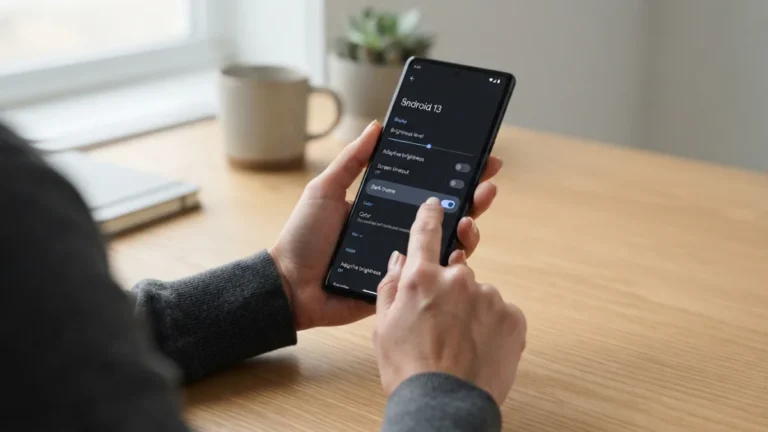
You now have a full toolkit. Use the call log for quick fixes, the settings menu to block a number before it rings, and filters for the bigger waves of junk. Keep your Phone and Messages apps updated, since new versions often improve spam detection. For scams, blocking isn’t the end of the story. If you’re in the United States, you can report fraud and unwanted calls at ReportFraud.ftc.gov, which helps investigators spot patterns. In other countries, your national consumer-protection agency or your carrier usually has a similar reporting channel. Don’t share codes, passwords, or bank details with anyone who contacts you out of the blue. A few minutes spent on these settings can save you hours of annoyance, and in the case of scams, possibly much more. For another practical way to keep your Android device in great shape, see our walkthrough on how to Dark Mode on Android.
FAQ: Block a Number on Android
Will the person know I chose to block their number?
Android doesn’t send them an alert. They may notice that you never answer or reply, and some callers guess the reason. Exact behavior can vary by phone and carrier.
Can I block a number that keeps changing?
Not one by one. Turn on spam filtering, use the setting for hidden callers, or limit calls to your contacts with Do Not Disturb. These options catch patterns instead of single numbers.
Does blocking delete my old messages or call history?
No. Existing conversations and logs usually stay where they are. You can delete them yourself if you want them gone.
Does blocking a number also stop WhatsApp or other app messages?
No. Blocking in the Phone or Messages app only affects regular calls and texts. WhatsApp, Telegram, and similar apps have their own block features in their settings.
What should I do if I can’t find the block option?
Update your Phone app, then check your manufacturer’s support page. You can also search for “block” in your phone’s Settings app. If nothing works, ask your mobile carrier about its call-blocking tools.

One Comment
Comments are closed.