
Delete Apps on Android: 7 Easy Ways to Free Up Space
Is your Android phone running out of storage right when you need to take a photo or install an update? If you want to delete apps on android that you downloaded months ago and forgot about, you are not alone. Many of us keep games, shopping apps, and tools we tried once and never opened again. Those apps quietly take up space, run in the background, and drain your battery. The good news is you can clean them up in just a few taps. This guide walks you through simple, safe ways to find and remove what you no longer need, without risking important files or system apps. You will learn how to spot the biggest storage hogs and keep your phone feeling fast and light again. It takes less than ten minutes and makes a real difference.
Why Your Phone Feels Slow When You Keep Unused Apps
Your phone needs free space to work well. When storage gets full, apps launch slower, photos take longer to save, and system updates can fail. Unused apps are often the biggest culprit. Even if you never open them, they still store data, cache files, and sometimes run background services that use battery and mobile data. They also keep asking for permissions and sending notifications. If you regularly delete apps on android you do not need, your device stays faster and more secure. You reduce clutter on your home screen and in your app drawer, so you find what you actually use much quicker. Think of it as a quick digital cleanup. A few minutes of tidying each month prevents that frustrating ‘storage full’ warning and keeps everything running smoothly.
How to delete apps on android in 7 Easy Ways
1. Uninstall Directly from Your Home Screen
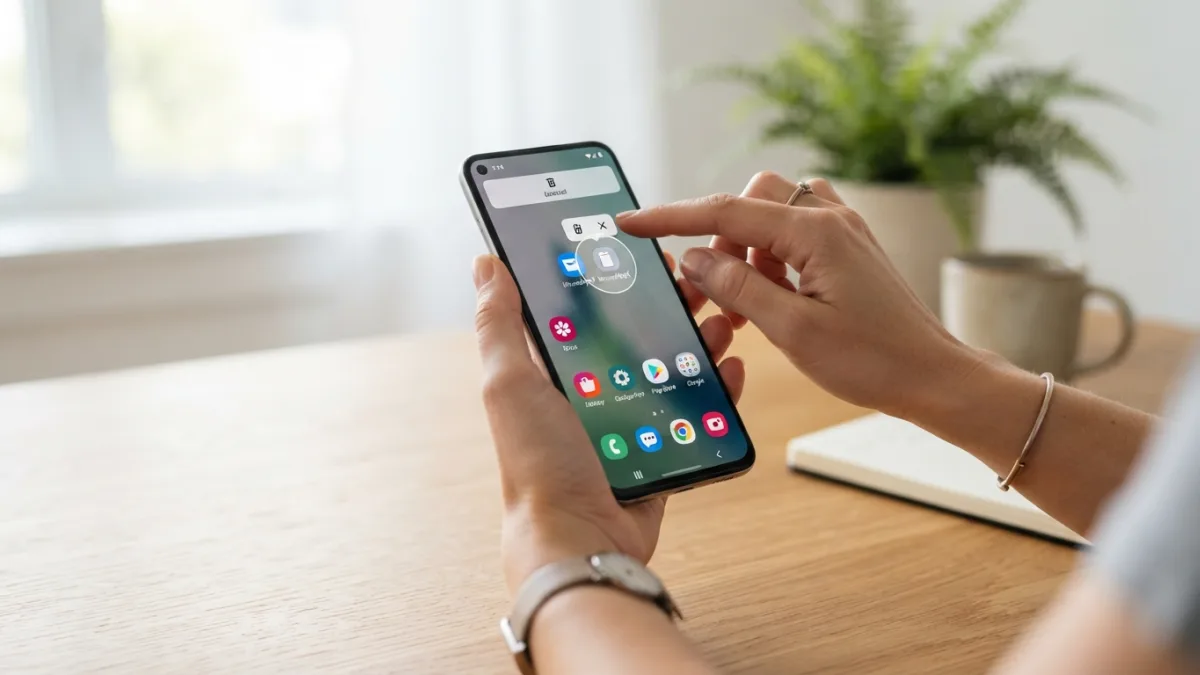
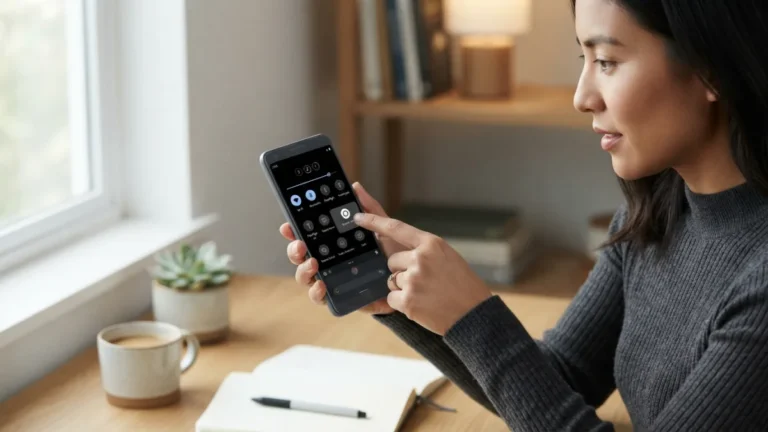
The fastest way to delete apps on android is right from your home screen or app drawer, and it works on almost every phone. Find the app icon you want to remove. Press and hold it until a small menu pops up. On many phones you will see options like Uninstall, Remove, or an info icon. Tap Uninstall and then confirm when your phone asks if you are sure. The app and its icon disappear right away. This method is perfect when you spot a game or shopping app you no longer use and want to uninstall apps android style without digging through menus. If you only see Remove, that just takes the icon off the home screen but keeps the app installed. In that case, tap App info and choose Uninstall from there instead.
2. Use the Settings App to Remove Unused Apps
If you want more control, use the Settings app to remove unused apps and see how much space each one uses. Open Settings and tap Apps or Apps & notifications, depending on your phone brand. You will see a full list of installed apps. Tap the app you want to delete, then tap Uninstall and confirm. This screen also shows storage use, permissions, and battery activity, so you can spot heavy apps quickly. It is a great place to delete apps on android that do not show up on your home screen or that you have not opened in months. You can sort by most recently used or by size if your phone offers that view. Take your time and review the list. You might be surprised by how many old apps are still sitting there quietly.
- Open Settings and tap Apps or Apps & notifications.
- Select the app you want to remove from the full list.
- Tap Uninstall, then confirm to delete the app and its data.
3. Clean Up in Batches Through the Play Store
Google Play Store lets you uninstall in batches, which saves time if you have a lot to clean. This is one of the easiest ways to delete apps on android when you want to free up storage space quickly. Open the Play Store, tap your profile icon in the top right, then choose Manage apps & device. Go to the Manage tab. You will see all your installed apps with checkboxes next to them. You can select several at once, then tap the trash icon and confirm. The store will remove the selected apps in one go. Use the filters at the top to sort by least used or largest size. That helps you spot apps you forgot about. It is much faster than deleting one by one from the home screen.
4. Let Google Play Auto-Archive Apps You Rarely Use
Android can now help you automatically manage apps you rarely use. If you enable the auto-archive feature in the Play Store, the system will reduce the space taken by apps you have not opened in a while without fully deleting your personal data. To check it, open Play Store, tap your profile icon, go to Settings, and look for General. Some phones also offer an option to automatically remove unused apps under Settings > Apps. When you try to delete apps on android this way, you do not have to remember to do it manually every month. The phone flags apps that sit idle and frees up their storage while keeping your account data saved. If you need the app again later, you can reinstall it with one tap and pick up where you left off.
5. Disable Bloatware Apps You Can’t Fully Uninstall
Some apps cannot be fully uninstalled because they came pre-installed by the manufacturer or carrier. These are often called bloatware. Even if you cannot delete them completely, you can disable bloatware apps so they stop running and disappear from your drawer. Go to Settings > Apps, tap the app, and choose Disable instead of Uninstall. The system will ask you to confirm and may warn that disabling could affect other functions. For most bloatware like demo games or duplicate browsers, it is safe. You can learn more about managing pre-installed apps on the official Android help page. If you need the app later, you can return to the same screen and tap Enable. This is a smart way to delete apps on android in spirit, even when the Uninstall button is missing.
6. Clear App Cache Before You Uninstall
Before you remove an app, it helps to clear app cache and leftover data so you actually free up storage space. Many apps store temporary files, images, and login data that remain even after you stop using them. Open Settings > Apps, select the app, then tap Storage & cache. You will see buttons for Clear Cache and Clear Storage. Tap Clear Cache first. This deletes temporary files without removing your personal settings. If you plan to delete apps on android completely, you can then tap Clear Storage or just hit Uninstall, which will remove both the app and its data. Doing this extra step ensures no hidden files stay behind. It is especially useful for social media, video, and browser apps that tend to collect large caches over time.
7. Restart and Check How Much Space You Freed Up
After you finish deleting, restart your phone and check how much space you recovered. A quick reboot clears any lingering background processes and lets the system recalculate storage accurately. Then go to Settings > Storage to see your new free space. You will often gain several gigabytes, especially if you removed large games or video editing tools. This final check confirms that your effort to delete apps on android worked. You can also look at the storage breakdown to see what is still using the most room, like photos, videos, or downloads. If storage is still tight, consider moving photos to cloud backup or deleting large downloaded files. Keeping that habit of checking storage once a month helps you stay ahead of clutter before it slows you down again.
What to Do If You Can’t Delete an App
Sometimes the Uninstall button is greyed out or missing, and that can be confusing. This usually happens with system apps that Android needs to run properly, like the phone dialer, settings, or core Google services. You should not try to force-delete those with unofficial tools, as it can cause stability problems. Instead, you can disable bloatware apps or simply turn off their notifications and permissions so they stay quiet. If an app was set as a device administrator, for example a security or work app, you must first remove that permission. Go to Settings > Security > Device admin apps and deactivate it, then try uninstalling again. For family or work phones with parental controls, you may need the administrator password. When in doubt, check the app’s details page for guidance before you take action.
Keep Your Phone Light and Fast Going Forward
Keeping your phone lean is easier when you build small habits. Set a monthly reminder to review your apps and remove unused apps that you have not opened in the last 30 days. Turn on storage alerts if your phone offers them, so you get a warning before space runs out. Be selective when you install something new and ask if you will use it more than once. You can also use lightweight alternatives for occasional tasks instead of installing a full app. Learning how to delete apps on android quickly means you will never feel stuck with a full storage warning again. Your phone will stay faster, your battery will last longer, and you will have room for the photos and apps that truly matter. For a deeper overview of how Android manages apps and storage, you can read more on Wikipedia’s Android overview.
Frequently Asked Questions
Will deleting an app delete all its data too?
Yes, when you uninstall an app, Android removes the app and its local data, including cache and saved files. Your account data stored in the cloud, like photos or game progress linked to Google, will stay safe and return if you reinstall.
How do I delete apps that came pre-installed on my phone?
Some pre-installed apps can be uninstalled like any other app, but many system apps only offer a Disable option. Disabling stops the app, hides it, and prevents updates, which is the safest alternative to uninstalling.
Can I reinstall an app after I delete it?
Yes. Any app you installed from the Play Store stays in your Library. Open the Play Store, search for the app, and tap Install again. You may need to log in again.
How do I find which apps I don’t use?
Go to Play Store > Manage apps & device > Manage and sort by Least used, or go to Settings > Storage to see which apps use the most space. Both views make it easy to spot apps you have not opened in weeks or months.
Is clearing cache the same as deleting an app?
No. Clearing cache only removes temporary files and frees a little space, but the app stays installed. Deleting or uninstalling removes the entire app and all its data.

One Comment
Comments are closed.