Google Play Store: 7 Proven Quick Fixes That Work Fast
You tap the icon to download a new app, but nothing happens. The screen keeps loading, shows an error, or refuses to open at all. When the google play store stops working on your Android phone, it feels frustrating because you cannot update apps or install anything new. The good news is that most problems have a simple cause, like a weak connection or a temporary glitch in the system. You do not need to be a tech expert to fix it. With a few quick checks, you can usually get everything running again in just a few minutes without losing your data. This guide walks you through proven solutions that actually work. We will start with the easiest fixes first so you save time.
Before you try anything drastic, it helps to understand why the store freezes or crashes. Often the issue comes from your internet, a full storage drive, outdated software, or corrupted temporary files. Android relies on several connected services, so if one part gets stuck, the whole download process can fail. You might see codes like ‘Error 403’ or ‘Error 492,’ or just a blank white screen. Do not worry about the code itself. The steps below work for almost all of them. Try each fix one at a time and test the google play store after each step. That way you know exactly what solved it and you avoid changing settings you do not need to touch. Let us go through them in order. If you run into related issues on your phone, our step-by-step guide on how to Google Drive walks through the safest fixes.
7 Proven Quick Fixes That Work Fast for google play store Errors
1. Check Internet Connection and Turn Off VPN
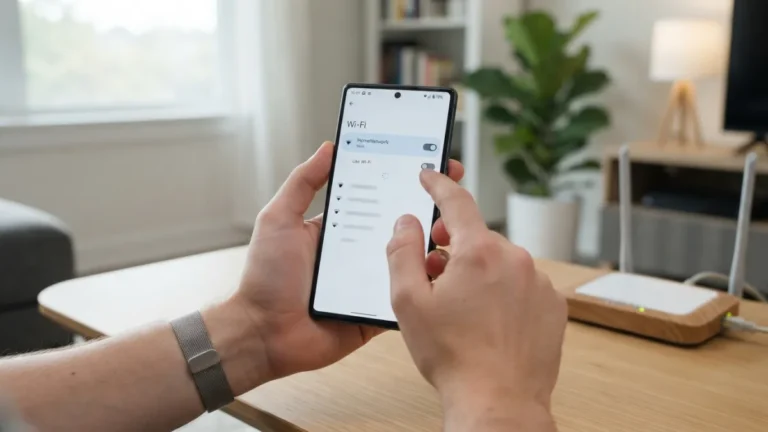
A weak or unstable connection is the most common reason downloads fail. First, check internet connection by opening your browser or YouTube to see if pages load quickly. If they do not, switch from mobile data to Wi-Fi or the other way around. Turn off any VPN app, as it can block the store from connecting to Google servers. Also make sure Airplane Mode is off. You can find it in your quick settings panel at the top of the screen. If you are on Wi-Fi, try restarting your router or moving closer to it. Once your connection is stable, close the google play store completely and open it again. In many cases, this simple step is enough to get downloads moving.
2. Restart Android Phone the Right Way
If your connection is fine but the store still will not load, the next step is to restart android phone. This clears temporary memory and stops background processes that may have frozen. Press and hold the power button, then tap Restart. If you do not see a Restart option, choose Power Off, wait about 30 seconds, and turn it back on. Do not just lock the screen; you need a full reboot. After the phone starts again, give it a minute to reconnect to your network before you open the store. This quick reset often fixes random crashes, endless loading screens, and the ‘google play store keeps stopping’ message without touching any of your personal files or settings. It is simple, safe, and solves the problem more often than you expect.
3. Clear Cache for the google play store
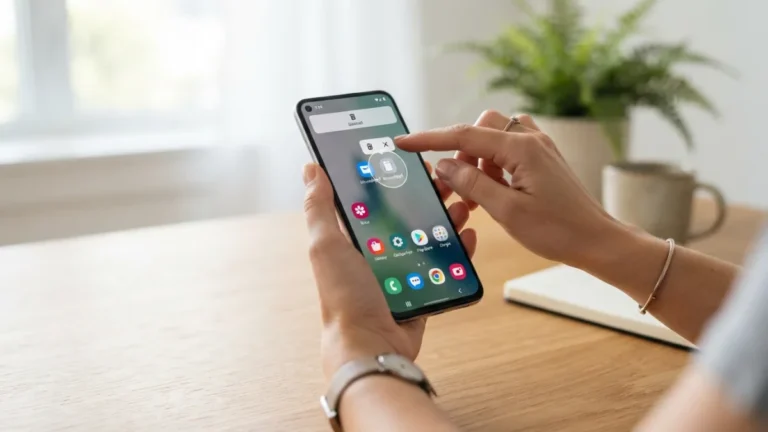
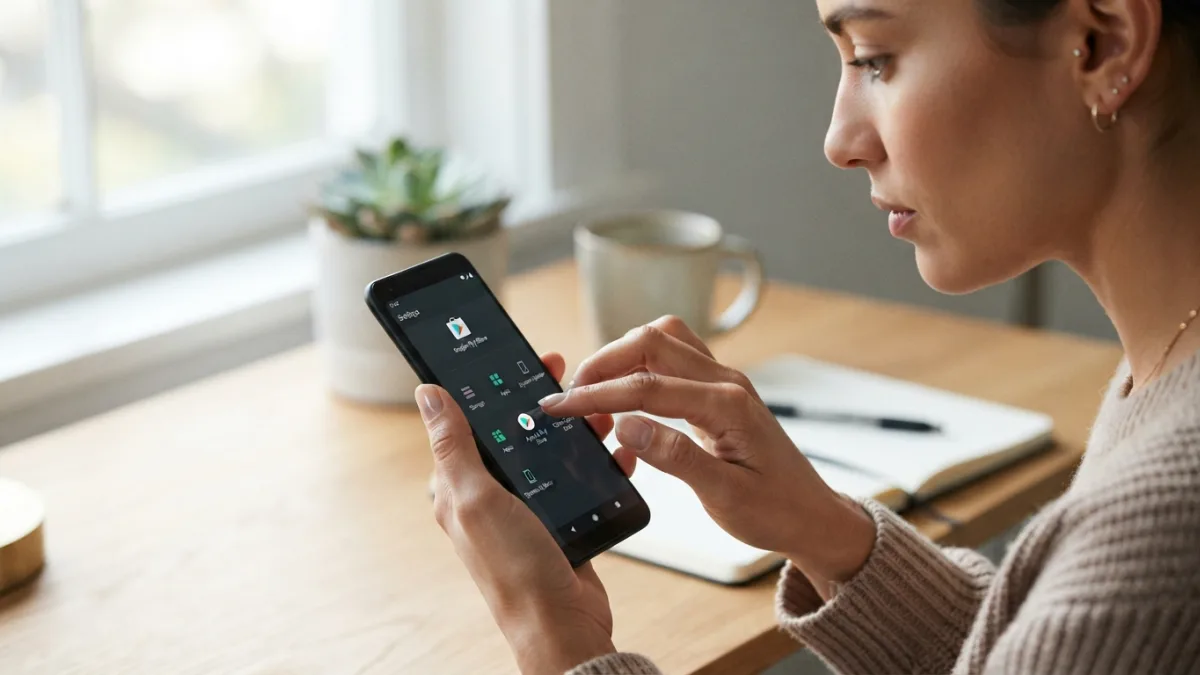
Temporary files can become corrupted and stop the store from working correctly. When you clear cache, you remove those files without deleting your apps or purchases. To do it, open Settings, then tap Apps or Apps & notifications. Find Google Play Store in the list, tap Storage, and then tap Clear Cache. If the problem continues, tap Clear Data or Clear Storage as well. This will reset the app to its default state, so you will need to sign in again. Do not worry, your installed apps and Google account stay safe. According to the official Google Play Help Center, clearing cache and data is one of the most effective ways to fix download errors and blank screens. Try opening the google play store again after this step.
- Open Settings > Apps > Google Play Store
- Tap Storage > Clear Cache
- If needed, tap Clear Data and confirm
- Reopen the store and test a download
4. Clear Cache and Data for Google Play Services
The google play store does not work alone. It depends on a background app called google play services, which handles updates, logins, and security checks. If that service has bad cache files, the store will keep failing even after you clean the store itself. Go back to Settings > Apps and look for Google Play Services. Tap Storage, then choose Clear Cache. If that does not help, tap Manage Space or Clear Data and confirm. You should also do the same for Google Services Framework and Download Manager if you see them. After clearing, restart your phone again to let all services reload properly. This step often fixes errors about authentication, download pending, or ‘services not available.’ You can learn more about how these components connect on the Google Play Wikipedia overview if you want background.
5. Check Date and Time Settings and Update Play Store
Incorrect date and time settings can prevent Google servers from connecting securely, which blocks downloads. Open Settings, go to System or General Management, and tap Date and Time. Turn on Automatic date and time and Automatic time zone. If they were already on, turn them off and on again to force a sync. Next, you should update play store to the latest version. Open the store, tap your profile icon, go to Settings > About, and tap Update Play Store or Play Store version. If an update is available, it will install automatically. Keeping the google play store updated fixes bugs and security issues that cause crashes. After both checks, try downloading an app again to see if the error is gone.
6. Free Up Storage Space and Check App Permissions
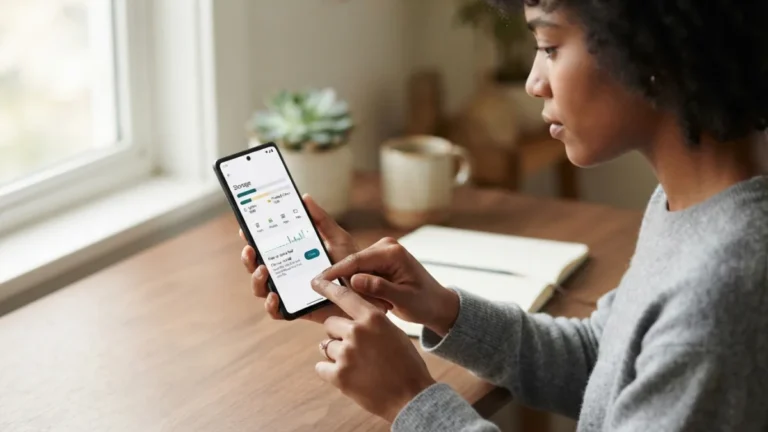
When your phone runs out of storage, the google play store cannot download or update anything, even if everything else looks fine. Go to Settings > Storage to see how much space is left. If you have less than 1GB free, delete unused apps, large videos, or old downloads. You can also use the Files app to clear junk files. While you are there, check that the store has the right permissions. Go to Settings > Apps > Google Play Store > Permissions and make sure it can access storage and network. Also check that Download Manager is enabled and not disabled. Low storage often shows errors like ‘Insufficient storage’ or downloads that stay at 0%. Freeing space usually lets updates resume instantly.
7. Remove and Re-Add Your Google Account
If none of the earlier steps worked, your Google account connection might be the culprit. Removing and adding it again refreshes the login and sync. First, go to Settings > Passwords & accounts or Users & accounts. Tap your Google account and choose Remove account. You will need your password to add it back, so make sure you know it. After removal, restart your phone, then go back to the same menu and tap Add account > Google. Sign in and let the phone sync for a few minutes. Open the google play store and test a download. This fix often solves persistent authentication errors and the ‘You are not signed in’ message. If you use two-factor authentication, have your verification method ready before you start.
What to Do If the Store Still Won’t Work
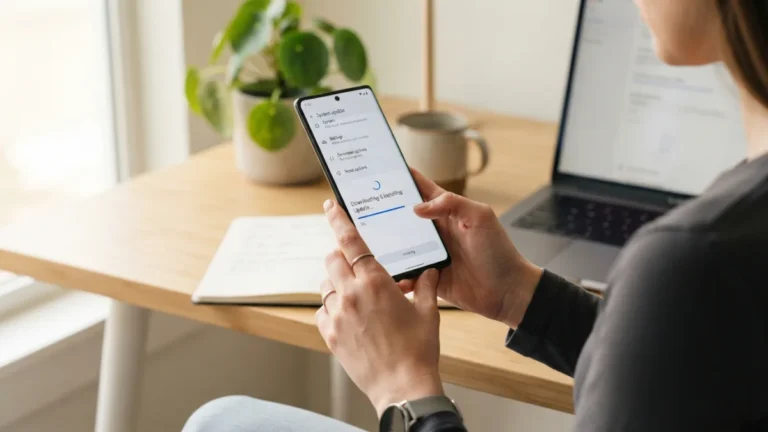
Still stuck? Try one last system-level reset for the store itself. Go to Settings > Apps > Google Play Store, tap the three dots in the top corner, and choose Uninstall updates. This rolls the store back to its original version and removes any faulty update that broke it. Reopen the google play store and it will update itself again automatically. If even that fails, consider checking for a full Android system update under Settings > System > System Update. An outdated system can conflict with newer store versions. As a final resort, a factory reset will fix almost any software issue, but it erases all data, so back up your photos and files first and only use it if nothing else helps. While you are adjusting these settings, it is also worth learning how to turn Off Autocorrect Mistakes on Your Android Phone to keep everything running smoothly.
How to Keep the Store Running Smoothly
Once the google play store is working again, a few habits can keep it that way. Keep automatic updates turned on for both the system and your apps so you always have the latest bug fixes. Avoid filling your storage to the top; try to leave at least 10% free so downloads have room to process. Restart your phone at least once a week to clear background clutter. Be careful with third-party cleaners or battery savers that aggressively close background services, because they can interfere with downloads. And if you use a VPN or ad blocker, remember to pause it when you update apps. These small steps reduce the chance of seeing the same error again and keep your phone running smoothly.
Final Thoughts
Fixing a broken store does not have to be stressful. Most people solve the problem with the first three fixes: checking the connection, restarting the phone, or clearing the cache. Work through the list step by step instead of trying everything at once, and test the store after each change. If one method works, you will know what to do next time it happens. Android is a flexible system, but like any software, it needs occasional maintenance. With these seven proven fixes for the google play store, you can quickly restore downloads, update your favorite apps, and get back to using your phone the way you want without waiting for support or visiting a repair shop. Bookmark this guide so you have it ready whenever the store acts up again.
Frequently Asked Questions
Why is my google play store not downloading apps?
It is usually due to a poor internet connection, low storage, or corrupted cache files. Try checking your Wi-Fi, freeing up space, and clearing the cache for the store and google play services. A quick phone restart also helps.
Will clear cache delete my apps or purchases?
No. Clearing the cache only removes temporary files. Your installed apps, purchases, and account stay safe. If you tap Clear Data, you will just need to sign in again, but you will not lose paid apps.
How do I update play store manually?
Open the google play store, tap your profile picture, go to Settings, then About. Tap on Play Store version. If an update is available, the store will download and install it automatically.
Why does the google play store keep stopping or crashing?
Crashes often happen when google play services has outdated or corrupted data, or when your system time is wrong. Clear cache for both the store and the services, check your date and time settings, and restart android phone.
Should I remove my Google account to fix the store?
Only if other fixes fail. Removing and re-adding your account refreshes the login and can fix authentication errors. Make sure you know your password and have a backup login method before you remove it.