
Clear Cache on Android: 7 Easy Steps for Apps and System
Your phone feels sluggish, an app keeps freezing, and storage is almost full. Before you delete photos or shop for a new device, try a simpler fix: clear cache on Android. It takes about a minute per app, it leaves your photos and messages alone, and it often brings back some lost speed. Cache files are small bits of data that apps and websites save so they can load faster next time. That helps until the files pile up, get corrupted, or grow far bigger than they should. This guide walks you through seven steps, from a single app to the whole system. Menus differ a little between brands and Android versions, so treat the paths below as a guide, not a script.
Cache vs Data Difference: What You Are Actually Deleting
The cache vs data difference matters because mixing the two up can cost you your logins and saved settings. Cache is temporary. It holds things like thumbnails, web page pieces, and map tiles that an app can download or rebuild at any time. Data is personal. It includes your account details, game progress, downloaded files, and preferences. When you clear cache on Android, the app simply starts a little slower once and then refills the cache. When you clear data, the app resets as if you had just installed it. Computer scientists use the same cache idea everywhere, and Wikipedia’s overview of caching explains it well. In short: cache is safe to remove, data is not. If you run into related issues on your phone, our step-by-step guide on how to Dark Mode on Android walks through the safest fixes.
7 Steps to Clear Cache on Android
You don’t need to do all seven steps in one sitting. Start with the first two, and move on only if your phone still misbehaves. Android rebuilds cache files as you use apps, so clearing them is a tune-up, not a one-time cure. Google’s own Android Help Center is the best place to check menu names for your exact version. A good rule is to clear the cache when an app crashes, shows old content, or eats a suspicious amount of space. Doing it on a weekly schedule isn’t necessary and can even slow apps down, because they have to reload everything from scratch. Think of it as a repair, not a ritual.
Step 1: Check Which Apps Hog Space
Before you clear anything, find the real culprits. If your goal is to free up phone storage, a quick look at the storage screen shows where the space went. Open Settings, tap Storage (it may sit under Battery and device care on some phones), and wait for the breakdown to load. You will usually see a list of apps sorted by size. Social media, streaming, and messaging apps often rank near the top because they store videos and thumbnails. Note the three or four biggest apps. You will target those first in the next step, which saves time and gives you the biggest result for the least effort.
Step 2: Clear App Cache One App at a Time
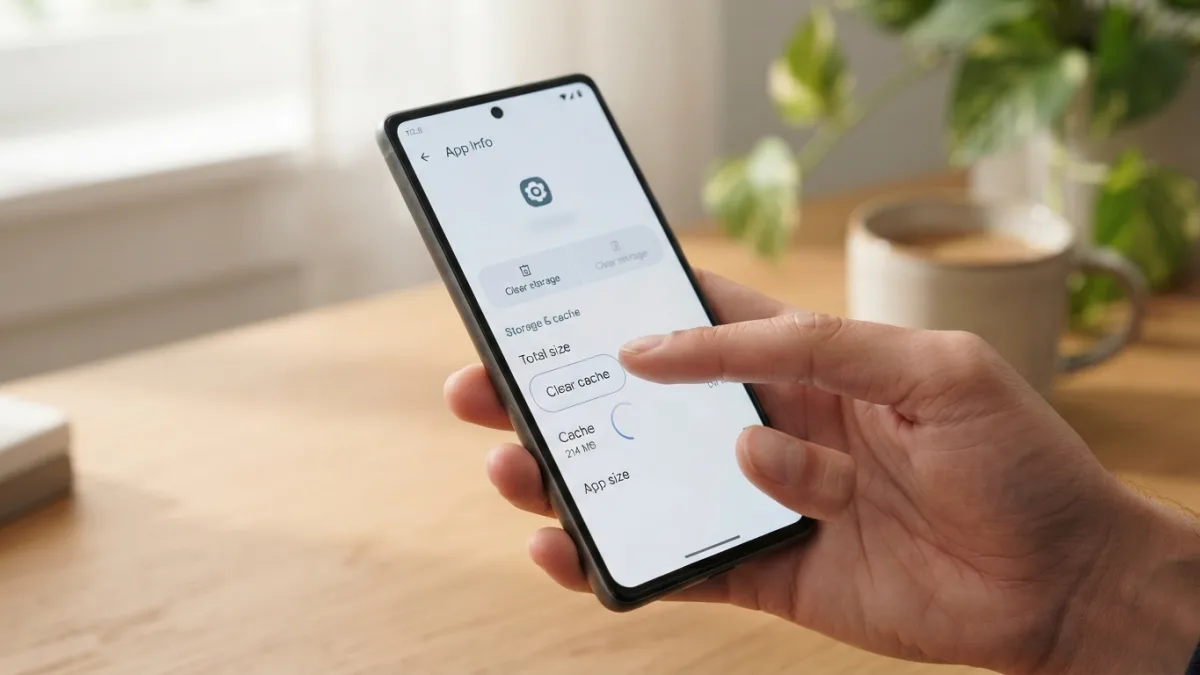
To clear app cache for a single app, open Settings, then Apps (or See all apps), and tap the app you picked. Next, follow these steps:
- Tap Storage & cache (some phones just say Storage).
- Tap Clear cache.
- Go back and check the app’s size.
Avoid the button called Clear storage or Clear data unless you want a full reset. If the app still acts up, open it and see whether it runs better. Repeat the process for any other app that freezes or loads old content. It’s a little tedious, but it is the safest method on every Android phone. While you are adjusting these settings, it is also worth learning how to stop Annoying Ads and Pop-Ups on Android to keep everything running smoothly.
Step 3: Clear Chrome Cache Android Browsing Data
Your browser often stores more files than any other app, so it deserves its own step. To clear chrome cache android users can open Chrome, tap the three-dot menu, choose History, then tap Delete browsing data. Pick a time range, such as All time, and tick Cached images and files. Leave Cookies and site data unticked if you don’t want to be signed out of websites. Then tap Delete data. This fixes pages that look broken or refuse to update. Google explains the options on its Chrome Help site, which is handy if your menu looks different. Other browsers, such as Firefox or Samsung Internet, have similar settings in their own menus.
Step 4: Samsung Clear Cache Options on Galaxy Phones
Samsung clear cache steps look almost the same as on other phones, with one extra tool. For a single app, go to Settings, Apps, pick the app, tap Storage, and choose Clear cache. For a wider cleanup, open Settings and look for Battery and device care. Inside, the Storage section can show unneeded files and offer to clean them. The wording changes with the One UI version, so look around if you don’t see an exact match. Be careful with any cleanup list: read each item before you confirm. Large downloads and old screenshots may look like junk, but you might still want them.
Step 5: Wipe Cache Partition Recovery Mode for Stubborn Problems
Wipe cache partition recovery is a deeper, system-level option. It removes temporary system files, and people often try it after a big software update when the phone stays slow or buggy. Here is the usual route, though key combinations vary by brand:
- Turn the phone off completely.
- Hold the recovery key combination, often Power + Volume Up.
- Use the volume keys to highlight Wipe cache partition.
- Press the power button to confirm, then choose Reboot system now.
Never pick Wipe data / factory reset by mistake. Many newer phones no longer offer this option at all, so if you can’t find it, skip this step. You can still clear cache on Android through the regular settings. For another practical way to keep your Android device in great shape, see our walkthrough on how to app Keeps Crashing on Android? 7 Easy Fixes That Work.
Step 6: Clear Cache Automatically Where You Can
If you hate doing this by hand, look for ways to clear cache automatically. Stock Android has no single switch that empties every app’s cache on a timer, and you should be wary of apps that promise one. Some are useless, and some show aggressive ads. Still, you have a few safe options. Many Samsung phones include automatic optimization under Battery and device care, which can run maintenance tasks on a schedule. Google’s Files app also suggests removing junk files when it spots them. Apps like Chrome manage their own cache and trim it over time. Install updates regularly too, since developers often fix cache bugs that cause bloat. Automation helps, but a quick manual check every few months is still smart.
Step 7: Restart to Fix Slow Android Phone Issues
Once you finish the cleanup, restart the phone. A reboot is one of the easiest ways to fix slow android phone problems, because it closes stuck background processes and reloads the system fresh. Hold the power button, tap Restart, and give it a minute. Then test the apps that gave you trouble. If the phone is still slow, look at other causes: very low free space, an outdated Android version, too many apps running in the background, or an aging battery. Update your apps and system, remove apps you no longer use, and keep at least a few gigabytes free. Persistent lag after all this may point to old hardware, not cache.
A Smarter Cache Habit for Any Phone
You now know how to clear cache on Android at every level, from one app to the recovery menu. Start small. Target the biggest apps, then your browser, and only try deeper options if problems continue. Remember that cache refills by design, so a fast phone comes from regular, light care rather than constant wiping. Keep your software updated, uninstall what you never use, and back up important files now and then. If something still feels off after all seven steps, the cause is probably not cache, and it may be time to check battery health or ask the manufacturer for help.
FAQ: Clear Cache on Android
Is it safe to clear cache on Android?
Yes. Cache holds temporary files, so removing it doesn’t delete your photos, messages, or accounts. Apps may open a bit slower the first time afterward because they must rebuild those files. You can also review the official Google Photos help guide for additional technical documentation and model-specific notes.
Will I lose my logins if I clear the cache?
Usually not. Logins and saved settings live in app data, not cache. Just avoid tapping Clear data or Clear storage, and untick cookies when you clear your browser.
How often should I clear my phone’s cache?
There is no fixed schedule. Do it when an app crashes, shows outdated content, or takes up too much space. Clearing everything every week isn’t needed.
Does clearing cache speed up my phone?
Sometimes. It can help when a specific app is glitchy or storage is almost full. If the phone is old or low on memory, expect only a small improvement.
Why can’t I find the wipe cache partition option?
Many newer Android phones have removed it from recovery mode. If you don’t see it, rely on the per-app cache tools in Settings and restart the phone.





2 Comments
Comments are closed.