Enable Developer Options on Android: 5 Quick and Easy Steps
Your Android phone hides a powerful menu in plain sight. If you want to enable developer options, you need one setting, a few taps, and about a minute of patience. The menu is not a secret hack. Google builds it into Android on purpose but tucks it away so casual users do not change something by accident. Once it is open, you can speed up animations, test apps, connect your phone to a computer, and see how the system behaves under the hood. This guide walks you through five quick steps. Then it covers the settings people use most, what to do if the menu refuses to show up, and how to switch it off again. You need no tech degree, just your phone and a steady finger.
What Is Developer Mode on Android?
Developer mode is a hidden part of Android’s settings, officially called Developer options. Google designed it for people who build and test apps, but anyone can open it. Inside, you find switches and menus for debugging, checking performance, and tweaking how the system behaves. Everyday users reach for it to speed up animations, move files with a computer tool, or test an app they are building. Google explains the menu on its official Android developer page, which is a good place to read about individual settings. Here is the catch: some options change deep system behavior. If you do not know what a setting does, leave it alone. Before you enable developer options, think of the menu as a toolbox, not a toy. If you run into related issues on your phone, our step-by-step guide on how to clear Cache on Android walks through the safest fixes.
How to Enable Developer Options in 5 Steps
The process works on nearly every Android phone, though menu names shift a little between brands. These five steps use the wording you will see on Google Pixel phones and most phones running close to stock Android. Samsung owners get their own section further down. You need an unlocked phone, a decent battery charge, and less than two minutes. Nothing here installs software or touches your data. You are simply asking Android to show a menu it normally keeps out of sight. Take the steps one at a time, and the menu will appear before you know it.
Step 1: Open Settings and Go to About Phone
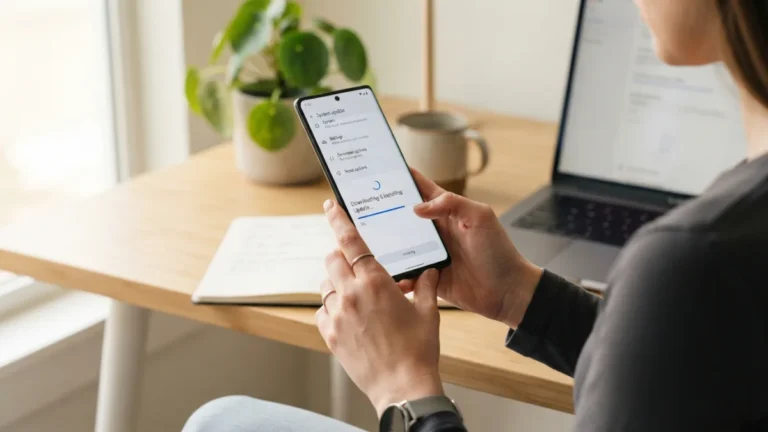
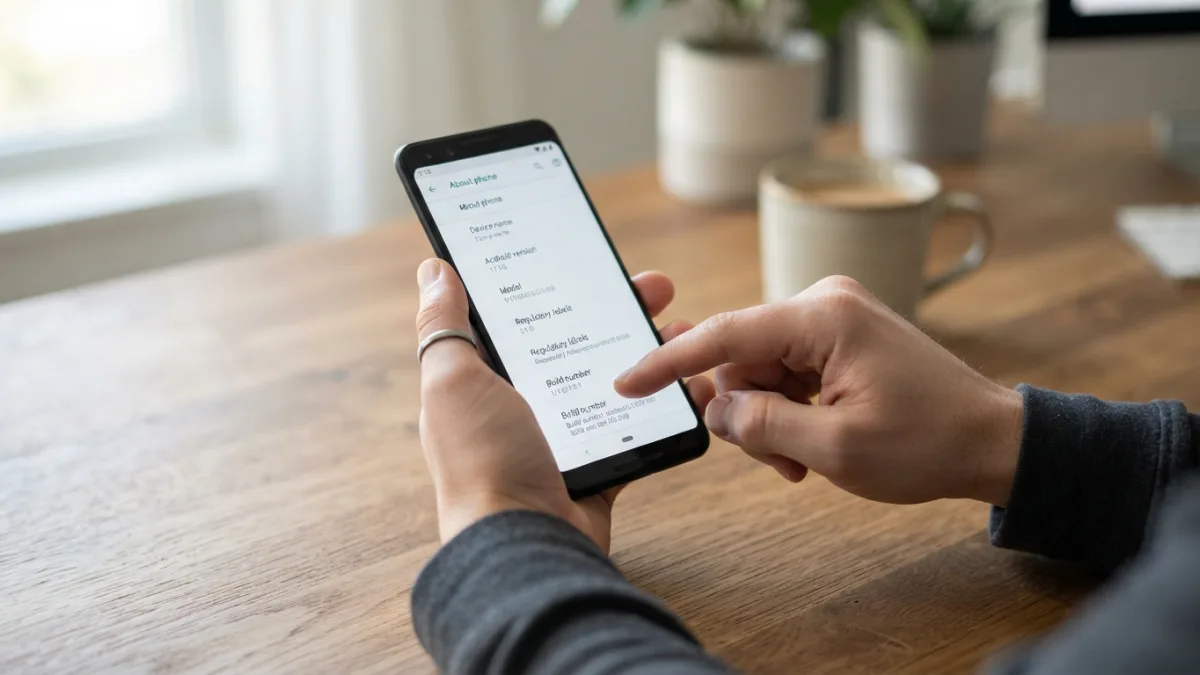
Start by opening the Settings app. You can swipe down from the top of the screen and tap the gear icon, or find Settings in your app drawer. Scroll to the bottom of the main page and look for About phone. Some devices call it About device or About tablet. On a few phones, it sits inside a System section instead. If you do not see it right away, use the search bar at the top of Settings and type “build number.” Android will usually jump straight to the right page. Tap the entry to open it. You will see details such as your phone’s model name, Android version, and a list of technical information. The next step hides in that list.
Step 2: Find Build Number
Now you need to find build number, the line that holds the key to the whole process. On a Google Pixel and many other phones, it sits right on the About phone page. You may need to scroll down a bit. It looks like a long string of letters and numbers, often starting with a code for your Android version. On other devices, the entry is buried one level deeper. Check sections such as Software information or Android version if you cannot spot it. A few brands use a different label, such as a version number for their own Android skin. Once you see a line with a long code, you are in the right place. Do not tap it yet; read the next step first.
Step 3: Tap Build Number Seven Times
Here comes the odd part. Tap the build number entry seven times in a row, at a steady pace. After the first few taps, a small message pops up at the bottom of the screen. It says you are a certain number of steps away from becoming a developer. Keep tapping and watch the countdown. Do not worry if you lose count, because the message does the counting for you. If you stop for too long, the counter may not move forward as you expect, so tap in one quick burst. Tapping the line is harmless. You are not changing any setting yet, only telling Android that you want to enable developer options on this phone.
Step 4: Confirm With Your Screen Lock
After the final tap, Android may ask you to confirm it is really you. Enter your PIN, pattern, or password, or use your fingerprint if the phone asks for it. This check stops someone else from turning on advanced tools while your phone sits on a table. When you pass it, a short message appears: “You are now a developer!” The wording may vary slightly by phone. If your phone has no screen lock at all, you might skip the check and see the message straight away. Seeing it means the hard part is over. If you see a message saying developer mode is already on, you have nothing left to do except open the menu in the next step.
Step 5: Open the Developer Options Menu
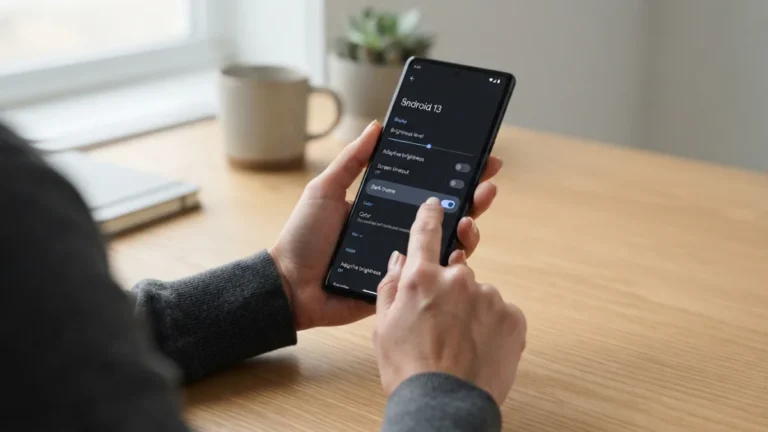
Finally, go back to the main Settings screen and look for the new menu. On Pixel phones and most stock Android devices, open Settings > System > Developer options. Other brands may place it near the bottom of the main page or inside an Additional settings section. Search also works well here; type “developer” and tap the result. At the top of the menu, you will see a main switch. Make sure it is turned on, because the options below do nothing when it is off. You now have access to a long list of tools. Scroll slowly, read the labels, and change only what you understand. That is the whole trick to enable developer options on a standard Android phone. While you are adjusting these settings, it is also worth learning how to Android Phone Stuck to keep everything running smoothly.
Samsung Developer Mode: Where to Look on Galaxy Phones
Samsung developer mode follows the same idea, but the menu path is slightly different. On a Galaxy phone running One UI, open Settings > About phone > Software information. The build number line lives there, one level deeper than on a Pixel. Tap it seven times, then enter your PIN, pattern, or password when asked. A message confirms that developer mode has been turned on. Then go back to the main Settings page and scroll all the way to the bottom. You will see a new entry called Developer options sitting below About phone. Open it and check that the switch at the top is on. Samsung has changed its menu layout across versions, so your phone may look a little different. The search bar in Settings is a quick backup if you get lost.
Developer Options Missing? Try These Fixes
Sometimes you follow every step and still find nothing. If you see developer options missing from your Settings, do not panic. The cause is usually simple. Work through this checklist:
- Count your taps. You need seven taps in a row on the right line. Try again and watch for the countdown message.
- Check the build number. Make sure you tapped build number, not the Android version or the security patch date.
- Look in the right place. The menu may be under System, Additional settings, or at the bottom of the main page.
- Restart the phone. A quick reboot can fix a menu that did not refresh.
- Check for restrictions. Work, school, and shared devices often block the menu. A guest or secondary user profile may also hide it, so switch to the main owner account.
If you still cannot enable developer options, the device’s manager may have locked the feature. In that case, ask your IT administrator.
USB Debugging Android Setup for Your Computer
Many people open this menu for one reason: to turn on USB debugging android phones use to talk to a computer. The option lives inside Developer options, under a section called Debugging. Switch on USB debugging, then confirm the warning that appears. Connect your phone to the computer with a data-capable cable. A prompt will ask whether you want to allow debugging from that computer. Tap Allow, and tick the “always allow” box only if the computer is yours. Developers use this link to install test apps and read system logs through Google’s Android Debug Bridge tool. Treat it with care. A phone with debugging on can give a connected computer deep access, so switch it off when you are done and never approve unknown machines.
How to Change Animation Scale for a Snappier Phone
Want your phone to feel faster without buying anything? You can change animation scale in a few seconds. Scroll down in Developer options to the Drawing section. There you will find three settings: Window animation scale, Transition animation scale, and Animator duration scale. Each one defaults to 1x. Tap a setting and choose 0.5x to make animations twice as quick, or pick “Animation off” to remove them entirely. Many people set all three to 0.5x as a happy middle ground. Be clear about what this does. Your processor does not get faster; menus, app switches, and transitions simply finish sooner, so the phone feels more responsive. If you dislike the result, set each value back to 1x and your phone returns to normal.
Wireless Debugging ADB on Android 11 and Later
Newer phones can skip the cable with wireless debugging adb support. Google added this feature in Android 11, so you will find it in Developer options if your phone runs that version or later. Your phone and computer must share the same Wi-Fi network. Turn on Wireless debugging, then choose the option to pair a device with a pairing code. Your computer uses that code to connect through ADB, a command-line tool that lets it send instructions to the phone. You can read more about how the tool works in this Wikipedia overview of Android Debug Bridge. This setup is handy when your charging port is damaged or your desk is cluttered. Like USB debugging, switch it off when you finish.
How to Disable Developer Options Again
Done tinkering? You can disable developer options just as easily as you turned them on. Open the menu and flip the main switch at the top to Off. Android stops applying the advanced settings, and most phones return the related options to their defaults. Check the debugging switches too, since you should not leave USB or wireless debugging running. On some phones, the Developer options entry stays visible in Settings even after you switch it off, and hiding it completely depends on the brand. If you changed several settings and your phone acts strangely, set each one back to its default value or restart the phone. A simple reboot often clears small problems. If trouble continues, check your manufacturer’s support page for guidance. For another practical way to keep your Android device in great shape, see our walkthrough on how to Google Play Store.
Use the Menu Wisely
You now know how to enable developer options, where to find the menu on a Samsung phone, and what to do when it goes missing. You also know a few useful tricks, from faster animations to wireless debugging. Start small. Change one setting at a time, note what you changed, and test the phone before moving on. That habit makes problems easy to undo. Keep debugging features off unless you truly need them, and never approve a computer you do not know. Used with care, this hidden menu turns an ordinary phone into something you can tune to your own taste. Used carelessly, it can cause headaches. The choice is yours, and now you have the map.
FAQ: Enable Developer Options on Android
How do I enable developer options on Android?
Open Settings, go to About phone, and find the build number. Tap it seven times, enter your screen lock if asked, and wait for the “You are now a developer” message. Then open the new Developer options entry in Settings, usually under System.
Is it safe to enable developer options?
Turning the menu on is safe. The risk comes from changing settings you do not understand. Leave unfamiliar options alone, and switch off USB and wireless debugging when you are not using them.
Why can’t I see Developer options after tapping build number?
You may have tapped the wrong line, missed a tap, or looked in the wrong menu. Restart your phone and try again. Work, school, and shared devices can also block the menu, so check with the administrator.
Where is the build number on a Samsung phone?
On Samsung Galaxy phones, go to Settings, then About phone, then Software information. The build number is listed there. After you tap it seven times, Developer options appears at the bottom of the main Settings page.
Can I turn developer options off later?
Yes. Open Developer options and flip the main switch at the top to Off. Also turn off USB debugging and wireless debugging. Whether the menu entry disappears from Settings depends on your phone’s brand.