
Free Up Storage: 7 Easy Ways to Save iPhone Space Fast
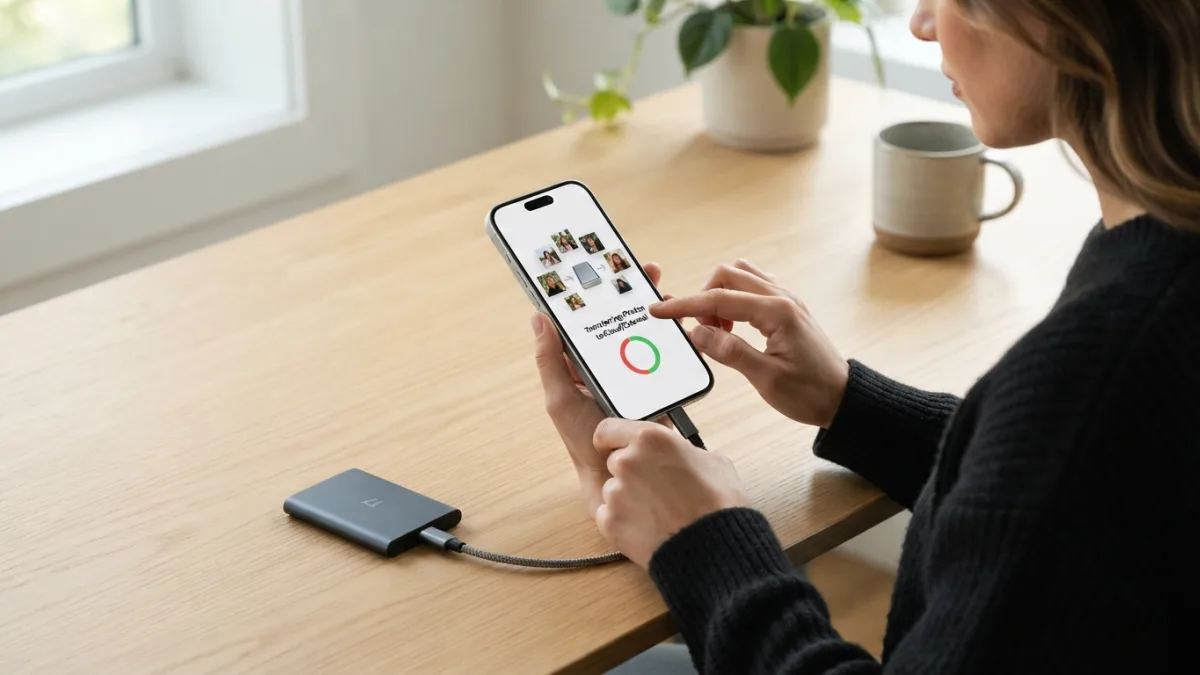
Your iPhone says Storage Almost Full right when you want to take a photo or install an update. You don’t want to delete your favorite memories to make space. The good news is you can free up storage without touching your photo library at all. Many people think photos are the biggest problem, but apps, cache files, and old messages often take up more space than you expect. With a few quick changes in Settings, you can reclaim gigabytes in minutes and keep your camera roll safe. This guide shows simple, safe tricks that work on any recent iPhone and do not require technical skills or paid apps. You will learn how to find what is really eating your space and fix it step by step.
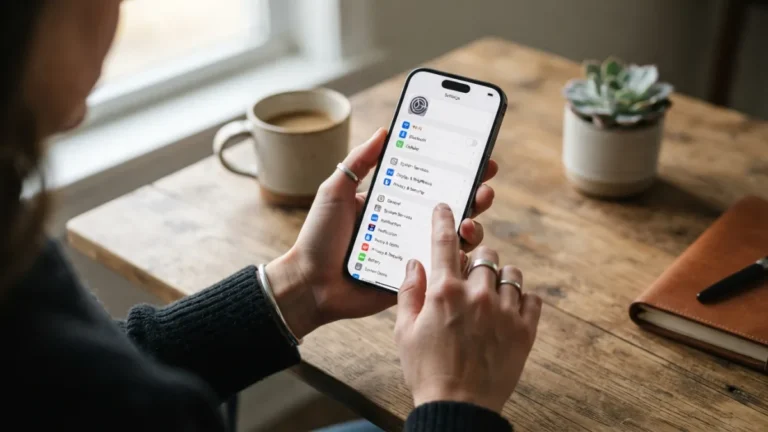
iPhones fill up quickly even if you do not take many new photos. System data, app caches, offline videos, and old message attachments build up quietly in the background. Social media apps like Instagram, TikTok, and YouTube can store hundreds of megabytes of temporary files. Even iMessage keeps every photo and video someone sent you months ago. You can check this yourself in Settings > General > iPhone Storage, where Apple shows a color bar of what uses your space. That screen is the best place to start because it tells you exactly which apps are the heaviest. Once you see the real culprits, you can take targeted action without guessing and keep your photo library completely untouched and safe. If you run into other issues on your iPhone, our step-by-step guide on how to Screen Record on iPhone With Sound walks through the safest fixes.
How to Free Up Storage Without Deleting a Single Photo
1. Offload Unused Apps Automatically
One of the fastest ways to free up storage is to let your iPhone automatically remove apps you rarely use while keeping their data. This feature is called Offload Unused Apps. When an app is offloaded, its icon stays on your home screen with a small cloud symbol, but the app itself is deleted. Your documents and settings for that app stay saved, so when you tap the icon again it reinstalls quickly. To turn it on, go to Settings > App Store and toggle on Offload Unused Apps. You can also offload unused apps manually from Settings > General > iPhone Storage by tapping any large app you have not opened in weeks. It is a safe way to save space without losing logins or game progress.
2. Clear Safari Cache and App Cache
Social apps and browsers store a lot of hidden cache to load faster, but that cache can grow to several gigabytes. If you want to clear iphone cache without deleting photos, start with Safari. Go to Settings > Apps > Safari > Clear History and Website Data. This removes temporary files, cookies, and offline reading lists. For other apps like TikTok, Instagram, or Snapchat, open the app’s own settings and look for a Clear Cache button. If there is no button, you can delete and reinstall the app to wipe its cache while keeping your account. Check iPhone Storage to see which apps show a large gap between App Size and Documents & Data — that gap is usually cache.
3. Optimize iPhone Storage with iCloud Photos
If your photo library is large, you can still keep every picture and free up storage by using iCloud Photos the smart way. When you optimize iphone storage, your iPhone keeps small, lightweight versions of photos on the device and moves the full-resolution originals to iCloud. Your camera roll looks exactly the same, but each photo takes up much less local space. Turn it on in Settings > [your name] > iCloud > Photos and select Optimize iPhone Storage. You can learn more in Apple’s official guide to iPhone storage and see how the setting works. This option alone can save many gigabytes for people with thousands of photos, and you can still view or share any image instantly when you have internet.
4. Manage iCloud Storage and Messages
Many people run out of phone space because their iCloud is also full, which stops backups and photo syncing. To manage icloud storage well, go to Settings > [your name] > iCloud > Manage Account Storage. There you will see what uses your 5GB free plan or paid plan. Old device backups, large iCloud Drive files, and Mail attachments often waste space. Turn off backup for apps you do not need, delete old backups from a previous phone, and remove large files from iCloud Drive. These steps help you free up storage without deleting a single photo from your library. You can also review and delete old iMessages that sync to iCloud. You can learn more about how iCloud works on the iCloud overview on Wikipedia.
5. Delete App Data, Downloads, and Old Files
Even after offloading and clearing cache, some apps still hold large files you can safely remove. When you delete app data like offline Netflix downloads, Spotify songs, YouTube offline videos, or podcast episodes, you save space without touching photos. This is a simple way to free up storage fast. Open each entertainment app and check its Downloads or Storage section. Remove movies you have already watched and playlists you no longer listen to offline. Also check Files app > On My iPhone and Downloads folder for PDFs, ZIP files, and installers you no longer need. In Settings > General > iPhone Storage, tap an app to see options like Delete App versus Offload App. Choose Delete App only if you are sure you do not need its saved data anymore. While you are adjusting your iOS settings, it is also worth learning how to fix an iPhone That Won’t Charge to keep your iPhone running smoothly.
6. Find and Remove Large Videos and Attachments
Videos and message attachments are often the biggest hidden storage hogs. A single minute of 4K video can use more than 300MB, and forwarded memes in WhatsApp or iMessage stay saved forever. To free up storage quickly, go to Settings > General > iPhone Storage and look for Review Large Attachments or check the Photos app for long videos. In iMessage, open Settings > General > iPhone Storage > Messages to see Top Conversations and large photos or videos. In WhatsApp, go to Settings > Storage and Data > Manage Storage to delete large files and frequently forwarded media. You can keep your favorite photos while removing duplicate videos, blurry clips, and old attachments you no longer need. This step alone often frees several gigabytes.
7. Keep iOS Updated and Restart Your iPhone
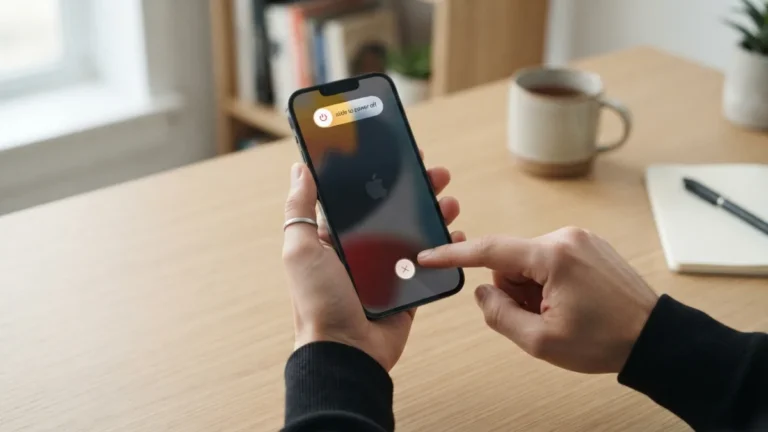
If your system data looks unusually large, a software update and a simple restart can help. iOS updates often fix bugs that cause cache and log files to grow out of control. Go to Settings > General > Software Update and install the latest version when you are on Wi-Fi and have enough battery. After updating, restart your iPhone by holding the side button and volume button, then sliding to power off. A restart clears temporary system caches that do not show up as apps. According to Apple’s official guide to iPhone storage, keeping your device updated is one of the best ways to manage space efficiently. You should also update your apps from the App Store, since developers often reduce app size and fix storage issues in newer versions.
Extra Tips to Keep Your iPhone Storage Healthy
Once you have cleaned up, a few small habits will help you free up storage regularly without extra effort. Turn on Auto-Delete for old messages by going to Settings > Apps > Messages > Message History and choosing 1 Year instead of Forever. This keeps recent chats but removes very old attachments automatically. Also, review your Recently Deleted album in Photos — deleted photos stay there for 30 days and still use space until you empty it. Another trick is to stream music and video instead of downloading everything for offline use. If you use many photo editing apps, export your final edits and delete the duplicate drafts. Small changes like these prevent storage from filling up again so quickly.
You can also make your storage view work for you with a quick monthly check. Apple now gives smart recommendations at the top of the iPhone Storage screen that show exactly what to clean. These suggestions change based on your usage and often point to large apps, old videos, or unused downloads you forgot about. Checking this screen once a month helps you catch problems early before your phone warns you that storage is full. Here are three simple actions to add to that routine:
- Review Recommendations: At the top of iPhone Storage, Apple suggests personalized ways to save space, like removing large apps or reviewing videos.
- Check Photos for duplicates: In Photos > Albums > Duplicates, merge duplicate shots to save space without losing memories.
- Limit app background data: Some apps store offline content for convenience. Turn off automatic downloads in their settings if you do not need them.
These checks take less than five minutes and can save you from the stress of a full phone. Staying consistent is easier than doing a big cleanup once a year when you cannot install an update or take a photo. Remember, you do not have to sacrifice memories to free up storage. By offloading unused apps, clearing cache, optimizing photos, and managing messages and large files, you keep your photo library safe and your iPhone running fast. Try two or three tips from this list today and see how much space you reclaim. Your phone will feel faster, updates will install smoothly, and you will always have room for the next important photo or video. For another practical way to get more out of your iPhone, see our walkthrough on how to silence Unknown Callers.
Frequently Asked Questions
Can I free up storage without deleting any photos or videos?
Yes. You can offload unused apps, clear iphone cache, delete app data like offline downloads, and remove large message attachments. Using Optimize iPhone Storage also keeps your photos while saving local space.
What does offload unused apps do? Will I lose my data?
Offloading removes the app itself but keeps its documents and settings. The app icon stays on your home screen and reinstalls with your data when you tap it again.
How do I optimize iphone storage for photos?
Go to Settings > [your name] > iCloud > Photos and select Optimize iPhone Storage. Your iPhone will keep smaller versions locally and store full-resolution originals in iCloud.
Why is my iPhone storage still full after clearing cache?
System Data, large videos, and old message attachments may still be using space. Check Settings > General > iPhone Storage for large files, review Recently Deleted, and restart your iPhone after updates.
Should I manage icloud storage separately from iPhone storage?
Yes. iCloud has its own limit. Go to Settings > [your name] > iCloud > Manage Account Storage to delete old backups and large Drive files so photos and backups can continue to sync.



2 Comments
Comments are closed.