Bluetooth Not Connecting: 7 Easy Fixes for iPhone Users
Your AirPods won’t pair, your car stereo keeps dropping the connection, or your Bluetooth speaker just refuses to show up on the list. If any of that sounds familiar, you already know how frustrating Bluetooth not connecting on an iPhone can feel, especially when you’re in a hurry to take a call or start a workout playlist. The good news is that most of these problems have simple fixes you can try yourself, without a trip to the Apple Store. Below, we walk through seven practical steps that solve the vast majority of iPhone Bluetooth headaches, starting with the easiest and working toward the more advanced options.
Quick Checks Before You Troubleshoot
Before diving into deeper fixes, run through a few basics that solve the problem more often than people expect. It sounds obvious, but a surprising number of connection issues come down to something simple being overlooked in the rush to get devices talking to each other. If you want to dig deeper, our guide on How to Fix Wi-Fi Problems on Your iPhone covers this in more detail. This is a common part of dealing with bluetooth not connecting, and it is worth keeping in mind.
- Make sure Bluetooth is actually turned on in Control Center or Settings
- Check that the accessory has enough battery and is powered on
- Confirm the device is within a reasonable range, ideally under 30 feet
- Verify the accessory isn’t already connected to another phone or laptop
If you’ve checked all of these and you’re still stuck, it’s time to move on to the more detailed troubleshooting steps below. Many people run into this exact issue with bluetooth not connecting at some point.
Why Does Bluetooth Not Connecting Happen on iPhone?
There isn’t one single cause behind Bluetooth not connecting, which is part of why it’s so annoying to diagnose. Sometimes it’s a software glitch introduced by a recent iOS update. Other times it’s interference from other wireless signals, a corrupted pairing profile, or simply an accessory that’s gotten confused about which device it should be talking to. According to the Bluetooth Special Interest Group, which oversees the wireless standard used by billions of devices, connection stability depends on a combination of signal strength, device compatibility, and proper pairing protocols. When any one of those elements breaks down, your iPhone and accessory stop communicating properly. Understanding this helps explain why the fixes below range from simple restarts to more involved settings resets. Keeping bluetooth not connecting in mind here will save you time later on.
Fix 1: Restart Bluetooth and Your iPhone
This is the classic “turn it off and on again” approach, and it genuinely works more often than people give it credit for. Open Control Center, tap the Bluetooth icon to switch it off, wait about ten seconds, then tap it again to turn it back on. If that alone doesn’t help, restart your iPhone completely by holding the side button and either volume button until the power slider appears. A full restart clears out temporary software hiccups that can interfere with wireless connections. It’s a small step, but it resolves a large share of iPhone Bluetooth troubleshooting cases without requiring you to touch a single setting beyond the power button. This connects closely with another common issue — see How to Fix an iPhone That Keeps Overheating for more on that. This detail matters more than it seems once bluetooth not connecting comes up again.
Fix 2: Forget the Device and Pair It Again
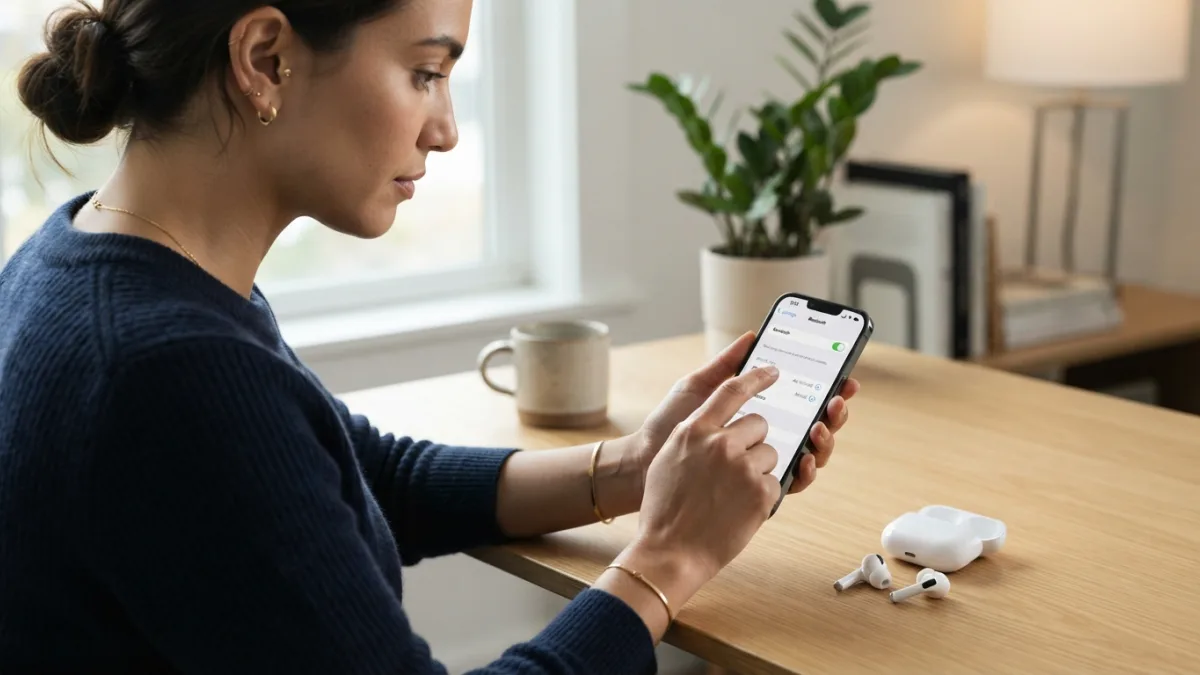
Sometimes the pairing information stored on your iPhone gets corrupted, even if the accessory itself is working fine. To fix this, go to Settings, tap Bluetooth, find the device causing trouble, and tap the small “i” icon next to its name. Select “Forget This Device” and confirm. Once that’s done, put the accessory back into pairing mode, usually by holding its power button, and select it again from your iPhone’s Bluetooth list. This process to pair a Bluetooth device on iPhone essentially starts the relationship from scratch, wiping out any glitchy connection data that built up over time. It takes less than a minute and solves a lot of stubborn pairing failures. It is one of those small things that makes bluetooth not connecting easier to manage overall.
Fix 3: Reset Bluetooth Settings on Your iPhone
If forgetting a single device doesn’t help, a broader reset might be necessary. On newer versions of iOS, you can reset Bluetooth settings specifically without wiping your entire phone. Go to Settings, then General, then Transfer or Reset iPhone, and look for Reset options. From there, choose to reset network settings, which includes Bluetooth along with Wi-Fi and cellular configurations. Keep in mind this will also erase saved Wi-Fi passwords, so you’ll need to re-enter those afterward. This step to reset Bluetooth settings clears out any deeper software conflicts that a simple restart can’t touch, and it’s one of the most effective fixes for persistent ios Bluetooth problems that keep coming back. This is a common part of dealing with bluetooth not connecting, and it is worth keeping in mind.
Fix 4: Update Your iPhone’s Software
Outdated software is a common but often overlooked cause of Bluetooth connection issues. Apple regularly releases updates that patch bugs affecting wireless features, so running an old version of iOS could be the root of your problem. Head to Settings, then General, then Software Update, and install anything available. It’s worth doing this even if your phone seems to be working fine otherwise, since some bugs only show up with specific accessories or in certain conditions. The Apple Support site maintains detailed release notes for each iOS version, which sometimes mention specific Bluetooth or connectivity fixes included in that update. Keeping your software current is one of the simplest ways to prevent future problems, not just fix the current one. You might also find our article on How to Fix an iPhone That Won't Charge helpful here. Many people run into this exact issue with bluetooth not connecting at some point.
Fix 5: Check Device Compatibility and Interference
Not every Bluetooth accessory works perfectly with every iPhone model, especially older devices using outdated Bluetooth versions. Check the accessory’s manual or manufacturer website to confirm it supports a Bluetooth version compatible with your phone. Physical interference matters too: microwaves, Wi-Fi routers, and even other Bluetooth devices nearby can disrupt the signal. According to the general technical overview on Wikipedia’s Bluetooth page, the technology operates on the 2.4 GHz frequency band, which is shared by many other wireless devices and household electronics. Moving closer to the accessory, turning off unnecessary wireless gadgets nearby, or simply relocating away from a crowded router can noticeably improve stability and reduce dropped connections. Keeping bluetooth not connecting in mind here will save you time later on.
Fix 6: Turn Off Conflicting Wireless Features Temporarily
Sometimes Bluetooth not connecting has less to do with the accessory and more to do with competing wireless functions on your own phone. Features like Personal Hotspot, AirDrop, or Handoff all rely on similar wireless technology and can occasionally clash with standard Bluetooth pairing. Try turning off Wi-Fi temporarily, disabling Personal Hotspot if it’s active, and switching off AirDrop from Control Center. Then attempt to reconnect your accessory. If the connection suddenly works, you’ve likely identified the culprit, and you can decide which feature matters more for your daily use. This isn’t a permanent fix, but it’s a useful diagnostic step that narrows down exactly where the conflict is coming from. This detail matters more than it seems once bluetooth not connecting comes up again.
Fix 7: Reset All Settings or Contact Apple Support
If none of the previous steps work, it’s time for a more drastic measure. Go to Settings, General, Transfer or Reset iPhone, and choose Reset All Settings. This wipes all your customized preferences, including Wi-Fi passwords, display settings, and privacy permissions, but it does not delete your photos, apps, or personal files. It often resolves deep software conflicts that simpler fixes can’t reach. If the problem persists even after this, the issue might be hardware-related, either with your iPhone or the accessory itself. At that point, reaching out to Apple Support or the accessory manufacturer directly is the most reliable path forward, since they can run diagnostics that aren’t available through everyday settings menus. For a related walkthrough, check out How to Fix an iPhone Stuck on the Apple Logo. It is one of those small things that makes bluetooth not connecting easier to manage overall.
Bluetooth problems can be maddening, especially when they pop up right before an important call or workout, but they’re rarely permanent. Working through these seven fixes in order, from the simplest restart to a full settings reset, resolves the overwhelming majority of connection failures people run into. If you find yourself repeating the same fix every few days, it might be worth checking whether your accessory needs a firmware update of its own, since many modern earbuds and speakers receive updates through their companion apps. Keeping both your iPhone and your accessories current is the best long-term defense against recurring wireless headaches. This is a common part of dealing with bluetooth not connecting, and it is worth keeping in mind.
Frequently Asked Questions
Why does my iPhone keep disconnecting from Bluetooth devices?
This usually happens due to signal interference, low battery on the accessory, outdated software, or being too far from the connected device. Try moving closer, charging the accessory fully, and updating your iPhone’s software to see if the disconnections stop. Many people run into this exact issue with bluetooth not connecting at some point.
How do I reset Bluetooth settings on my iPhone without losing data?
Resetting network settings through Settings, General, and Reset does not delete photos, apps, or files. It only clears saved Wi-Fi passwords, cellular settings, and Bluetooth pairings, all of which can be reconfigured afterward. Keeping bluetooth not connecting in mind here will save you time later on.
Why won’t my iPhone find my Bluetooth device during pairing?
Make sure the accessory is actively in pairing mode, usually indicated by a flashing light. Also confirm it isn’t already paired to another device, since most Bluetooth accessories can only connect to one device at a time. This detail matters more than it seems once bluetooth not connecting comes up again.
Does updating iOS fix Bluetooth connection issues?
Often, yes. Apple regularly addresses wireless bugs in software updates, so installing the latest iOS version can resolve issues that simple restarts or re-pairing don’t fix. It is one of those small things that makes bluetooth not connecting easier to manage overall.
When should I contact Apple Support about a Bluetooth problem?
If you’ve tried restarting, forgetting the device, resetting settings, and updating software without success, the issue could be hardware-related. At that point, contacting Apple Support or the accessory’s manufacturer for diagnostics is the best next step. This is a common part of dealing with bluetooth not connecting, and it is worth keeping in mind.