
Set Up Face ID: 7 Simple Steps for a Perfect Secure Setup

If you just unboxed a new iPhone and want to set up face id the right way from the start, a careful first setup will save you a lot of frustration later. Face ID feels like magic when it works instantly, but a rushed scan often leads to failed unlocks in low light, with glasses, or at odd angles. You do not need technical skills to get it right. You just need good lighting, a steady hand, and a minute of patience. This guide walks you through the process step by step, so your phone recognizes you quickly and securely every time you pick it up. We will also cover the small settings that make a real difference for speed and security.
Getting your initial scan right matters because iphone face id is more than a convenience feature. It protects your payments, passwords, and private apps. A clean, complete scan helps the TrueDepth camera build an accurate map of your face, which means fewer failed attempts and faster unlocking. Apple designed the system to adapt over time, but it learns best when the first data is high quality. For a helpful overview of how the technology works, you can review the Face ID page on Wikipedia and Apple’s official Face ID support guide before you begin. That background makes the setup steps much clearer. If you run into other issues on your iPhone, our step-by-step guide on how to back Up Your iPhone to iCloud walks through the safest fixes.
How to set up face id in 7 Simple Steps for a Perfect Secure Setup
Step 1: Prepare Your iPhone and Your Environment
Before you set up face id, take 30 seconds to prepare. Find a spot with soft, even light. Natural daylight near a window is ideal. Avoid harsh light directly behind you, which can confuse the sensor. Clean the front camera area gently with a soft cloth. Remove sunglasses, and if you wear glasses daily, keep them on for the scan. Hold your iPhone at eye level, about 10 to 20 inches from your face, in portrait orientation. Make sure your face is fully visible and centered in the frame. This simple prep prevents blurry scans and helps the phone capture your features accurately from the beginning.
Step 2: Open the Correct Face ID Settings
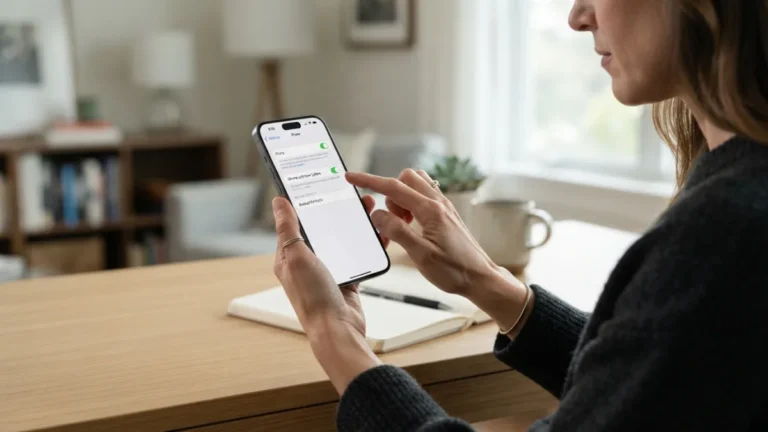
Now open the right menu. Go to Settings, then tap Face ID & Passcode. You will be asked to enter your passcode to continue. This is where all face id settings live, including the option to set up, reset, or add an alternate appearance. If you have never used Face ID before, you will see the option to Set Up Face ID. If the phone was set up quickly at the store, you might see Reset Face ID instead. Do not worry if you need to start over. Tapping Get Started will launch the scanning screen. Keep your passcode handy, as the phone will still require it after a restart or if Face ID fails several times.
Step 3: Position Your Face Correctly for the First Scan
When the scanning screen appears, position your face inside the circle on the display. Keep your head upright and look straight at the screen. Try to relax your face into a neutral expression. Do not tilt the phone too much or hold it too close. The camera needs to see your eyes, nose, and mouth clearly. If you wear a mask, hat, or scarf that covers part of your face, remove it for this first scan. You can add an appearance with a mask later if your iPhone model supports it. Hold the phone steady with one or both hands to avoid shaking, which can interrupt the scan and force you to start again. While you are adjusting your iOS settings, it is also worth learning how to iPhone Battery Dying Too Fast? Try These Simple Fixes to keep your iPhone running smoothly.
Step 4: Move Your Head Slowly to Complete Both Scans
The phone will ask you to slowly move your head in a circle to complete the first scan. When you set up face id, this slow motion is the most important part. Move your head smoothly, not quickly. Try to trace a small circle with your nose, letting the camera capture all angles of your face. You will see green lines fill around the circle as it collects data. Once the first scan finishes, the phone will ask for a second scan. This is not a repeat. It fills in gaps from the first pass. Do the same slow circle again, even if it feels repetitive. Two complete, slow scans create a much more reliable unlock than one rushed scan.
Step 5: Add an Alternate Appearance If You Need It
After the main setup, consider whether you need an alternate appearance. This feature is useful if your look changes often. For example, you might wear glasses some days and contacts on others, or you might wear a head covering for work. Go back to Face ID & Passcode and choose Set Up an Alternate Appearance. The process is the same as the first setup. You will do two slow head circles again. Do not use this to add another person, as that can reduce security and confuse the system. The goal is to teach the phone how you look in different, everyday conditions so it recognizes you without hesitation.
Step 6: Adjust Attention and Security Options
Once your scans are done, fine-tune the security options. This is where smart face id security tips make a difference. Inside Face ID & Passcode, you will see Attention Aware Features. When this is on, your iPhone checks if you are looking at the screen before it unlocks or dims the display. It adds security and prevents others from unlocking your phone while you are not paying attention. You will also see Require Attention for Face ID. Keep this on for the safest experience. You can also choose which features use Face ID, like iPhone Unlock, Apple Pay, and Password AutoFill. For more detail on these choices, see Apple’s Face ID security and privacy overview.
Step 7: Test Your Setup and Know When to Reset
The last step is to test and learn when to start fresh. Lock your phone and try unlocking it in different situations. Try it in normal light, dim light, and while sitting at a desk. If you set up face id correctly, it should work in most of these cases without you changing your position too much. If it often fails, or if your appearance has changed a lot due to a new hairstyle, facial hair, or surgery, it is better to reset face id and scan again than to keep struggling. To do this, go to Face ID & Passcode and tap Reset Face ID, then go through the two scans again. A fresh scan is often faster than trying to fix a poor one. For another practical way to get more out of your iPhone, see our walkthrough on how to Screenshot on iPhone.
Common Mistakes and Pro Tips After Setup
Even a good setup can run into small problems, so it helps to know basic face id troubleshooting habits. Many issues come from simple things you can fix in seconds. Keep the front camera clean, and avoid covering it with a thick screen protector that blocks the sensor. If Face ID stops working after an update or after you change your look, try these quick checks before you reset everything:
- Make sure nothing is blocking your face, like a scarf pulled too high or sunglasses with heavy infrared blocking.
- Check that Attention Aware Features matches how you use your phone. If you often want to unlock without staring directly at the screen, you may need to adjust it.
- Restart your iPhone and try again in good lighting. A restart often clears temporary sensor glitches.
- If failures continue daily, reset and scan again in better light rather than adding more alternate appearances.
Final Check: Keep Your Face ID Fast and Secure
A great setup is not just about the first day. If you set up face id with care, keep your passcode strong, and review your settings every few months, you will keep the right balance of speed and protection. Remember that Face ID still needs your passcode after a restart, after five failed face attempts, or if you have not unlocked the phone for 48 hours. That is normal and adds security. Do not share your passcode, and keep Attention features on if security is your priority. With a clean sensor, good lighting during setup, and the right settings, your iPhone will unlock with a quick glance for a long time without extra effort.
Frequently Asked Questions
How long does it take to set up Face ID?
It usually takes less than a minute. Each of the two scans takes about 15 to 20 seconds if you move your head slowly and steadily. The whole process, including opening settings and testing, takes about two minutes.
Why does Face ID not work with sunglasses or a mask?
Some sunglasses block the infrared light the sensor uses, and masks cover key parts of your face. If you wear them often, try setting up an alternate appearance while wearing them, or use the Face ID with a Mask option if your iPhone model supports it. You can also review the official Apple iPhone User Guide for additional technical documentation and model-specific notes.
Should I reset Face ID if it often fails to recognize me?
Yes. If you need to enter your passcode often because Face ID fails, it is better to reset face id and scan again in good, even lighting. A fresh, slow scan usually fixes recognition problems faster than adding more appearances.
Is Face ID secure enough for banking and payments?
Yes, when set up correctly. The face map is stored securely on the device and is not sent to Apple. Keep a strong passcode and leave Require Attention for Face ID turned on for the highest level of protection.
Can I use Face ID for more than one person?
Face ID is designed for one person. While you can add an alternate appearance, it is meant for your own different looks, not for a second user. Adding another person can reduce accuracy and security.



5 Comments
Comments are closed.