
Turn On Dark Mode: 7 Easy Ways to Customize Your iPhone
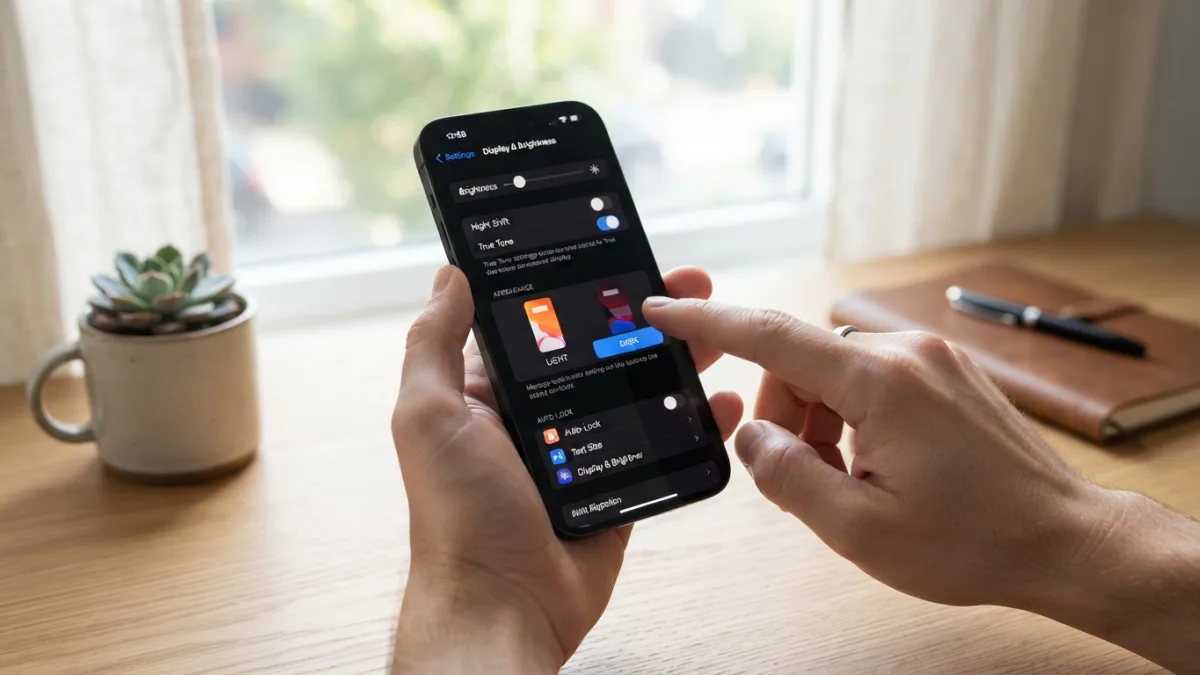
If your eyes hurt from a bright white screen late at night, learning to turn on dark mode is one of the simplest upgrades you can make to your iPhone. This one setting flips your background to black or dark gray and makes text lighter, which feels softer in low light and gives your whole phone a modern, sleek look. Many people also find it helps them focus and saves a little battery on OLED screens. The good news is you can change it in seconds and customize it even further to match your style. Whether you want a permanent dark look or an automatic switch, these easy steps will help you get it right.
1. Turn On Dark Mode in Your iPhone Settings
The most reliable way to control the look of your screen is through your ios appearance settings. Open the Settings app on your iPhone and tap Display & Brightness at the top of the menu. You will see two previews at the top, labeled Light and Dark. Tap Dark to instantly turn on dark mode across system menus, Apple apps, and any third-party apps that support it. This is the core of the iphone dark mode settings, and it also lets you adjust related options like text size and bold text. According to Apple’s official guide to display settings, this menu is the central place to manage how your screen looks. Once you choose Dark, your iPhone will keep that appearance until you change it back. If you run into other issues on your iPhone, our step-by-step guide on how to free Up Storage walks through the safest fixes.
If you want a clear step-by-step process, follow these quick actions to customize iphone display without getting lost in menus. The steps are the same on most recent iPhones running iOS 16 or later, so you do not need to worry about your exact model. Here is what to do:
- Open Settings and select Display & Brightness.
- Under Appearance, tap Dark. You will see the preview change immediately.
- Toggle Automatic off if you want Dark to stay on all the time, or leave it on to schedule it.
- Adjust True Tone and Night Shift below if you want warmer colors at night.
After you turn on dark mode this way, you can exit Settings and see the new look everywhere, from Messages to Safari. It is a simple change that makes a big difference, and you can reverse it just as quickly if you change your mind.
2. Use Control Center to Switch in Seconds
Sometimes you do not want to open Settings every time you change your screen. Control Center gives you a faster way to turn on dark mode when you are reading in bed or stepping outside into bright sunlight. Swipe down from the top-right corner of your screen on Face ID iPhones, or swipe up from the bottom on models with a Home button, to open Control Center. Press and hold the brightness slider, which looks like a sun icon. At the bottom of that expanded panel you will see Appearance with Light and Dark options. Tap Dark to switch instantly. This method does not offer scheduling, but it is perfect when you want a quick change without digging through menus, and it mirrors your main iphone dark mode settings.
You can make Control Center even more useful by keeping the brightness control easy to find. If you do not see the brightness slider, you can add it by going to Settings > Control Center and making sure the right controls are included. Once you learn this gesture, switching becomes automatic. Many people keep their phone in light mode during the day and quickly turn on dark mode at night with one press. It is also helpful when you are showing your phone to someone and want a cleaner look for photos or videos. The change applies right away, and you can switch back the same way when you need a brighter screen for outdoor use.
3. Schedule Dark Mode to Turn On Automatically
If you forget to switch your screen at night, you can let your iPhone do it for you. Inside the same Display & Brightness menu, you will see an Automatic toggle just below the Light and Dark options. When you switch this on, your iPhone will handle when to turn on dark mode for you. Tap Options underneath to choose between Sunset to Sunrise or a Custom Schedule. Sunset to Sunrise uses your location to shift to dark mode when the sun goes down. Custom Schedule lets you pick exact times, like 10 p.m. to 7 a.m. This automation is ideal if you like light mode vs dark mode at different parts of the day without having to remember to change it yourself.
Automatic switching feels natural after a day or two, because your eyes get a softer screen in the evening and a brighter, more colorful one in the morning. It also helps apps that support appearance changes to follow the same rhythm, so you do not get a sudden bright white app when everything else is dark. If you work late or often use your phone before sleep, a schedule reduces eye strain and makes the transition smooth. You can still override the schedule at any time from Control Center if you need light mode for a specific task. Think of it as setting your phone to match your daily routine rather than fixing it in one look.
4. Customize Your Wallpaper and Widgets to Match
Changing the color theme is only part of how you customize iphone display. Your wallpaper has a huge effect on the overall feel, and iOS lets you make it react to dark mode. Go to Settings > Wallpaper and tap Customize under your current wallpaper. You can choose a photo, a color, or one of Apple’s built-in wallpapers that has both light and dark versions. When you turn on dark mode, a compatible wallpaper will dim slightly or switch to a darker version so it does not clash with your theme. You can also add widgets to your Home Screen and Lock Screen by long-pressing and tapping Edit, which lets you build a look that feels personal, not just dark.
For a truly custom style, try pairing your iphone wallpaper and brightness settings with color-matched widgets and icons. Long-press your Home Screen, tap Edit in the top corner, then choose Customize. You will see options for icon tint, including a Dark or Tinted style that blends better with a dark background. Some people prefer a minimal black wallpaper with simple white widgets for a clean, battery-friendly look. Others like a bold photo that still looks good when dimmed. Test a few combinations and see what feels comfortable for your eyes. The goal is to make dark mode feel intentional, not just inverted, so your apps and background work together as one design.
5. Fine-Tune Brightness, True Tone, and Night Shift
Dark mode alone does not control how bright your screen feels. To really turn on dark mode in a way that is comfortable, you should also adjust iphone wallpaper and brightness together. In Display & Brightness, drag the brightness slider to a lower level for night use, or turn on Auto-Brightness under Settings > Accessibility > Display & Text Size. Keep True Tone on if you like colors that adapt to the light around you, as it makes dark backgrounds look more natural indoors. For evening use, try Night Shift, which you can find in the same menu. It shifts colors toward warmer tones after sunset, and when combined with dark mode, it creates a much softer viewing experience that many people prefer before bed. While you are adjusting your iOS settings, it is also worth learning how to hidden iPhone Settings to keep your iPhone running smoothly.
6. Personalize Your Lock Screen and Home Screen Style
iOS lets you create different looks for your Lock Screen and Home Screen, which is a fun way to customize iphone display beyond the basic theme. If you turn on dark mode, your Lock Screen will automatically use darker tones for the clock and widgets, but you can refine it further. Long-press your Lock Screen and tap Customize to edit the clock font, add widgets like weather or calendar, and change the wallpaper’s depth effect. You can create multiple Lock Screens and link each one to a Focus mode, so your phone can automatically show a darker, minimal screen during Sleep or Work. On the Home Screen, you can also hide app pages or change icon sizes. Learn more about these options in the guide to personalizing your iPhone Lock Screen. Small tweaks here make your phone feel more personal and easier to use.
7. Understand Light Mode vs Dark Mode for Apps and Battery
Not every app looks the same in dark mode, so it helps to understand light mode vs dark mode and how apps handle it. Most Apple apps like Mail, Notes, and Maps will follow your system setting automatically, switching to a dark background when you turn on dark mode. Many popular third-party apps also offer their own appearance toggle inside their settings, which can override the system choice. If an app stays bright, check its in-app settings for a theme option. On iPhones with OLED displays, dark backgrounds can use slightly less power because black pixels are turned off, though the difference depends on your usage. Choosing the right mode is about comfort first, then style and battery.
The best approach is to experiment for a few days and see what feels right for your eyes and habits. Try keeping dark mode on all day, then try the automatic schedule, and notice which one you prefer when reading, texting, or watching videos. Some people love a fully dark phone all the time for its sleek look, while others only want it after sunset. You can always adjust ios appearance settings again if your preference changes with the seasons or your work hours. With these seven easy ways to turn on dark mode and customize your phone, you can make your iPhone look exactly how you want it, comfortable to use in any light and truly your own. For background on how the feature works across devices, see the overview of dark mode.
Frequently Asked Questions
How do I quickly turn on dark mode on iPhone?
The fastest way is through Control Center. Open it, long-press the brightness slider, and tap Dark under Appearance. You can also turn on dark mode in Settings > Display & Brightness by selecting Dark at the top.
Can I make dark mode turn on automatically at night?
Yes. Go to Settings > Display & Brightness, turn on Automatic, then tap Options to choose Sunset to Sunrise or set a Custom Schedule with your preferred times.
Why does my wallpaper still look bright in dark mode?
Some wallpapers do not have a dark version. Choose a wallpaper that supports appearance changes or enable the dimming option under Wallpaper settings so it darkens when you turn on dark mode.
Does dark mode save battery on iPhone?
On OLED iPhones, dark mode can save a small amount of battery because black pixels use less power. The savings depend on brightness and how you use your phone, but comfort is usually the bigger benefit.
How do I switch back to light mode?
Go to Settings > Display & Brightness and tap Light, or use Control Center and select Light under Appearance. If Automatic is on, turn it off to keep light mode permanently.


6 Comments
Comments are closed.