Hidden iPhone Settings: 8 Amazing Tweaks You Should Try
You use your iPhone all day, yet some of its most helpful tricks sit in menus you almost never open. Hidden iPhone settings can save you time, protect your personal data, and help your phone last longer between charges. Apple does not bury them on purpose. The problem is simple: iOS has hundreds of options, and the best ones rarely show up on the surface. Think of it as a house with a few extra rooms you never noticed. Once you find them, you wonder how you lived without them. This guide walks through eight of them, from a secret tap gesture to a keyboard shortcut that types whole sentences for you. Each tweak takes about a minute to set up, and none of them needs an app download or special skills.
How to Find Hidden iPhone Settings Without Getting Lost
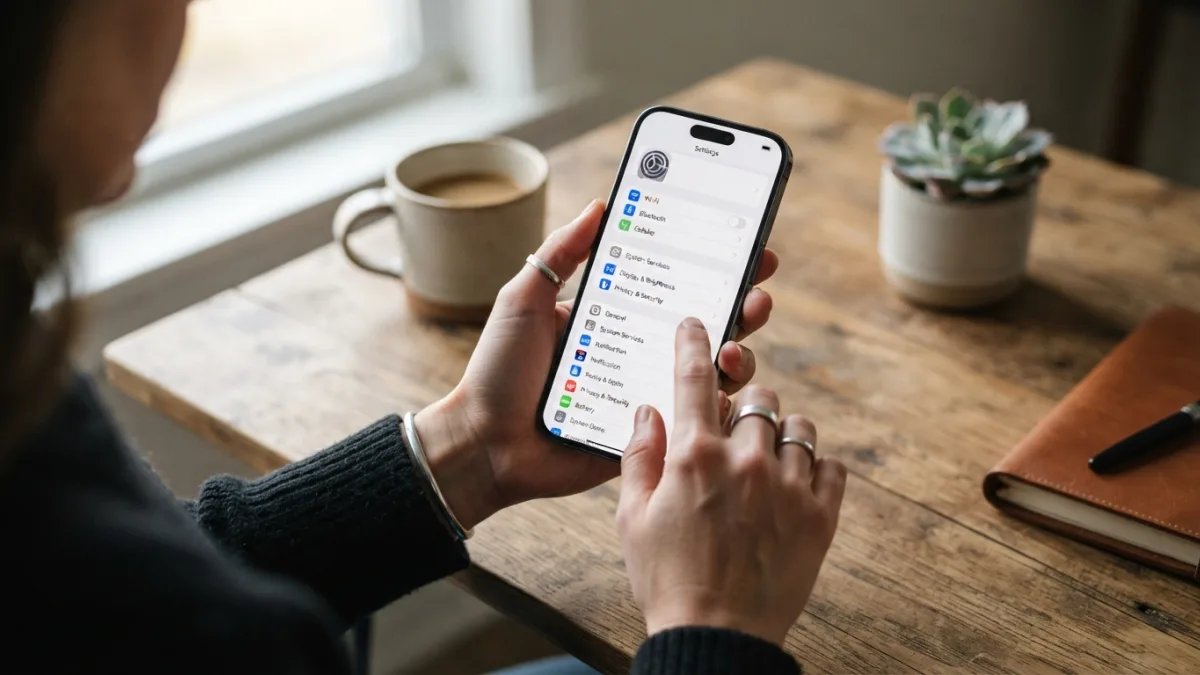
Update your phone first. Go to Settings, tap General, then Software Update. The steps below match recent versions of iOS, but menu names can shift a little from one release to the next. If you cannot find an option, pull down on the Settings screen and type a few words into the search bar. It is much faster than scrolling. Apple also publishes a free iPhone User Guide that explains each menu in plain language. Try the tweaks one at a time instead of switching everything on at once. That way you see exactly what each change does, and you can undo it in seconds. Think of this list as a menu, not a checklist. Pick the three or four that fit your daily routine, and come back for the rest later. Let’s start with a gesture that turns the back of your phone into a button. If you run into other issues on your iPhone, our step-by-step guide on how to Screen Record on iPhone With Sound walks through the safest fixes.
8 Hidden iPhone Settings Worth Trying Today
1. Use the iPhone Back Tap Shortcut
Back Tap feels like a magic trick the first time you use it. It is one of the hidden iPhone settings that lets you tap the back of your phone two or three times to run an action you chose. Open Settings, go to Accessibility, tap Touch, then scroll down to Back Tap. Pick Double Tap or Triple Tap, then choose what happens. Popular options include taking a screenshot, turning on the flashlight, opening Control Center, or launching a shortcut you built yourself. Apple introduced the feature with iOS 14, and it works on iPhone 8 and newer models. A thick case can make it less reliable, so test it after you set it up. Triple Tap is a smart pick for bigger actions, since you will rarely trigger it by accident.
2. Check iPhone Battery Health Before It Surprises You
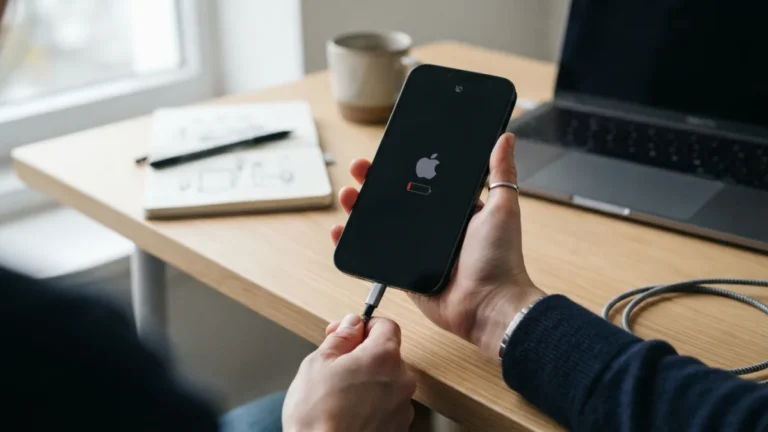
Batteries age, and your iPhone tracks that wear for you. Go to Settings, tap Battery, then Battery Health & Charging. You will see Maximum Capacity, a percentage that compares your battery with how it performed when new. A lower number means the phone may need charging more often. This screen also offers Optimized Battery Charging. It learns your routine and slows charging past a certain point when you are likely to stay plugged in, such as overnight. That can reduce wear over time. Some newer models add a charge limit option too, so check what your phone offers. If your capacity has dropped a lot and you notice sudden shutdowns or sluggish performance, this page helps you decide whether a battery replacement makes sense. Checking takes ten seconds, and it can save you from buying a phone you do not need.
3. Tighten Your iPhone Privacy Settings
Your phone holds photos, messages, and a record of where you go, so it pays to know who can see what. Open Settings and tap Privacy & Security. Here you can review which apps use your location, camera, microphone, contacts, and photos. Apple explains its approach to data on its privacy page. Three quick wins stand out:
- Location Services: switch apps from Always to While Using the App, or to Ask Next Time.
- Tracking: turn off Allow Apps to Request to Track if you do not want apps asking to follow your activity across other companies’ apps and websites.
- App Privacy Report: turn it on to see how often apps reach sensitive data like your camera or location.
Spend five minutes here, and you will probably find an app or two with more access than it needs.
4. Explore iPhone Accessibility Features Everyone Can Use
The name can mislead you. Many of these tools help people who have no disability at all. Open Settings and tap Accessibility to see the full list, and read Apple’s accessibility overview for a closer look. Under Display & Text Size, you can turn on Bold Text, enlarge the font, or reduce motion if animations make you dizzy. Background Sounds plays calming noise, such as rain, to help you focus or sleep. Sound Recognition can alert you when your phone hears a doorbell or a smoke alarm, once you set it up. Magnifier turns your camera into a digital magnifying glass for tiny print on menus and labels. Some of the most practical hidden iPhone settings live in this menu, and they make the phone fit you instead of the other way around.
5. Customize Control Center for One-Swipe Access
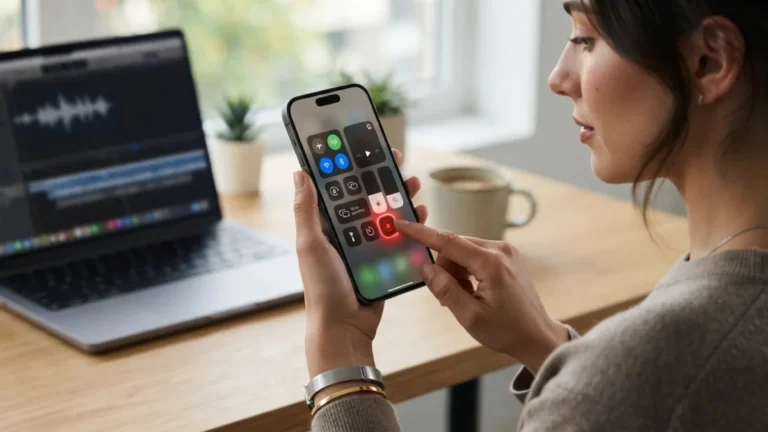
Control Center is the panel you open by swiping down from the top-right corner. On iPhones with a Home button, you swipe up from the bottom instead. Most people use it only for Wi-Fi and brightness, but you can reshape it. Go to Settings, then Control Center. You will see the controls already included and a list of more you can add. Tap the green plus to add one, or the red minus to remove it. Handy additions include Low Power Mode, Screen Recording, Magnifier, Text Size, and Timer. Drag the handles to reorder them, so your favorites sit near the top. Some controls expand when you press and hold, giving you extra options, like adjusting the flashlight beam. A cleaner panel means fewer taps every single day.
6. Adjust iPhone Camera Settings Before You Shoot
Open Settings and tap Camera. A few switches here improve every photo and video you take, and most people never touch them. These hidden iPhone settings take little time to change, and you will notice the difference right away. Start with these:
- Grid: adds guide lines that help you keep horizons straight and frame your subject.
- Preserve Settings: remembers your last camera mode, filter, or lighting choice, so the app does not reset every time.
- Formats: lets you choose High Efficiency, which saves storage space, or Most Compatible, which opens easily on other devices.
- Record Video: lets you pick the resolution and frame rate for your clips.
- Mirror Front Camera: makes selfies match the preview you see on screen.
7. Set Up iPhone Focus Modes to Cut Distractions
Do Not Disturb is only the beginning. Go to Settings, then Focus. You will find ready-made modes such as Sleep, Work, and Driving, and you can create your own. Each mode lets you choose which people and apps can reach you. Everyone else waits quietly until you are done. You can set a schedule so a mode turns on at certain times, in a certain place, or when you open a certain app. You can also link a Focus to a specific Lock Screen or Home Screen page, so your work apps show up during office hours and games stay out of sight. If you own other Apple devices, a Focus can carry over to them too. Start with one mode, such as Work, and adjust the allowed list after a few days.
8. Save Time With Text Replacement Shortcuts
Typing the same phrase again and again gets old fast. Open Settings, tap General, then Keyboard, then Text Replacement. Tap the plus sign, type the full phrase, and add a short shortcut. For example, “omw” can become “On my way!” and “myemail” can become your full email address. Whenever you type the shortcut, your keyboard suggests the full text, and you tap the space bar to accept it. Use this trick for addresses, phone numbers, long signatures, or a polite reply you send often. Avoid shortcuts that look like real words, or they will keep popping up when you do not want them. If you use iCloud, your list can sync across your Apple devices. Of all the hidden iPhone settings here, this one may pay you back the most often.
Make Your iPhone Work Your Way
You do not need new hardware to get more from your phone. A few minutes in the Settings app can change how it feels every day. A tap gesture can launch your flashlight, a quick battery check can tell you when it is time for a replacement, and tighter controls can keep your data in your hands. A cleaner swipe-down panel, better photo defaults, calmer notifications, and typing shortcuts round out the list. The best approach is to start small. Pick one tweak tonight, try it for a week, and see if it sticks. Then move to the next. The more hidden iPhone settings you uncover, the more your phone feels like it was built just for you.
FAQ: Hidden iPhone Settings
What are hidden iPhone settings?
They are useful options inside iOS that most people never open. They are not secret or locked. They simply sit deep in menus like Accessibility, Privacy & Security, or Keyboard, so you have to go looking for them.
Do these tweaks work on every iPhone?
Not always. Some options depend on your model and your iOS version. Back Tap, for example, needs an iPhone 8 or newer. Update your software first, and use the search bar in Settings if a menu looks different.
Can changing these settings damage my phone?
No. These are normal options built into iOS, and you can switch each one back at any time. Still, change one thing at a time so you know what caused any difference.
Which tweak should I try first?
If you want a quick win, set up Back Tap or a text shortcut. If you care about safety, start with the Privacy & Security menu and review which apps can access your location.
What if I cannot find a setting?
Open Settings, pull down to reveal the search bar, and type a keyword like “Back Tap” or “Focus.” You can also check Apple’s iPhone User Guide for the exact steps for your iOS version.