
Update Your iPhone: 7 Easy Steps to Get the Latest iOS
Your iPhone has probably flashed an update reminder at the worst possible moment, like right as you were heading out the door. Most of us tap “Later” and move on. Here’s why you should stop doing that: when you update your iPhone, you get security patches, bug fixes, and often new features that make the phone feel fresh again. Apple releases iOS updates regularly, and each one closes gaps that glitches or attackers could exploit. The good news is that the process is simple. It usually takes less than an hour, and most of that time is just waiting. Below, you’ll find seven clear steps, from checking what you already have to installing the new version. After that, we cover what to do if something goes wrong. Grab your charger and a Wi-Fi connection, and let’s get started.
How to Update Your iPhone in 7 Steps
Follow the steps in order for the smoothest result. Before you begin, have these things ready:
- A reliable Wi-Fi connection
- Your charger, or at least a decent amount of battery
- Your passcode and Apple ID password
- About an hour of free time
Step 1: Check iOS Version
Before anything else, check iOS version on your phone so you know where you stand before you update your iPhone. Open Settings, tap General, then tap About. Look for the line labeled iOS Version (some phones say Software Version) and write that number down. Next, go back one screen and tap Software Update. Your iPhone will tell you whether you’re current or whether a newer release is waiting. This quick look matters for two reasons. First, it shows how far behind you are. If you skipped several releases, the download may be larger and take longer. Second, it helps you follow support pages correctly, because Apple’s instructions often depend on the version number. If your phone says it’s up to date, you can stop here. If you’re curious how iOS has changed over the years, the Wikipedia overview of iOS gives a handy history.
Step 2: Confirm Your Phone Is on the List of iOS Compatible Devices
Not every iPhone can run the newest software. Apple usually drops support for its oldest models, so look at the list of iOS compatible devices before you spend time on downloads. The easiest place to check is Apple’s official iOS page, which shows the models that can run the current release. You can find your own model name under Settings, General, About. If your phone is on the list, you’re set. If it isn’t, don’t worry. The Software Update screen will still offer the newest version your device supports, and that’s the one to install. Even if you can’t update your iPhone to the very latest release, an older model may still receive security fixes for the version it runs. Also, keep in mind that older hardware can feel a little slower for a day or two after a big update while it finishes background tasks.
Step 3: Free Up Storage Space
A quick iPhone storage space update check can save you from a failed download. Go to Settings, General, iPhone Storage, and see how much room you have left. iOS updates need free space to download and unpack, and the amount changes with each release, so your phone’s own message is the best guide. If you’re running low, start with the easy wins. Delete apps you no longer use. Offload big apps you rarely open, which removes the app but keeps its data. Clear old videos, since they often take up the most room, and empty the Recently Deleted album in Photos so that space is truly freed. Your phone will often suggest ways to save space at the top of the storage screen, so take a minute to read them. A little breathing room also keeps things running smoothly after you update your iPhone.
Step 4: Backup iPhone Before Update
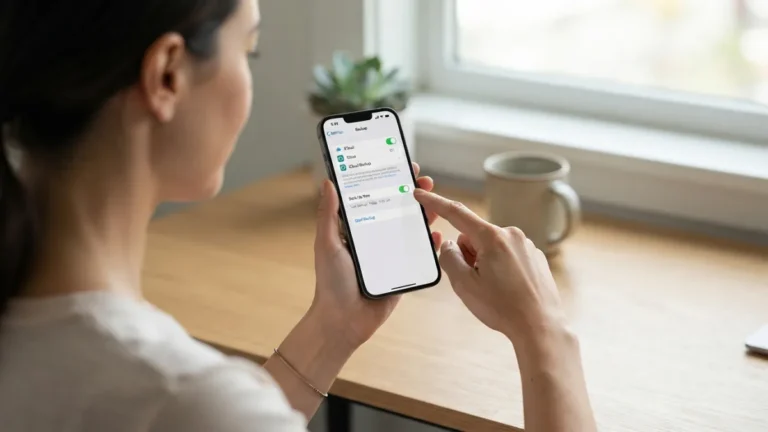
Make it a habit to backup iPhone before update, because even rare problems can cost you photos, messages, or app data. Most installs go fine, but a backup is cheap insurance, and it takes only a few minutes. Before you start, make sure your phone is connected to Wi-Fi and has enough battery or is plugged in. You have two main options, and either one works well. If you update your iPhone often, pick the one that fits your routine and stick with it. Whichever you choose, let the backup finish completely before you move on to the next step. Rushing this part defeats the purpose.
- iCloud: Open Settings, tap your name, tap iCloud, then iCloud Backup, and choose Back Up Now. Apple gives every account 5 GB of free iCloud storage, which may not be enough for a full backup.
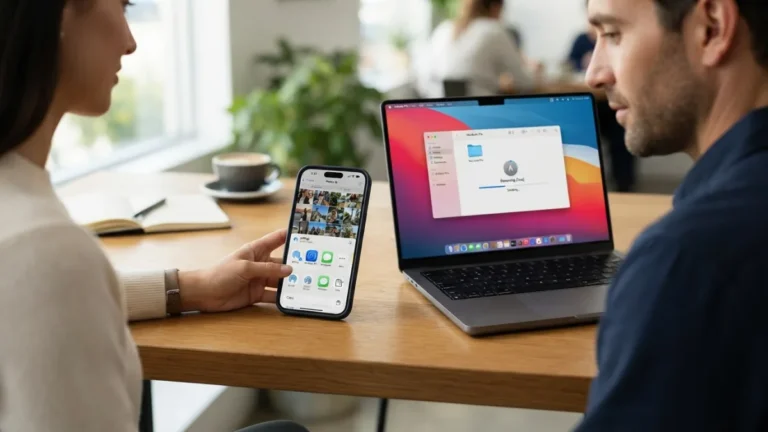
- Computer: Connect your phone with a cable. On a Mac, open Finder and select your iPhone. On a Windows PC, use the Apple Devices app or iTunes. Then choose Back Up Now.
Step 5: Update Your iPhone Over Wi-Fi
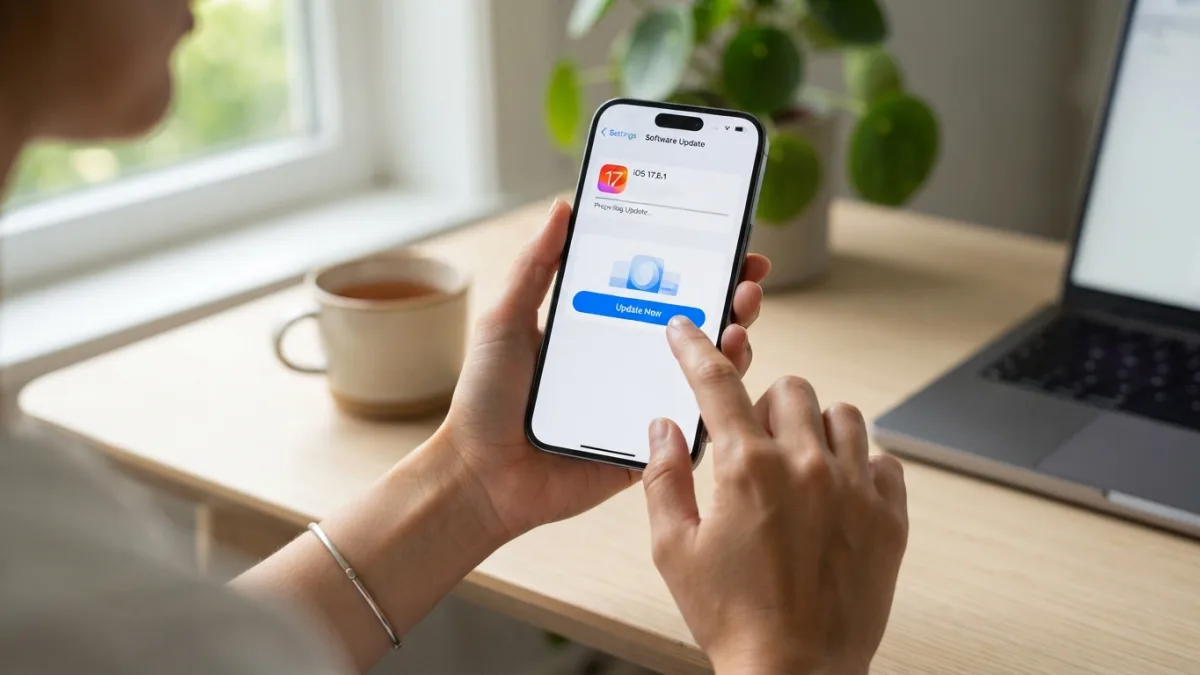
Now comes the main event. Plug your iPhone into power and join a Wi-Fi network you trust. A stable connection matters because the file is large, and a dropped signal can interrupt the download. When you’re ready, follow the steps below. The phone downloads the update first, then asks to install it. You can install right away or choose to do it overnight. If you pick tonight, leave the phone charging. During installation, the screen goes black and the Apple logo appears with a progress bar. Don’t panic. The phone may restart once or more, and that’s normal. Keep your hands off it until the lock screen returns. If you need extra help, Apple Support’s iPhone page has official guides for nearly every situation.
- Open Settings and tap General.
- Tap Software Update and wait for your phone to look for new versions.
- Tap Update Now (or Download and Install).
- Enter your passcode if asked, then agree to the terms.
- Wait for the phone to restart, then follow any setup screens.
Step 6: Turn On Automatic Updates
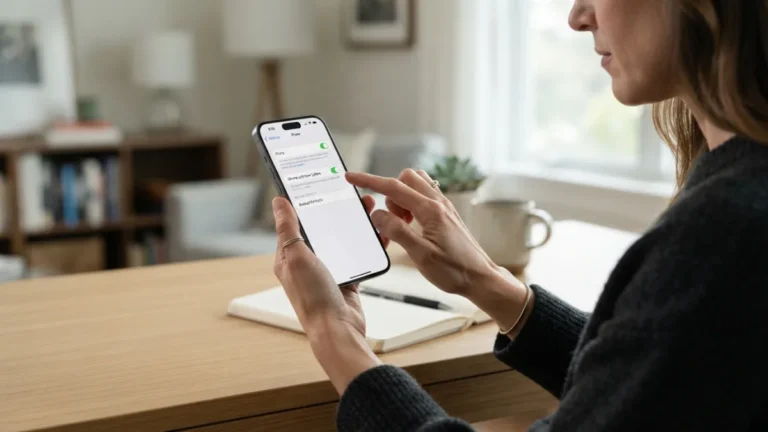
Once you’re current, turn on automatic updates so you don’t fall behind again. Open Settings, General, Software Update, then tap Automatic Updates. You’ll see switches for downloading and installing iOS updates, though the labels can differ slightly between versions. With both on, your phone downloads new releases over Wi-Fi and installs them overnight while it charges. Many people love this because it removes the chore. Others prefer more control, especially if they like to wait a few days for early reports about bugs in a big release. That’s a fair choice. If you wait, set a calendar reminder to update your iPhone within a week or two, because waiting too long leaves you without the newest security fixes. Whatever you decide, don’t treat automatic updates as a replacement for backups. Keep that habit going.
Step 7: Update iPhone With Computer When Wi-Fi Fails You
Sometimes the best fix is to update iPhone with computer instead of relying on the phone alone. This route helps when your storage is tight, your Wi-Fi is weak, or the update refuses to start. Connect your iPhone to a Mac or PC with a cable. On a Mac, open Finder and select your iPhone in the sidebar. On a Windows PC, use the Apple Devices app, or iTunes on older setups. If your phone asks, tap Trust and enter your passcode. Then click Check for Update, followed by Download and Update. Keep the cable connected until the phone restarts and finishes. Unplugging halfway through can cause trouble. If the software on your computer is out of date, update it first, since older versions may not recognize the newest iOS.
iOS Update Not Showing? Try These Fixes
If you find the iOS update not showing in Settings, don’t assume your phone is broken. Start with the simple things. Restart your iPhone, make sure it’s connected to Wi-Fi, and try toggling Airplane Mode on and off. Then go back to Step 2 and confirm your model supports the version you want. Low storage can also hide an update or block the download, so revisit Step 3 if space is tight. If you ever installed a beta profile, check Settings, General, VPN & Device Management, and remove it if it’s causing confusion. Right after a major release, Apple’s servers can also be busy, so waiting a few hours and trying again sometimes works. If nothing helps, try the computer method from Step 7. It often finds updates the phone itself misses, and it’s a good way to update your iPhone when Settings stays quiet.
iPhone Update Stuck? Here’s What to Do
Few things feel worse than an iPhone update stuck on the Apple logo, but patience is the first fix. Progress bars can look frozen even when the phone is working, especially during big updates. Keep it plugged in and give it at least an hour before you take action. If nothing changes, try a force restart. On an iPhone 8 or later, press and release Volume Up, press and release Volume Down, then hold the side button until the Apple logo appears. Older models use different button combinations, so check Apple’s support pages for yours. If the phone is still stuck, connect it to a computer and use the update option there. Recovery mode is a last resort, and you should read Apple’s instructions carefully before you try it. Having a backup from Step 4 makes this moment far less stressful.
Keep Your iPhone Current Without the Stress
Updating isn’t a big chore once you know the path. You check your version, confirm your phone is supported, clear some space, back up your data, and install the update. Then you set automatic updates so the next one takes care of itself. If something goes wrong, the fixes are usually simple: restart, free up space, wait a little longer, or use a computer. The real risk comes from ignoring updates for months, since you miss the security fixes that protect your photos, messages, and accounts. So the next time that reminder pops up, you don’t have to tap “Later.” Take the hour, follow these steps, and update your iPhone while you still have the time and a charger nearby. Future you will be glad you did.
Frequently Asked Questions
How long does it take to update your iPhone?
It depends on the size of the update and your internet speed. Many updates take between 30 minutes and an hour, including the download and the install. Larger releases can take longer.
Will updating delete my photos and apps?
Normally, no. Your photos, apps, and settings stay in place. Still, problems can happen, so a fresh backup is the safest move.
Can I go back to an older version of iOS?
Usually not for long. Apple typically stops allowing older versions soon after a new one arrives, so downgrading is often impossible. Check Apple’s support pages if you need details for a specific version.
Should I install a new iOS version right away?
It’s a personal choice. Installing quickly gets you new security fixes sooner. Waiting a few days lets other users find early bugs. Just don’t wait too long.
What if my iPhone is too old for the newest iOS?
Open Settings, General, Software Update and see what your phone offers. It will show the newest version your model can run, and installing that is still worthwhile.



6 Comments
Comments are closed.