
How to Stop Spam Calls and Texts on iPhone
Your iPhone buzzes, you check the screen, and it’s another unknown number you don’t recognize. If you want to stop spam calls and finally get some quiet, you are not alone. Millions of iPhone users deal with the same daily interruptions from telemarketers, robocalls, and scam texts that waste time and feel invasive. The good news is that Apple has built several simple tools directly into iOS, and your carrier offers help too. You don’t need to be a tech expert to take control. With a few quick settings changes, you can cut down most of the noise and keep your phone for the people you actually want to hear from. This guide walks you through seven practical ways that work together to protect your calls and messages.
Spam calls and texts have grown because it is cheap and easy for marketers and scammers to dial thousands of numbers automatically. Your number can end up on lists after you enter a contest, shop online, or even when a data breach exposes customer records. You can learn more about robocalls and how automated systems generate them at scale. Once your number is out there, you cannot make it private again with one tap, but you can make yourself a harder target. To stop spam calls effectively, you need a layered approach rather than a single fix. Apple’s call and message filtering, careful blocking and reporting, and a few smart habits will do most of the work. Below are seven simple ways you can set up in just a few minutes, starting with the most powerful built-in iPhone feature. If you run into other issues on your iPhone, our step-by-step guide on how to iPhone Battery Dying Too Fast? Try These Simple Fixes walks through the safest fixes.
1. Turn On Silence Unknown Callers to Stop Spam Calls Automatically
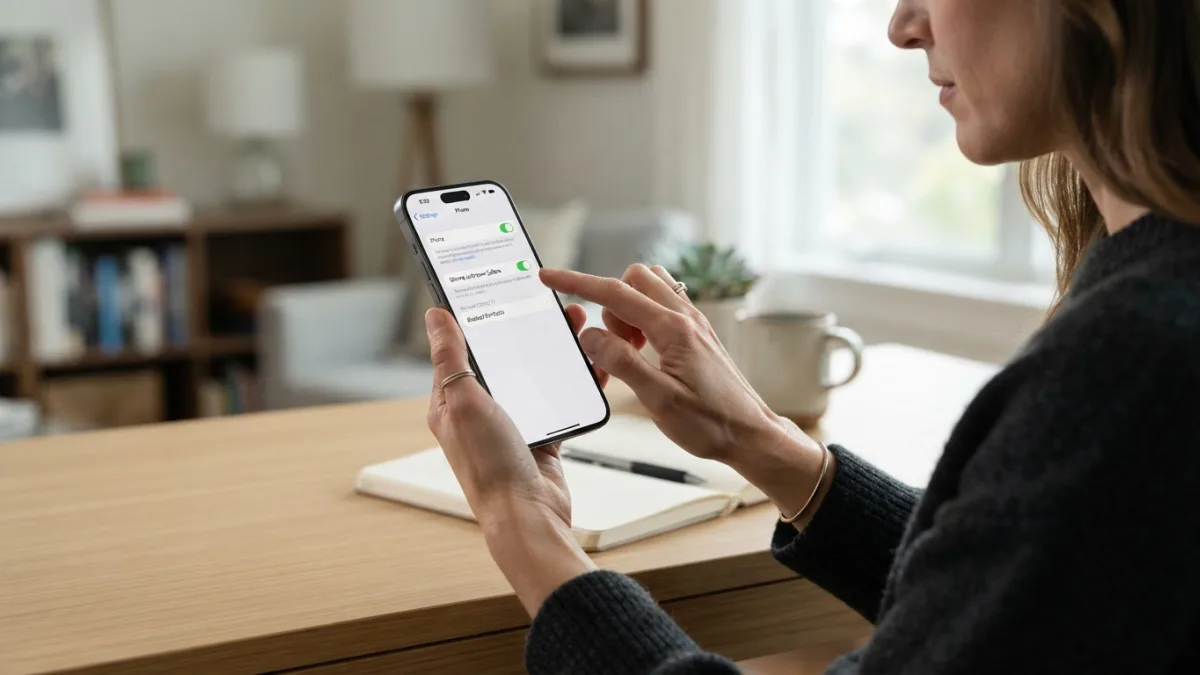
This is the fastest way to reduce interruptions without installing anything. When you enable Silence Unknown Callers, your iPhone sends calls from numbers not in your contacts, recent outgoing calls, or Siri Suggestions straight to voicemail, while still showing them in your recent calls list. You will still see a missed call notification, but your phone will not ring. To turn it on, open Settings, tap Phone, scroll to Silence Unknown Callers, and toggle it on. Apple explains the feature step by step on its official guide to blocking phone numbers and filtering calls. If you are waiting for a delivery driver or a doctor’s office that may call from an unknown number, you can turn the setting off temporarily. For most people, this single switch will stop spam calls from ringing through all day.
2. Use Filter Unknown Senders to Block Spam Texts
Spam texts can be just as annoying as calls, and they often carry risky links. Your iPhone has a similar tool for messages called Filter Unknown Senders. Once enabled, it sorts messages from people not in your contacts into a separate list, so your main inbox stays clean. You will not get a notification for those filtered messages, which helps you ignore junk. To set it up, go to Settings, tap Messages, scroll down to Message Filtering, and turn on Filter Unknown Senders. Open the Messages app and you will see tabs for Contacts & SMS, Unknown Senders, and All Messages. Check the Unknown Senders tab once in a while in case a real message landed there. This simple filter is one of the best ways to block spam texts without losing important conversations. These settings work quietly in the background to help you stop spam calls and texts together.
3. Block Numbers and Report Spam iPhone Features Correctly
When a spam call or text does get through, take ten seconds to block and report it. This trains your phone and helps carriers identify bad actors. For calls, open the Phone app, tap Recents, tap the small i next to the number, scroll down, and choose Block this Caller. For texts, open the conversation, tap the number at the top, tap Info, then Block this Caller. If you want to report spam iPhone users can also use the Report Junk link that appears under messages from unknown senders. Tap Report Junk and then Delete and Report Junk to send the details to Apple and your carrier. The FCC guide to stopping unwanted calls also recommends reporting persistent spam to authorities, which helps build cases against large-scale operations. Blocking alone will not stop spam calls from new numbers, but consistent reporting reduces them over time.
4. Install a Trusted Spam Blocker App for Extra Help
Apple’s built-in tools handle a lot, but a dedicated spam blocker app can add another layer of screening. These apps keep large databases of reported spam numbers and can label or block suspected calls before your phone rings. Popular options like Nomorobo, Hiya, and Truecaller work with iOS Call Blocking and Identification. After you install the app, go to Settings, tap Phone, tap Call Blocking & Identification, and allow the app to block calls and provide caller ID. Keep in mind that these apps may need access to your call history to function, so choose one with a clear privacy policy and good reviews. Most offer a free basic version and a paid premium tier. Used together with Silence Unknown Callers, a spam blocker app can help you stop spam calls that use spoofed local numbers that might otherwise look legitimate.
5. Register on the Do Not Call List and Use Carrier Filtering
Another smart step is to use the free protections offered outside your iPhone. In the United States, you can add your number to the National Do Not Call Registry, which tells legitimate telemarketers not to call you. It will not stop illegal scammers, but it reduces legal sales calls and gives you a way to report violations. Your mobile carrier also provides free spam filtering that works at the network level before calls reach your phone. AT&T has ActiveArmor, Verizon has Call Filter, and T-Mobile has Scam Shield, all of which can automatically flag or block likely spam. Check your carrier’s app or website to turn these features on. When you combine network filtering with your iPhone settings, you create two checkpoints that help you stop spam calls without missing important calls from schools or clinics.
6. Keep iOS Updated and Manage Caller ID Settings
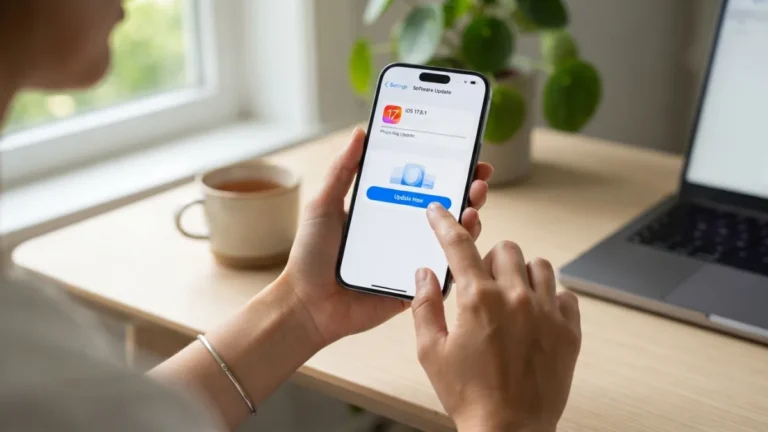
Spam tactics change quickly, and Apple regularly releases updates that improve call identification and security. Keeping iOS updated ensures you have the latest spam definitions and bug fixes. Go to Settings, tap General, then Software Update, and turn on Automatic Updates if you prefer not to check manually. Also review your caller ID settings. Under Settings, then Phone, you will see options like Call Blocking & Identification and Live Voicemail. Live Voicemail, introduced in recent iOS versions, lets you see a real-time transcription as someone leaves a voicemail, so you can decide whether to pick up. If you use Focus modes like Do Not Disturb or Work, customize them to allow calls only from favorites or contacts. These small adjustments help you stop spam calls while making sure real callers can still leave a message you can screen.
7. Limit Where You Share Your Number and Clean Up Old Listings
The final habit is about prevention. Every time you enter your phone number on a website, app, or store loyalty form, you increase the chance it will be sold or leaked. Before you share it, ask whether an email address would work instead. If a form requires a number, look for a checkbox that says you agree to receive marketing calls and uncheck it. Search your number online to see if it appears on data broker sites, and request removal where possible. You can also use Apple’s Hide My Email or a secondary Google Voice number for online sign-ups that do not need your real number. These steps do not block calls immediately, but over months they reduce how often your number circulates. Combined with filtering, they create a long-term strategy to stop spam calls and keep future lists smaller.
Even after you set everything up, a few spam calls may still slip through, especially from numbers that spoof your area code to look local. How you respond in that moment matters more than you think. If you do not recognize a number, let it go to voicemail instead of answering, because picking up confirms your number is active and can invite more calls. Never call back an unknown number that does not leave a clear voicemail, and do not press any buttons if a robocall tells you to press 1 to be removed, since that often just confirms you are listening. To keep your protection strong, review your settings once a month and make sure Silence Unknown Callers and your carrier filters are still turned on. These small habits help you stop spam calls from multiplying after one gets through. While you are adjusting your iOS settings, it is also worth learning how to fix an iPhone Stuck on the Apple Logo to keep your iPhone running smoothly.
- Check your Blocked Contacts list and remove any numbers you blocked by mistake.
- Confirm your carrier’s spam filter is still active after any plan or SIM change.
- Install iOS updates promptly so caller ID and filtering stay current.
If you accidentally answered a scam call or tapped a suspicious link in a text, act quickly but stay calm. Hang up right away without sharing personal details, and do not provide codes, passwords, or payment information. If you tapped a link, close the browser, delete the message, and avoid entering any information on the site that opened. You can run a quick check for unknown charges or login alerts on your important accounts. Many people worry that one mistake will lead to endless problems, but quick action helps limit damage. Learning how to stop spam calls also means knowing how to recover when one gets through, so you stay in control even after a slip.
You do not have to live with constant ringing and buzzing. By turning on Silence Unknown Callers, filtering unknown senders, blocking and reporting junk, adding a spam blocker app only if you need it, using carrier and registry protections, keeping your software current, and sharing your number more carefully, you build a strong, quiet phone experience. Start with the first two settings today, then add the others over the next week. Most users notice a clear drop in interruptions within days, and the habits you build now will keep working in the background. Take a few minutes to set up these tools, and you will finally stop spam calls from controlling your day and get back the focus and peace that spam has been stealing.
Silence Unknown Callers Without Missing Important Calls
Silencing vs. Blocking
Silencing and blocking sound alike, but they work in opposite ways. A block shuts out one specific number. Spammers rarely reuse numbers for long, so you end up playing whack-a-mole. Silencing flips the logic: instead of naming the callers you reject, you decide who is allowed to ring, and everyone else goes quietly to voicemail. The call is not lost. It just waits for you. That makes silencing a safer choice if you often hear from new numbers, such as freelancers, parents, tenants, or anyone waiting on a job offer. Before you change any setting, spend five minutes listing the people you cannot afford to miss. Doctors, family, your child’s school, your landlord, and your workplace are good starting points. You will use that list in almost every step below. If you run into other issues on your iPhone, our step-by-step guide on how to fix an iPhone That Won’t Turn On walks through the safest fixes.
Set Up Focus and Do Not Disturb Exceptions
Your phone’s Do Not Disturb mode can mute everything except the people you choose. It is a flexible tool, because you can run it all day or only at certain hours. The setup is similar on both systems:
- iPhone: open Settings, tap Focus, choose Do Not Disturb, then pick the people who may reach you.
- Android: open Settings, find Do Not Disturb (often under Sound or Notifications), then open the People or Calls options.
- Both: look for a repeated-calls option. If the same person rings twice within a few minutes, the second call is allowed through, which helps in real urgencies.
Set a schedule for nights, meetings, or study time. Outside those hours, your phone behaves normally, so you stay in control of when strangers can interrupt you.
Use Emergency Bypass for the People Who Must Reach You
Think of emergency bypass contacts as a short VIP list. On an iPhone, open a contact, tap Edit, choose Ringtone, and switch on Emergency Bypass. That person’s calls and texts will then sound even when your phone is silenced or in Do Not Disturb. Android has a similar idea. In the Do Not Disturb settings, you can allow specific people or starred contacts to break through. Keep this list tiny. A partner, a parent, a babysitter, or a family member with health problems is plenty. If you add twenty names, the exception stops feeling special, and your quiet hours stop being quiet. Review the list when your life changes, such as a new job, a new school, or a family member who needs closer care. While you are adjusting your iOS settings, it is also worth learning how to stop Spam Calls to keep your iPhone running smoothly.
Check Unknown Voicemail on a Schedule
Silencing only works if you check unknown voicemail regularly, so make it a habit. Pick two moments a day, perhaps lunchtime and early evening, and scan the list. Real callers usually leave a message with a name and a reason. Many robocalls leave nothing, or they hang up after a few seconds. If your phone offers voicemail transcription, use it. You can skim the text in seconds and decide what deserves a reply. When a message sounds genuine but you are unsure, look up the organization’s official number yourself and call that, instead of using the number left in the message. This small step also catches the occasional valid call from a hospital, a school, or a delivery service that rang from an unfamiliar line.
Scam Call Warning Signs Worth Knowing
Even the best settings cannot judge a voicemail for you, so learn the scam call warning signs. Silencing keeps scammers from interrupting your day, but their messages still land in your inbox, and some are convincing. Treat a message with suspicion if it includes any of these:
- Strong pressure to act right now, or a threat of arrest, fines, or a frozen account.
- A request to pay with gift cards, cryptocurrency, or a wire transfer.
- A demand for passwords, bank details, or one-time codes sent to your phone.
- A prize or refund you never expected.
- An order to stay on the line or keep the call secret.
Real banks and agencies do not ask for codes or demand payment in gift cards. If anything feels off, hang up or ignore the message, then contact the organization through its official website. Never use the number from the voicemail.
FAQ: How to Stop Spam Calls and Texts on iPhone
Will Silence Unknown Callers block important calls from doctors or delivery drivers?
It can send them to voicemail if the number is not in your contacts. If you expect an important call from an unknown number, turn the feature off temporarily or ask the caller to leave a voicemail. You can also add the number to your contacts after the first call so it rings through next time.
How do I block spam texts from email addresses or unknown senders?
Turn on Filter Unknown Senders in Settings > Messages, then use the Report Junk option under messages from unknown numbers. You can also block the sender by tapping the number at the top of the conversation, choosing Info, and selecting Block this Caller.
Is a spam blocker app safe to use on iPhone?
Reputable apps are generally safe, but they need permission to check incoming numbers. Choose an app with a clear privacy policy, strong reviews, and transparent data practices. Enable it under Settings > Phone > Call Blocking & Identification and review its permissions.
Why do I still get spam calls after blocking numbers?
Scammers often spoof new numbers, so blocking one does not stop the next. Blocking helps, but it works best when combined with Silence Unknown Callers, carrier-level filtering, and reporting junk so databases can flag new spam patterns faster.
How do I report spam iPhone calls to my carrier or authorities?
On iPhone, tap Report Junk for texts and block the caller for calls. You can also forward spam texts to 7726 (SPAM) and report unwanted calls to your carrier’s spam program and to the FCC or FTC through their official reporting portals.
What is the difference between silencing and blocking?
Blocking rejects one specific number. Silencing sends every unsaved number to voicemail without ringing. Silencing is usually better when you expect calls from new numbers.
Can I silence unknown callers only at certain times?
Yes. Use Do Not Disturb or Focus schedules on your phone. You can mute strangers at night or during work, then return to normal ringing at other times.

5 Comments
Comments are closed.