
Dark Mode on Android: 7 Easy Steps to Enable It Quickly
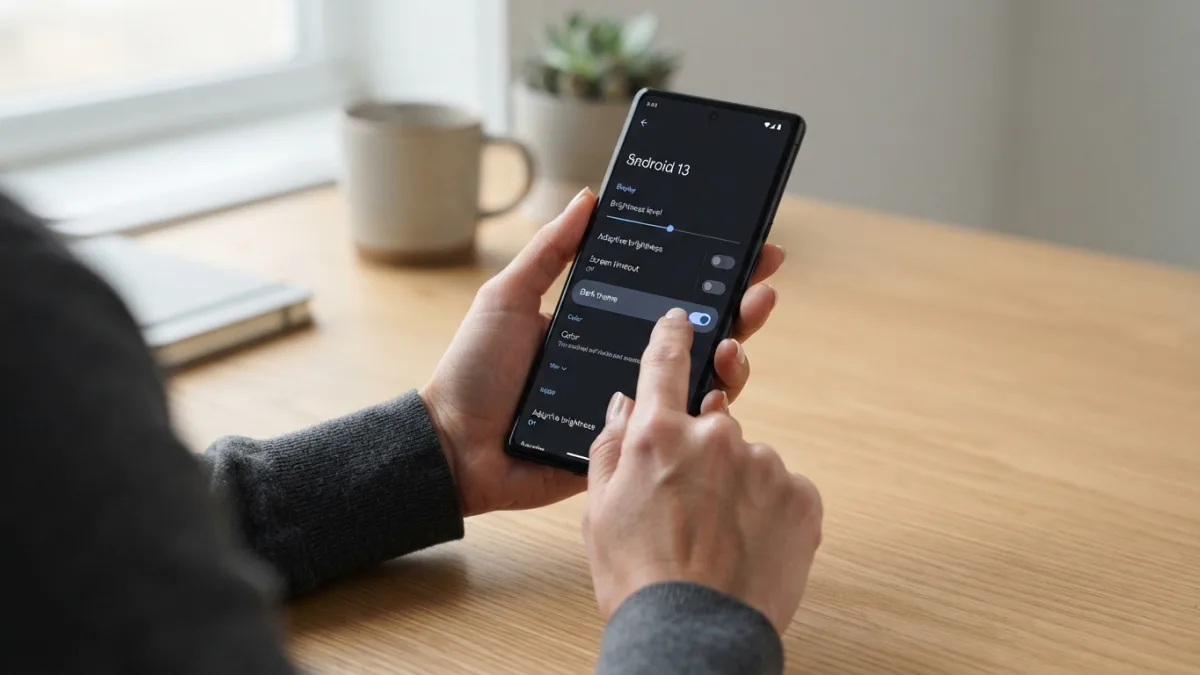
If you have ever checked your phone in a dark room and felt blinded by the bright white background, you are not alone. Learning how to use dark mode on android can make those late-night scrolls much easier on your eyes. This simple display change flips the usual black-text-on-white look to light text on a dark background, which many people find more comfortable. It also helps your phone blend in better when you are using it at night or in low light. The good news is that most modern Android phones include this feature built right into the system, so you do not need to download anything extra to get started.
Why Use dark mode on android Every Day?
People turn on the system dark theme for a few practical reasons, not just style. First, a darker screen can feel softer in dim environments, so your eyes do not have to adjust as much when you move from a dark room to a bright display. Second, on phones with OLED screens, dark pixels use less power, which may help your battery last a bit longer during the day. There is also a comfort factor. Reading articles, messages, or maps with a dark background can feel calmer, especially before bed. You can learn more about how this color design works from the Wikipedia overview of light-on-dark color schemes, which explains the basic idea behind the look. If you run into related issues on your phone, our step-by-step guide on how to stop Spam Calls and Texts on Android walks through the safest fixes.
7 Easy Steps to Enable It Quickly
Step 1: Open Your android display settings
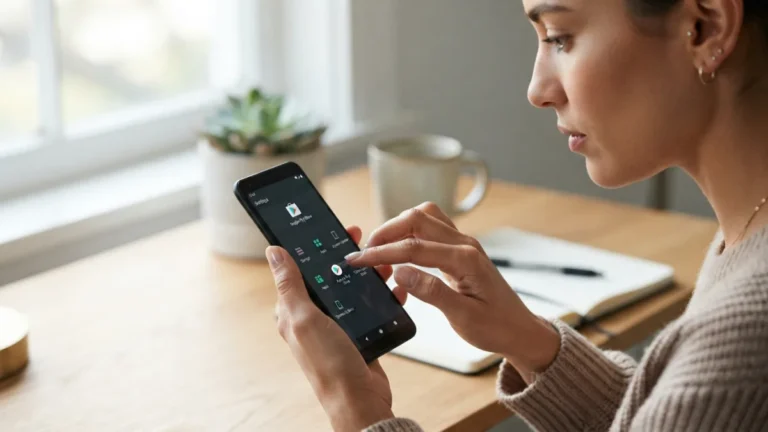
Start by unlocking your phone and finding the Settings app. It usually looks like a small gear icon on your home screen or in your app drawer. Tap to open it. Once inside, you will see a long list of options for sound, network, apps, and more. You want the section that controls how your screen looks. On most phones this is called Display, while on some models it may be called Display & brightness. Tapping this area is the first move to enable dark mode on android, and it is where you will find the main switch for the whole system.
Step 2: Find the Display or Appearance Menu
Inside the Display menu, scroll slowly until you see an option related to theme or appearance. Different phone makers use slightly different names. Google Pixel phones often show a simple Dark theme toggle right at the top. Samsung Galaxy phones may list it under Display as Dark mode. OnePlus and Xiaomi devices might group it under Customization or Appearance. Do not worry if the wording is not identical. You are looking for anything that says Dark, Night, or Theme. If you get lost, use the search bar at the top of Settings and type dark to jump straight to the right screen.
Step 3: Tap the System Dark Theme Toggle
When you find the right option, you will see a switch you can tap to turn the feature on. On many phones it is a simple toggle next to the words Dark theme or Dark mode. Tap it once and watch your screen change instantly. Menus, the settings background, and supported apps will shift to darker shades of gray or black. This is the core of dark mode on android and it applies across the entire operating system. You can find step-by-step visuals for this switch on the official Android help page if you want to double-check the location on your specific version.
Step 4: Use Quick Settings for Faster Access
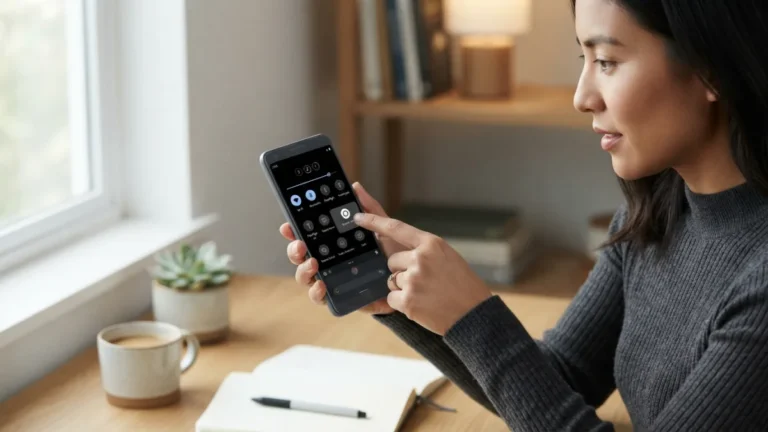
If you do not want to dig through menus every time, there is a much faster way. Swipe down from the top of your screen with one or two fingers to open Quick Settings. This panel shows small tiles for Wi-Fi, Bluetooth, flashlight, and other shortcuts. Look for a tile labeled Dark theme or Dark mode. If you do not see it, tap the small pencil or edit icon to add it to your panel. Once the tile is there, you can turn dark mode on android on or off with a single tap. It is perfect for quickly adjusting your screen when you move from a bright office to a dark bedroom. While you are adjusting these settings, it is also worth learning how to app Keeps Crashing on Android? 7 Easy Fixes That Work to keep everything running smoothly.
Step 5: Schedule Dark Mode to Turn On Automatically
Keeping your screen bright during the day and dark at night is easier when you automate it. Many Android phones let you schedule dark mode so you do not have to remember to switch it manually. In the same Display menu where you found the toggle, look for an option that says Schedule or Automatic. You can usually choose between two choices: turn on from sunset to sunrise, or set your own custom time range. Sunset to sunrise is handy because it follows the actual light outside. A custom schedule works well if you want the dark look during work hours or only while you are winding down in the evening.
Step 6: Check App-Level Dark Mode Settings
Turning on the system switch covers most of your phone, but some apps have their own separate controls. Apps like YouTube, Instagram, Chrome, and Gmail may follow the system setting automatically, while others let you choose light, dark, or system default inside the app itself. Open the app you use most, go to its Settings or Appearance section, and see what it offers. Choosing System default is usually the smartest option because the app will then match whatever your phone is doing. This keeps everything consistent and saves you from changing each app one by one whenever you switch themes.
Step 7: Know How to Turn Off Dark Mode When Needed
There will be times when you want the classic bright look back, especially outdoors in strong sunlight where dark backgrounds can be harder to read. To turn off dark mode, just reverse the steps you used to turn it on. Go back to Settings, then Display, and tap the Dark theme toggle again to switch it off. Or swipe down to Quick Settings and tap the Dark theme tile once more. Your screen will return to the standard light appearance right away. Knowing both directions means you can adapt quickly, and you will never feel stuck with one look if your lighting or preference changes.
What to Do If Dark Mode Looks Different on Your Phone
Not every Android phone shows dark mode on android in exactly the same way, and that is normal. Samsung, Google, Motorola, and other brands add their own design touches. On some devices the background is a deep pure black, while on others it is a softer dark gray that is easier on the eyes. A few phones also let you adjust extra options, like forcing dark mode on apps that do not officially support it. If you do not see a feature mentioned here, try these ideas: For another practical way to keep your Android device in great shape, see our walkthrough on how to block a Number on Android.
- Use the Settings search bar and type dark to find hidden options.
- Check for a separate Eye Comfort or Night Light setting, which is different from the dark theme.
- Update your phone to the latest Android version to get the newest display controls.
These small differences do not change the main process, but they explain why a friend’s phone might look slightly different from yours.
Does Battery Saver Mode Affect Your Dark Theme?
You might notice that your screen sometimes turns dark even when you did not tap anything. That often happens because battery saver mode can automatically enable a darker look to save power. When your battery drops to a low level, many phones switch to a more efficient display and limit background activity. On some models, battery saver will force the system dark theme on until you charge your phone or turn the saver off. If you want full control, go to Settings, then Battery, then Battery Saver, and check whether it is set to turn on automatically. You can keep the dark theme separate from battery saving if you prefer to manage them independently.
Final Tips for Getting the Most Out of Dark Mode
Once you have enabled dark mode on android, give yourself a day or two to see how it feels in different situations. Try it while reading in bed, navigating with maps, and scrolling through photos to notice where it helps most. If text feels less sharp, try increasing your screen brightness slightly or adjusting the font size in Display settings. Remember that you can pair the dark theme with other comfort features like Night Light, which reduces blue light in the evening. The best setup is the one that feels easy on your eyes and fits your daily routine, so feel free to experiment until it looks just right.
Frequently Asked Questions
Will dark mode on android work on all apps?
Most Google apps and many popular third-party apps support the system dark theme, but a few older apps may still show a light background. In those cases, check the app’s own settings for a dark option or set it to follow the system default. You can also review the official Google Photos help guide for additional technical documentation and model-specific notes.
Can I schedule dark mode to turn on only at night?
Yes. In your android display settings, look for Schedule or Automatic under the Dark theme option. You can choose sunset to sunrise or set custom start and end times.
Does dark mode save battery on every phone?
It helps most on phones with OLED or AMOLED screens, where black pixels use less energy. On LCD screens the savings are smaller, but many people still prefer it for comfort.
How do I turn off dark mode quickly?
Swipe down to open Quick Settings and tap the Dark theme tile again. You can also go to Settings, then Display, and toggle the switch off.
Is dark mode the same as Night Light or blue light filter?
No. Dark mode changes the background color to dark gray or black, while Night Light tints your screen amber to reduce blue light. You can use both together if you want.

2 Comments
Comments are closed.