
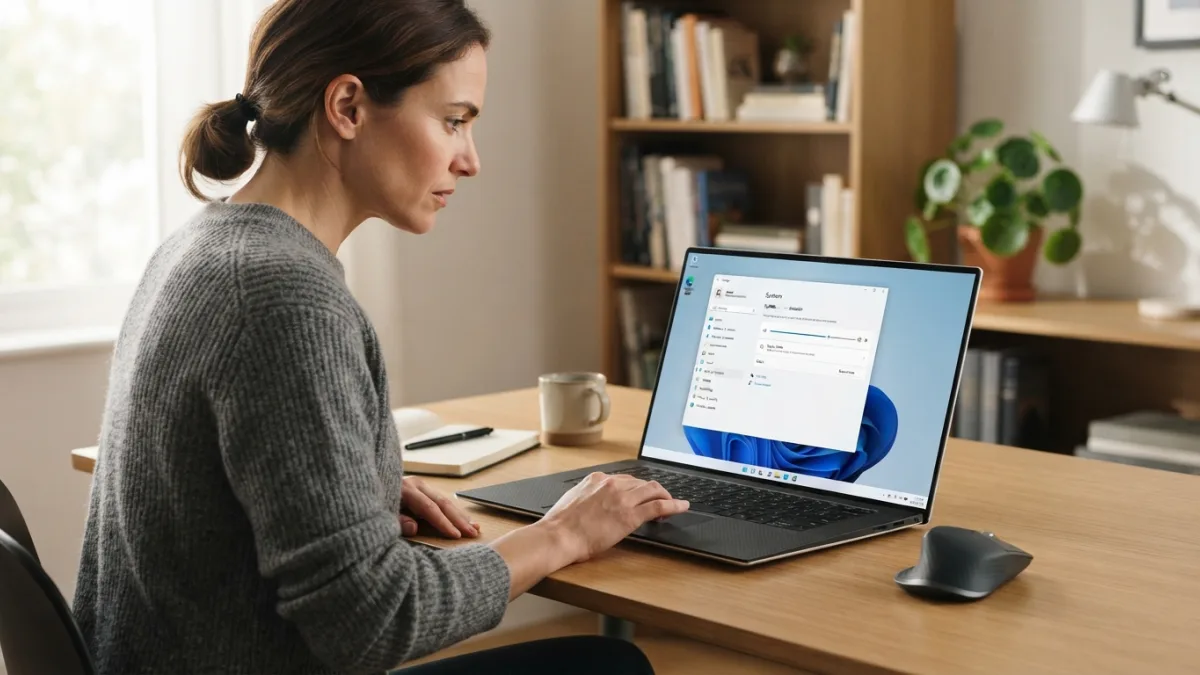
How to Fix Sound Not Working on Windows
Nothing kills the mood faster than hitting play on your favorite song or joining a video call only to be met with total silence. If you’ve been searching for ways to fix sound not working on Windows, you’re definitely not alone. This is one of the most common tech headaches reported by Windows users, and the good news is that most audio problems have simple, fixable causes. Whether you’re dealing with no sound windows 10 issues or a fresh Windows 11 install that suddenly went mute, this guide walks you through practical solutions you can try right now, starting with the easiest and working toward more advanced fixes.
Common Causes of Sound Problems on Windows
Before jumping into solutions, it helps to understand why sound stops working in the first place. Audio issues usually come down to a handful of culprits: outdated or corrupted audio drivers, incorrect playback device settings, muted volume levels, disabled audio services, or a hardware connection problem. Sometimes a recent Windows update changes default settings or breaks compatibility with your sound card drivers. Other times, it’s something as simple as a loose cable or a Bluetooth speaker that never properly connected. Software conflicts, third-party apps hijacking your audio output, and even a buggy driver update can all be behind the silence. Knowing these possibilities makes it easier to troubleshoot systematically instead of guessing randomly. If you want to dig deeper, our guide on How to Fix Bluetooth Not Working on Windows covers this in more detail. This is a common part of dealing with fix sound not working, and it is worth keeping in mind.
Quick Fixes to Try First
Before diving into more technical solutions, run through a few basic checks that solve the problem surprisingly often. Restarting your computer clears temporary glitches and refreshes background services, including anything related to audio. Check that your speakers or headphones are properly plugged in and powered on. Make sure the volume isn’t muted or turned down too low, both on your device and within any app you’re using. If you’re using external speakers, confirm they’re set as the default playback device. These steps sound almost too simple, but they resolve a large percentage of sound complaints without requiring any technical knowledge at all. Many people run into this exact issue with fix sound not working at some point.
Basic Checklist Before Advanced Troubleshooting
- Restart your PC and check again
- Verify volume levels aren’t muted
- Confirm speakers or headphones are connected properly
- Check that the correct playback device is selected
- Test with a different app or media file
How to Fix Sound Not Working Using the Audio Troubleshooter
Windows includes a built-in audio troubleshooter windows tool designed to automatically detect and repair common playback issues. To access it, right-click the speaker icon in your taskbar and select “Troubleshoot sound problems,” or head to Settings, then System, then Sound, and look for the troubleshoot option. This tool scans your system for misconfigured settings, disabled devices, and driver conflicts, then suggests or applies fixes automatically. It’s often the fastest way to fix sound not working without digging through menus yourself. While it doesn’t catch every issue, it’s a smart first step because it handles many routine problems in just a couple of minutes, saving you time before trying more manual solutions. Keeping fix sound not working in mind here will save you time later on.
Review Your Windows Sound Settings
Sometimes the issue isn’t a broken driver at all, but simply a misconfigured setting. Open your windows sound settings by right-clicking the speaker icon in the system tray and choosing “Sound settings.” From there, check which device is listed as your output. If you have multiple audio devices, such as HDMI monitors, headphones, or Bluetooth speakers, Windows might be sending audio to the wrong one. Click on “Sound Control Panel” for more detailed options, and test each device individually. It’s also worth checking app-specific volume levels under “App volume and device preferences,” since an app can be silently muted even when your system volume is fine. This connects closely with another common issue — see How to Set Up a New Windows Computer Step by Step for more on that. This detail matters more than it seems once fix sound not working comes up again.
Update or Reinstall Your Audio Drivers
Outdated or corrupted audio driver issues are one of the leading causes of sound failures, especially after a Windows update. To check your drivers, open Device Manager, expand “Sound, video and game controllers,” and look for a yellow warning icon next to your audio device. Right-click the device and select “Update driver” to let Windows search automatically, or visit your computer manufacturer’s website to download the latest version manually. If updating doesn’t help, try uninstalling the driver completely and restarting your PC, since Windows usually reinstalls a fresh version on startup. This simple reset often resolves stubborn playback issues that persist even after other troubleshooting attempts. It is one of those small things that makes fix sound not working easier to manage overall.
Fix a Speaker Not Detected Issue
If Windows shows no output device at all, or your speaker not detected windows message keeps popping up, the problem might involve disabled devices or incorrect default settings. Right-click the speaker icon, choose “Sounds,” then go to the “Playback” tab. Right-click in the empty space and check the boxes for “Show Disabled Devices” and “Show Disconnected Devices.” If your speaker or headphones appear grayed out, right-click and select “Enable.” Afterward, set the correct device as default. This hidden setting catches a surprising number of users off guard, since disabled devices don’t always show up unless you specifically ask Windows to reveal them. This is a common part of dealing with fix sound not working, and it is worth keeping in mind.
Restart Windows Audio Services
Windows relies on background services to manage sound, and if one of these stops running, your entire audio system can go silent. Press the Windows key plus R, type “services.msc,” and press Enter. Scroll down to find “Windows Audio,” right-click it, and select “Restart.” While you’re there, also check “Windows Audio Endpoint Builder” and make sure both are set to start automatically. If either service was stopped or disabled, sound won’t function no matter how correct your other settings are. Restarting these services often resolves issues that seem unrelated to drivers or hardware, especially after software installations or system updates that may have interfered with background processes. You might also find our article on How to Fix a Windows Computer That Won't Start helpful here. Many people run into this exact issue with fix sound not working at some point.
Check Physical Connections and External Hardware
Sometimes the fix has nothing to do with software at all. Loose cables, faulty ports, or malfunctioning speakers can all cause silence even when every setting looks correct. Try plugging your headphones or speakers into a different port to rule out a damaged jack. If you’re using Bluetooth audio, unpair and repair the device, since Bluetooth connections can become unstable over time. Testing your speakers or headphones on another device also helps determine whether the hardware itself is the problem rather than your Windows configuration. Dust and debris inside ports can also interfere with connections, so a quick, careful cleaning sometimes solves what looked like a software mystery. Keeping fix sound not working in mind here will save you time later on.
Consider a System Restore or Reset for Persistent Problems
If none of the previous steps work, the issue might stem from a deeper system conflict introduced by a recent update or software installation. Using System Restore lets you roll your PC back to a point before the problem started, without affecting your personal files. Open the Start menu, search for “Create a restore point,” then choose “System Restore” and follow the prompts. If sound still doesn’t work afterward, a more drastic option is resetting Windows while keeping your files intact, which reinstalls the operating system and often clears out deep-rooted driver conflicts. This should be treated as a later-stage option, used only after simpler fixes have been ruled out. This detail matters more than it seems once fix sound not working comes up again.
Audio problems can feel frustrating, especially when you’re in the middle of work or trying to relax with a show, but they’re rarely permanent. Most of the time, the solution involves checking a setting, updating a driver, or restarting a service rather than replacing hardware. Working through these steps in order, from the simplest checks to the more advanced fixes, gives you the best chance of identifying exactly what went wrong. If you’ve tried everything here and still can’t get sound back, it may be worth contacting your device manufacturer’s support team, since there could be a hardware fault that needs professional attention rather than a software fix. For a related walkthrough, check out How to Fix the Blue Screen of Death (BSOD). It is one of those small things that makes fix sound not working easier to manage overall.
Frequently Asked Questions
Why did my sound suddenly stop working after a Windows update?
Windows updates sometimes reset default audio devices or replace drivers with generic versions that aren’t fully compatible with your hardware. Running the audio troubleshooter or updating your drivers manually usually resolves this. This is a common part of dealing with fix sound not working, and it is worth keeping in mind.
How do I know if the problem is my drivers or my hardware?
Test your speakers or headphones on another device. If they work fine elsewhere, the issue is likely software-related on your PC, such as outdated drivers or incorrect settings. Many people run into this exact issue with fix sound not working at some point.
What should I do if the audio troubleshooter doesn’t fix the problem?
Try manually updating or reinstalling your audio drivers through Device Manager, and check that the Windows Audio service is running properly in the Services app. Keeping fix sound not working in mind here will save you time later on.
Can a virus or malware cause sound issues on Windows?
It’s uncommon but possible, especially if malware disables system services or corrupts drivers. Running a full antivirus scan is a reasonable step if other fixes don’t work. This detail matters more than it seems once fix sound not working comes up again.
Why does only one app have no sound while everything else works fine?
Check the app-specific volume mixer in Windows sound settings, since individual apps can be muted separately from your overall system volume without you realizing it. It is one of those small things that makes fix sound not working easier to manage overall.
2 Comments
Comments are closed.