
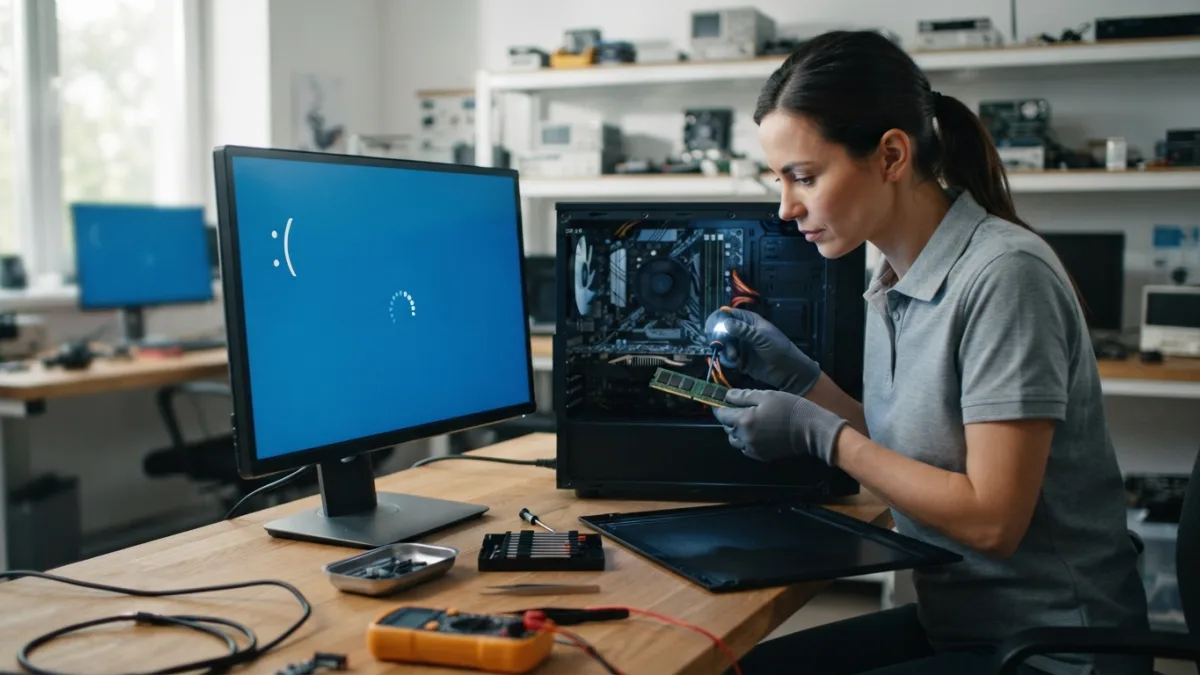
How to Fix the Blue Screen of Death (BSOD)
Few things trigger instant panic like watching your screen turn an ominous shade of blue while you’re in the middle of typing an email or saving a document. The blue screen of death, often shortened to BSOD, has been startling Windows users for decades, and it still catches people off guard every single day. The good news is that this infamous windows crash screen usually isn’t a death sentence for your computer. In most cases, it’s a fixable glitch with a clear path to a solution, and this guide walks you through exactly how to get your machine back on track.
What Causes the Blue Screen of Death?
Before you can fix bsod error messages, it helps to understand what’s actually happening behind the scenes. The blue screen of death appears when Windows encounters a problem so serious that it can’t continue running safely, so it stops everything to prevent damage to your files or hardware. Common triggers include corrupted system files, outdated or incompatible drivers, faulty RAM, overheating components, and conflicts between newly installed software and your operating system. Sometimes a botched Windows update is the culprit. Other times, a failing hard drive sends warning signs long before it completely gives out. Knowing the general cause narrows down your troubleshooting options significantly and saves you from wasting time on fixes that won’t apply to your situation. If you want to dig deeper, our guide on How to Fix Common Error Codes You See on Your Screen covers this in more detail. This is a common part of dealing with blue screen of death, and it is worth keeping in mind.
Quick Fixes You Can Try First
Before diving into deeper computer blue screen fix methods, start with the basics. Restart your computer and see if the error reappears, since a one-time crash sometimes resolves itself without any further action. Unplug any recently connected external devices like USB drives, printers, or webcams, because a faulty peripheral can occasionally send bad signals that confuse your system. Check that all internal cables and memory sticks are properly seated if you’ve recently opened up your desktop tower. It also helps to jot down or photograph the stop code error displayed on the screen, since that short code becomes your roadmap for more targeted troubleshooting steps later on. Many people run into this exact issue with blue screen of death at some point.
Boot Into Safe Mode
If your computer keeps crashing before you can even reach the desktop, Safe Mode becomes your best friend. This diagnostic mode loads Windows with only the essential drivers and services running, which strips away most of the potential troublemakers. To get there, restart your PC three times in a row during the boot process to trigger the Windows Recovery Environment, then navigate to Troubleshoot, Advanced Options, Startup Settings, and select Safe Mode. Once inside, you can uninstall recently added programs, roll back drivers, or run scans without the crash interrupting you. Many users find that simply reaching Safe Mode successfully is enough proof that the issue lies with a specific driver or app rather than deeper hardware failure. Keeping blue screen of death in mind here will save you time later on.
Fixing the Blue Screen of Death With Built-In Windows Tools
Windows actually ships with several tools designed specifically for this kind of problem. Run Windows Update first, since Microsoft regularly releases patches that address known bugs causing crashes. Head to Settings, then Update and Security, and install anything pending, including optional driver updates. Next, open Command Prompt as an administrator and run the System File Checker by typing “sfc /scannow,” which scans for corrupted system files and repairs them automatically when possible. You can follow that with “DISM /Online /Cleanup-Image /RestoreHealth” for a deeper repair of the Windows image itself. These bsod troubleshooting steps resolve a surprisingly large percentage of cases without requiring any technical background beyond copying a command correctly. This connects closely with another common issue — see How to Cast Your Phone Screen to a TV for more on that. This detail matters more than it seems once blue screen of death comes up again.
Try System Restore
If the crashes started shortly after installing new software or a driver update, System Restore can undo the damage without affecting your personal files. Type “Create a restore point” into the Windows search bar, open the System Properties window, and click System Restore. Choose a restore point dated before your problems began, then follow the prompts to roll your system back to that earlier, stable state. This won’t delete your documents or photos, but it will remove programs installed after that date. Many people overlook this option simply because they forget it exists, yet it remains one of the fastest ways to reverse a bad update or a poorly coded driver. It is one of those small things that makes blue screen of death easier to manage overall.
Decoding the Stop Code for Faster Repairs
That string of text under the sad face on your screen isn’t random. Each stop code error points to a specific category of failure, and searching that exact code alongside “Windows” often leads directly to the relevant fix. For example, a “DRIVER_IRQL_NOT_LESS_OR_EQUAL” message usually points to a driver conflict, while “MEMORY_MANAGEMENT” suggests RAM issues. “PAGE_FAULT_IN_NONPAGED_AREA” often relates to storage or driver problems. Writing down the code before restarting saves you from guessing blindly. Windows also generates a memory dump file after a crash, which more advanced users can analyze with free tools like WinDbg to pinpoint exactly which driver or process triggered the failure in the first place. This is a common part of dealing with blue screen of death, and it is worth keeping in mind.
Hardware Checks Worth Running
Sometimes the blue screen of death has nothing to do with software at all. Overheating is a frequent hidden cause, especially in laptops with dust-clogged fans or desktops sitting in poorly ventilated spaces, so check your internal temperatures using a free monitoring tool and clean out dust if things look too warm. Faulty RAM is another common suspect, and Windows includes a built-in Memory Diagnostic tool you can find by searching “Windows Memory Diagnostic” in the start menu. Run it and restart to let it test your memory sticks overnight if needed. A failing hard drive or SSD can also trigger crashes, so run “chkdsk /f” from an administrator Command Prompt to scan for and repair disk errors before they get worse. You might also find our article on How to Set Up a New Windows Computer Step by Step helpful here. Many people run into this exact issue with blue screen of death at some point.
Software Conflicts and Malware
Third-party antivirus programs, outdated graphics drivers, and even certain overclocking software are notorious for causing instability. If you installed something new right before the crashes started, uninstall it and see if the problem disappears. Outdated graphics drivers deserve special attention since they’re involved in an unusually high number of BSOD cases, particularly after major Windows updates. Visit your graphics card manufacturer’s website directly rather than relying solely on Windows Update, since manufacturer sites often have more current versions. Running a full malware scan is also worthwhile, since certain infections deliberately corrupt system files or interfere with drivers in ways that mimic ordinary hardware failure, leading people down the wrong troubleshooting path entirely. Keeping blue screen of death in mind here will save you time later on.
When It’s Time for a Clean Install or Reset
If none of the earlier steps work and crashes keep happening, a clean install might be your most reliable option left. Windows 10 and 11 both include a “Reset this PC” feature under Settings, Update and Security, Recovery, which lets you choose to keep your personal files while wiping out installed programs and settings that might be causing conflicts. Back up important files beforehand regardless of which option you choose, just to be safe. A completely fresh install using installation media takes longer but often produces the most stable result, since it eliminates every trace of whatever corrupted file or setting was triggering the blue screen of death in the first place, giving your system a genuine clean slate. This detail matters more than it seems once blue screen of death comes up again.
Preventing Future Crashes
Once you’ve resolved the immediate problem, a few habits keep it from coming back. Keep Windows and your drivers updated regularly rather than ignoring notifications for weeks at a time. Install a reputable antivirus program and avoid downloading software from unverified sources, since sketchy installers are a common source of system instability. Physically clean your computer’s internal fans every few months to prevent overheating, especially if you live somewhere dusty or use your device heavily for gaming or video editing. Finally, consider using a surge protector, since sudden power fluctuations can damage components over time and eventually contribute to crashes that seem to appear out of nowhere but actually build up gradually. For a related walkthrough, check out How to Fix a Windows Computer That Won't Start. It is one of those small things that makes blue screen of death easier to manage overall.
Frequently Asked Questions
What does the blue screen of death actually mean?
It means Windows detected a critical error it can’t safely recover from while running, so it stops the system entirely to prevent further damage to your files or hardware. This is a common part of dealing with blue screen of death, and it is worth keeping in mind.
Can a blue screen of death damage my computer permanently?
Usually not. Most BSOD events are software-related and fixable, though repeated crashes tied to overheating or failing hardware can cause lasting damage if left unaddressed for too long.
Why does my computer keep crashing with the same stop code?
A recurring stop code usually points to one specific unresolved issue, often a driver, faulty RAM stick, or corrupted system file, so focus your troubleshooting there instead of trying random fixes.
Should I reinstall Windows every time I see a blue screen?
No, that should be a last resort. Try Safe Mode, System Restore, driver updates, and hardware checks first, since a clean install takes considerable time and effort to complete properly.
Is the blue screen of death more common after Windows updates?
Yes, occasionally. New updates sometimes conflict with older drivers or third-party software, which is why checking for further updates or rolling back recent changes often resolves the issue quickly.



2 Comments
Comments are closed.