How to Connect a Mac to a TV or External Monitor
That tiny MacBook screen starts feeling cramped the moment you try to edit photos, watch a movie, or build a presentation for work. The good news is that you don’t need fancy equipment or technical skills to fix that problem. If you want to connect Mac to TV or a larger external monitor, Apple has built several simple methods right into macOS, and most of them take less than five minutes to set up. Whether you’re streaming a show on your living room TV, mirroring your screen for a client meeting, or setting up a proper two-monitor workstation, this guide walks through every practical option available in 2024, from cables to wireless streaming, so you can pick whichever fits your setup and budget.
Why Connect a Mac to a TV or Monitor?
Before jumping into cables and settings, it helps to understand why so many people bother making this connection at all. A bigger screen means more comfortable movie nights, sharper detail for photo or video editing, and extra room to keep multiple windows open side by side. Students use it to follow along with lectures on a shared display, while remote workers rely on an external monitor to boost productivity without straining their eyes. Gamers also benefit, since many modern TVs support higher refresh rates that make gameplay feel smoother. Whatever your reason, learning how to extend Mac display or mirror it to a larger screen opens up possibilities your laptop alone simply can’t offer, and the process is far easier than most people expect. If you want to dig deeper, our guide on How to Fix the Blue Screen of Death (BSOD) covers this in more detail. This is a common part of dealing with connect mac to tv, and it is worth keeping in mind.
Check Your Mac’s Ports First
Your first step is figuring out what ports your specific Mac model has, since Apple has changed its hardware lineup several times over the years. Older Macs came with HDMI, Mini DisplayPort, or Thunderbolt 2 ports, while most Macs released since 2016 rely almost entirely on USB-C or Thunderbolt 3/4 ports. Knowing this matters because it determines whether you’ll need a direct cable or an adapter to bridge the gap between your laptop and the display. You can check your exact model by clicking the Apple menu, selecting “About This Mac,” and looking up your model year if you’re unsure. Once you know your port type, buying the right hdmi cable for Mac or adapter becomes a lot less confusing, and you’ll avoid returning the wrong cable twice. Many people run into this exact issue with connect mac to tv at some point.
Connecting With a Cable: The Reliable Option
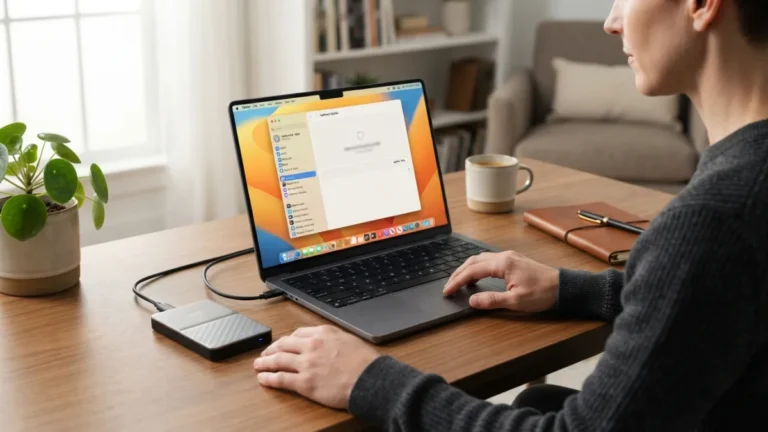
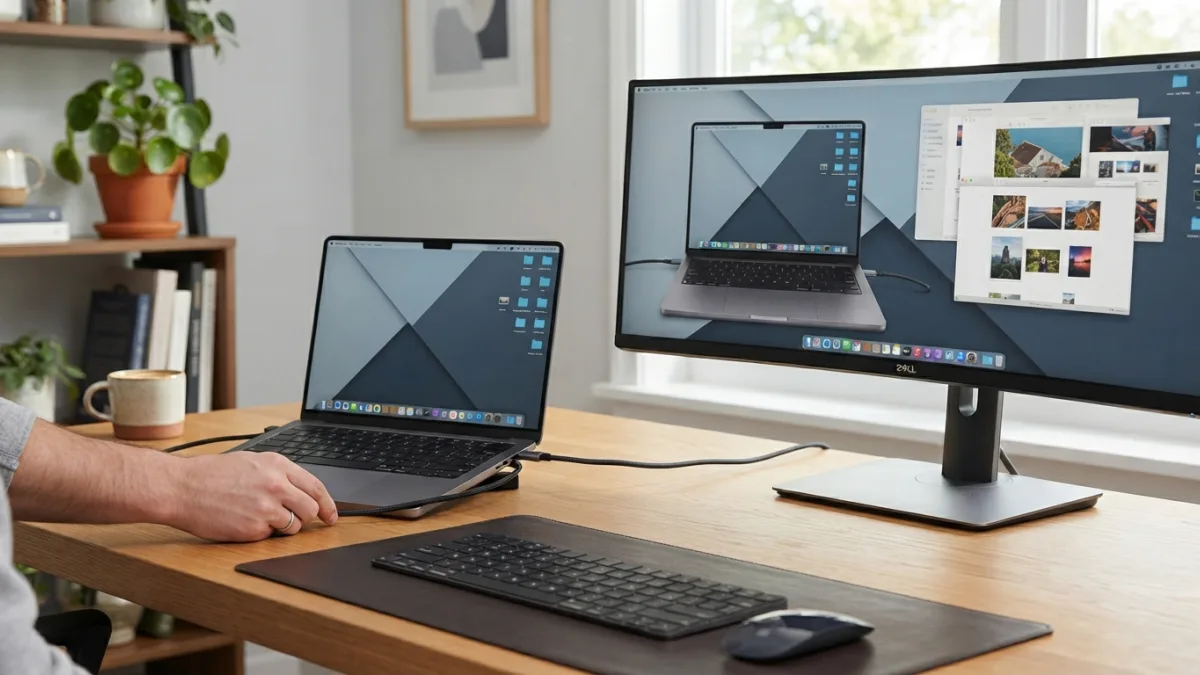
Using a physical cable remains the most dependable way to connect Mac to TV or a monitor because it avoids lag, buffering, and Wi-Fi interference entirely. If your Mac has an HDMI port, you can plug a standard HDMI cable straight from your laptop into your TV or monitor’s HDMI input. For USB-C or Thunderbolt Macs, you’ll need either a USB-C to HDMI cable or a USB-C to HDMI adapter, both of which are widely available and inexpensive. Once connected, switch your TV’s input source to match the HDMI port you used, and your Mac’s screen should appear automatically. If nothing shows up right away, don’t panic — head to System Settings, click Displays, and select “Detect Displays” to force the connection to register. Keeping connect mac to tv in mind here will save you time later on.
Common Cable and Adapter Options
| Mac Port Type | What You’ll Need | Best For |
|---|---|---|
| HDMI (older MacBook Pro models) | Standard HDMI cable | Direct TV or monitor connection |
| USB-C or Thunderbolt 3/4 | USB-C to HDMI cable or adapter | Most modern MacBook Air/Pro and iMac models |
| Mini DisplayPort (older iMac/MacBook Air) | Mini DisplayPort to HDMI adapter | Older Mac models before 2016 |
| Any Mac with Wi-Fi | Apple TV or AirPlay-compatible smart TV | Wireless mirroring without cables |
Going Wireless: AirPlay to TV
If you’d rather skip cables altogether, Apple’s AirPlay feature lets you stream your Mac’s screen wirelessly to compatible devices. To use AirPlay to TV, you’ll need an Apple TV box or a smart TV with AirPlay 2 support built in, and both your Mac and the TV must be connected to the same Wi-Fi network. Once that’s set up, click the Control Center icon in your Mac’s menu bar, select “Screen Mirroring,” and choose your TV from the list of available devices. Within a few seconds, your Mac’s display should appear on the big screen without any cables involved. Keep in mind that wireless mirroring can introduce a small delay compared to a wired connection, which matters more for gaming or fast-motion video than for browsing or presentations. This connects closely with another common issue — see How to Fix Common Error Codes You See on Your Screen for more on that. This detail matters more than it seems once connect mac to tv comes up again.
How to Mirror Mac Screen or Extend the Display
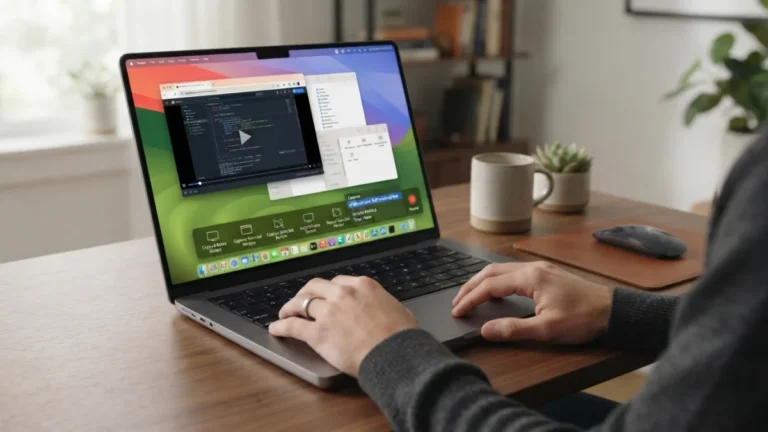
Once your Mac is physically or wirelessly connected, you get to decide how the two screens work together. Mirroring shows the exact same content on both your Mac and the external display, which works well for presentations or showing photos to a group. Extending, on the other hand, turns the second screen into additional workspace, letting you drag windows between displays for a true dual-monitor setup. To switch between these modes, open System Settings, click Displays, and you’ll see options to mirror displays or arrange them as extended screens. Many people prefer to mirror Mac screen content when giving a talk, then switch to extended mode afterward for regular work, since it dramatically increases how much you can see and do at once. It is one of those small things that makes connect mac to tv easier to manage overall.
Adjusting Display Settings for the Best Picture
Getting connected is only half the job — you’ll also want the picture to actually look good. After connecting your mac to external monitor or TV, open System Settings and click Displays to fine-tune resolution, brightness, and refresh rate. Macs usually detect the optimal resolution automatically, but you can manually adjust it if text looks blurry or too small. If you’re using a TV, check that its picture mode isn’t set to something overly vivid or contrast-heavy, since TVs are calibrated differently than computer monitors and can make text harder to read. You might also want to rearrange the display positions in the Displays menu so your cursor moves naturally from one screen to the other, which makes daily use feel far less clunky. This is a common part of dealing with connect mac to tv, and it is worth keeping in mind.
Troubleshooting Common Connection Problems
Sometimes things don’t work on the first try, and that’s normal even with Apple’s generally smooth setup process. If your TV or monitor shows a black screen after connecting, try these steps: You might also find our article on How to Cast Your Phone Screen to a TV helpful here. Many people run into this exact issue with connect mac to tv at some point.
- Restart your Mac while it’s still connected to the display.
- Try a different HDMI port or cable to rule out a faulty connection.
- Confirm the TV’s input source matches the port you plugged into.
- Check for macOS software updates, since outdated systems can cause display bugs.
- For AirPlay issues, make sure both devices are on the same Wi-Fi network and restart your router if needed.
Most connection problems come down to a loose cable, wrong input source, or an outdated adapter, so working through these basics usually solves the issue within minutes. Keeping connect mac to tv in mind here will save you time later on.
Choosing the Right Setup for Your Needs
With so many options available, it helps to think about what you’ll actually use the connection for before buying anything. If you mainly want to watch movies or stream shows occasionally, AirPlay or a simple HDMI cable will serve you fine without much investment. If you’re building a permanent home office setup, investing in a quality USB-C to HDMI adapter or a dedicated monitor cable will give you a more stable, lag-free connection for daily work. Gamers and video editors should prioritize wired connections over wireless ones, since even a small delay can be noticeable during fast-paced tasks. There’s no single “best” answer here — it really depends on how often you’ll use the setup and whether reliability or convenience matters more to you. This detail matters more than it seems once connect mac to tv comes up again.
Connecting your Mac to a bigger screen doesn’t have to be complicated, and once you’ve done it the first time, it becomes second nature. Whether you choose a wired HDMI connection for rock-solid reliability or wireless AirPlay for convenience, the payoff is the same: more screen space, sharper visuals, and a much better viewing or working experience. Take a few minutes to check your Mac’s ports, pick the right cable or adapter, and adjust your display settings until everything looks just right. Once that’s done, you’ll wonder why you didn’t make the switch to a larger screen sooner. For a related walkthrough, check out How to Update macOS Safely Without Losing Data. It is one of those small things that makes connect mac to tv easier to manage overall.
Frequently Asked Questions
Can I connect any Mac to a TV without buying extra hardware?
It depends on your Mac’s ports and your TV’s capabilities. If your TV supports AirPlay 2, you can connect wirelessly without buying any cables at all, as long as both devices share the same Wi-Fi network. This is a common part of dealing with connect mac to tv, and it is worth keeping in mind.
Why does my Mac screen look stretched or blurry on my TV?
This usually happens when the resolution isn’t set correctly. Open System Settings, click Displays, and manually select a resolution that matches your TV’s native display size for a sharper picture. Many people run into this exact issue with connect mac to tv at some point.
Does AirPlay work with all smart TVs?
No, only TVs with AirPlay 2 support work directly with this feature. If your TV doesn’t support it, you can still use an Apple TV box or connect via an HDMI cable instead. Keeping connect mac to tv in mind here will save you time later on.
Can I use my TV as a second monitor for work?
Yes, once connected, you can extend your Mac’s display in System Settings to use the TV as additional workspace, rather than just mirroring the same content on both screens. This detail matters more than it seems once connect mac to tv comes up again.
Is a wired connection better than AirPlay for gaming or video editing?
Generally, yes. Wired HDMI connections offer lower latency and more consistent performance, which matters a lot for gaming, video editing, and any task where timing and responsiveness are important. It is one of those small things that makes connect mac to tv easier to manage overall.