Check macOS Version: 5 Quick Steps to Find Your Mac Model
Ever tried to download an app only to be told your Mac isn’t compatible? Or maybe a support agent asked which macOS version you’re running, and you had no idea how to answer. Learning to check macOS version and Mac model details takes less than a minute once you know where to look, and it can save you a lot of frustration when troubleshooting problems, installing software, or figuring out whether your machine qualifies for an upgrade. Whether you’re using a brand-new MacBook Air or an older iMac that’s been sitting on your desk for years, the process is nearly identical across every Apple computer.
Why Checking Your macOS Version and Mac Model Matters
Knowing your exact macOS version and Mac model number isn’t just trivia. Software developers list minimum system requirements before every download, and many apps simply won’t install if your operating system is out of date. Tech support teams also ask for this information constantly, since a fix for one macOS version might not apply to another. If you’re planning to sell your Mac, buy accessories, or find a replacement battery, the model number tells sellers exactly what you own. Even Apple itself uses this information to determine which updates and security patches your machine is eligible to receive, based on guidance from Apple’s own support documentation on macOS compatibility. If you want to dig deeper, our guide on How to Update macOS Safely Without Losing Data covers this in more detail. This is a common part of dealing with check macos version, and it is worth keeping in mind.
Step 1: Open the Apple Menu on Your Mac
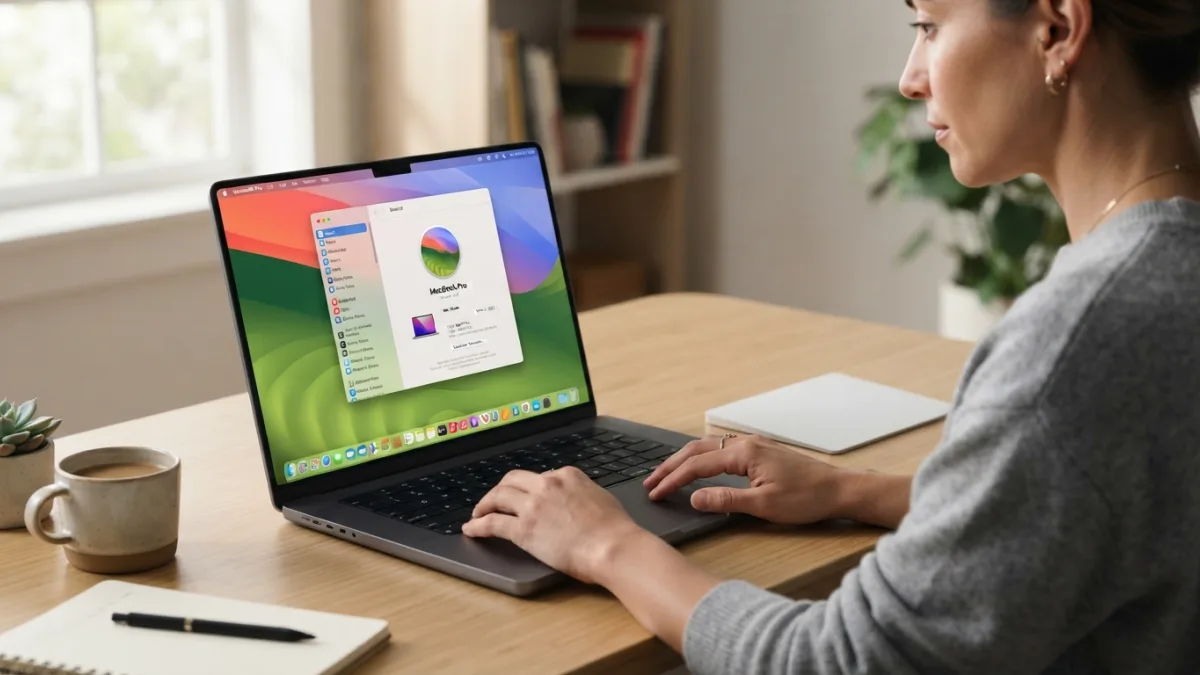
Every method for checking your system details starts in the same place: the Apple menu. Look at the top-left corner of your screen for the small black Apple logo, which stays visible no matter which app you’re currently using. Click it, and a dropdown menu will appear with several options, including Sleep, Restart, Shut Down, and System Settings. Near the top of that list, you’ll see “About This Mac.” This single click opens a window packed with everything you need, from your macOS version number to your Mac model name, memory, storage, and processor details. It’s the fastest starting point, and it works the same way whether you’re on an older MacBook or the newest Mac Studio. Many people run into this exact issue with check macos version at some point.
Step 2: Check macOS Version Under About This Mac
Once the About This Mac window opens, you’ll see your macOS version listed clearly near the top, right under your Mac’s name. Apple labels its operating systems with names like Sonoma, Sequoia, or Ventura, followed by a specific number such as 14.5 or 15.1. This number matters more than the name when you’re checking software compatibility, since developers usually list minimum requirements using version numbers rather than nicknames. If you want to confirm you’re running the most current build, there’s often a “Software Update” button right in this same window. Clicking it will tell you immediately whether updates are available, which is a quick and reliable macOS version check you can repeat anytime. Keeping check macos version in mind here will save you time later on.
Step 3: Identify Your Mac Model Name and Number
Right below your macOS version, the About This Mac window displays your Mac model, such as “MacBook Pro (14-inch, 2023)” or “iMac (24-inch, 2021).” This is helpful, but if you need the precise Mac model number, often required for repairs or parts, click the “More Info” or “System Report” button. This opens a detailed hardware overview listing your exact model identifier, something like “MacBookPro18,3.” That string of letters and numbers may look confusing, but repair shops, Apple Support staff, and third-party retailers rely on it to confirm compatible parts and accessories. It removes any guesswork, especially since Apple has released many similarly named models over the years with different internal specifications. This connects closely with another common issue — see How to Screen Record on a Mac (With Sound) for more on that. This detail matters more than it seems once check macos version comes up again.
Step 4: Find Your Mac Serial Number
Your Mac serial number is another detail tucked inside the About This Mac window, and it’s essential if you ever need warranty support, want to check repair eligibility, or need to report a lost or stolen device. In most recent macOS versions, the serial number appears directly under the model name without needing an extra click. On older systems, you may need to click on the version number text itself, which cycles through the build number and then reveals the serial number. You can also find this same code printed on the original packaging or on a small label on certain Mac models. For official verification methods, Apple’s support page on finding your serial number covers several alternative approaches. It is one of those small things that makes check macos version easier to manage overall.
Step 5: Dig Deeper With System Information
For users who want more than the basics, macOS includes a built-in tool called System Information, sometimes still referred to by its older name, System Profiler. You can reach it by holding the Option key while clicking the Apple menu, then selecting “System Information” instead of “About This Mac.” This opens a detailed report covering hardware, network settings, installed software, displays, storage devices, and more. It’s especially useful for troubleshooting hardware issues, checking RAM slots, or confirming which graphics card your Mac uses. While casual users rarely need this level of detail, IT professionals and repair technicians rely on it constantly when diagnosing problems that a simple macOS version check won’t reveal. This is a common part of dealing with check macos version, and it is worth keeping in mind.
A Quick Look at Recent macOS Versions
Apple has released macOS updates yearly for over a decade, each with a distinct name and version number. Recognizing these names can help you quickly figure out how current your software is, without having to memorize numbers. You might also find our article on How to Connect a Mac to a TV or External Monitor helpful here. Many people run into this exact issue with check macos version at some point.
| macOS Name | Version Number | Approximate Release Year |
|---|---|---|
| Sequoia | 15.x | 2024 |
| Sonoma | 14.x | 2023 |
| Ventura | 13.x | 2022 |
| Monterey | 12.x | 2021 |
| Big Sur | 11.x | 2020 |
You can find a fuller history, including much older releases, on the macOS version history page on Wikipedia, which lists every update alongside its official name and number. Keeping check macos version in mind here will save you time later on.
Why Keeping macOS Updated Matters
Once you check macOS version details and confirm you’re not on the latest release, it’s worth considering whether to update soon. Newer macOS versions typically include security patches that protect against malware and phishing attempts, along with performance improvements and new features. Running an outdated system can leave your Mac vulnerable, especially since Apple eventually stops supporting older versions with security fixes altogether. On the other hand, some users intentionally delay major updates until early bugs get resolved, which is a reasonable approach too. Either way, knowing exactly which version you’re running lets you make an informed decision rather than guessing whether you’re due for an update or perfectly fine as you are. This detail matters more than it seems once check macos version comes up again.
Putting It All Together
Checking your macOS version and Mac model doesn’t require any technical background, just a couple of clicks through menus that are already built into your system. Within moments, you’ll know your operating system version, your exact model identifier, your serial number, and even deeper hardware specifics if you need them. This small habit pays off whenever you’re troubleshooting an issue, contacting Apple Support, buying accessories, or simply deciding if it’s time to update your software. Bookmark these steps, and you’ll never be caught off guard by that dreaded “your Mac isn’t compatible” message again. For a related walkthrough, check out How to Recover Deleted Files on a Mac. It is one of those small things that makes check macos version easier to manage overall.
Frequently Asked Questions
How do I check macOS version without opening any apps?
Click the Apple menu in the top-left corner of your screen and select “About This Mac.” Your macOS version appears immediately near the top of the window, with no need to open any other application. This is a common part of dealing with check macos version, and it is worth keeping in mind.
Where can I find my Mac model number?
Open About This Mac, then click “More Info” or “System Report” to see the precise model identifier, which looks like a mix of letters and numbers such as “MacBookPro18,3.” Many people run into this exact issue with check macos version at some point.
Why can’t I find my Mac serial number under About This Mac?
On some older macOS versions, you need to click directly on the version number text to cycle through the build number before the serial number appears. It’s also printed on your Mac’s original box. Keeping check macos version in mind here will save you time later on.
Does checking my macOS version tell me if updates are available?
Yes. The About This Mac window usually includes a “Software Update” button that checks Apple’s servers and tells you instantly whether a newer macOS version is ready to install. This detail matters more than it seems once check macos version comes up again.
Is System Information different from About This Mac?
Yes. About This Mac gives a quick summary, while System Information (accessed by holding Option while opening the Apple menu) provides a far more detailed technical report on hardware and software components.