

How to Recover Deleted Files on a Mac
You just emptied the Trash, and now your heart is sinking because you realize you needed that file. Don’t panic yet. Whether you accidentally deleted a work document, lost photos after a system crash, or wiped a folder by mistake, you can often recover deleted files on Mac without paying a professional. macOS keeps more safety nets than most people realize, and a few simple steps can bring your files back before you assume they’re gone forever.
Start With the Simplest Fix: Check the Trash
Before trying anything complicated, open the Trash icon in your Dock. Files stay there until you empty it, so this is the fastest way to undo a mistake. Right-click the file you want back and choose “Put Back,” and it returns to its original folder instantly. If you’re not sure where a file went, use the search bar inside the Trash window to type its name. Many people forget this step entirely and jump straight to downloading software, when the answer was sitting in plain sight the whole time. Always rule out the obvious before assuming your data is truly lost. If you want to dig deeper, our guide on How to Transfer Files Between Android and PC (No App Needed) covers this in more detail. This is a common part of dealing with recover deleted files on mac, and it is worth keeping in mind.
How a Time Machine Backup Can Save the Day
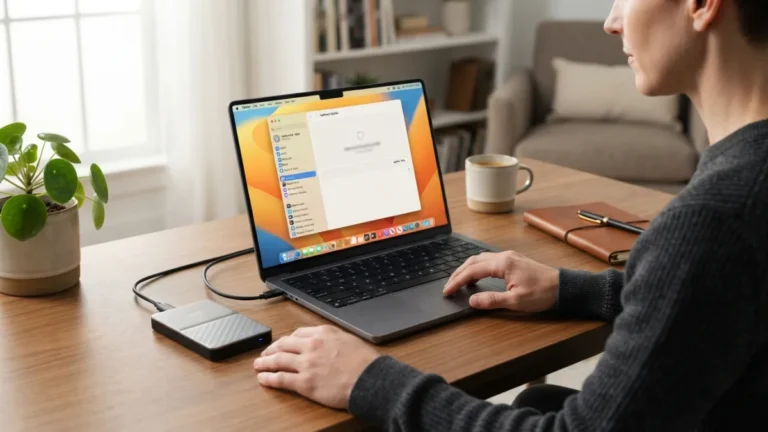
If you’ve already emptied the Trash, your next stop should be Time Machine. This built-in backup tool takes hourly, daily, and weekly snapshots of your Mac, so a recent version of your file likely still exists. Connect your backup drive, open Time Machine from the menu bar, and navigate to the folder where the file used to live. Use the timeline on the right side of the screen to scroll back to a date before the deletion happened. Select the file and click “Restore.” This method works well because it doesn’t rely on guessing what’s recoverable — it simply returns a copy from a point in time when the file still existed. Many people run into this exact issue with recover deleted files on mac at some point.
What If You Never Set Up Time Machine?
Not everyone enables Time Machine backup right away, and that’s a common regret after a data loss scare. If you skipped this step, you’re not out of options, but you’ll need to rely on other recovery methods instead. This is also a good moment to set up backups going forward, even if today’s situation feels stressful. Connect an external drive, open System Settings, and turn on Time Machine so future accidents don’t leave you scrambling. A backup you never needed costs you nothing, but the one you didn’t have when you needed it can cost hours of frustration. Keeping recover deleted files on mac in mind here will save you time later on.
Recover Deleted Files on Mac Using Data Recovery Software
When Trash and backups don’t help, dedicated data recovery software becomes your best bet. When you delete a file, macOS usually marks that space as available rather than erasing the data immediately, meaning the original content may still sit on your drive until something overwrites it. Recovery programs scan your disk for these recoverable traces and rebuild the files. The key is acting fast: the longer you use your Mac after deletion, the higher the chance new data overwrites the old. Avoid saving anything new to the affected drive until you’ve run a scan, since every new file increases the risk of permanent loss. This detail matters more than it seems once recover deleted files on mac comes up again.
Popular Options to Consider
Several tools are known for reliable results on macOS, each with different strengths depending on your budget and technical comfort level. Some are free for basic scans, while others charge for full recovery access. Below is a quick comparison to help you choose one that fits your situation. This connects closely with another common issue — see How to Set Up a Backup Routine You'll Actually Stick To for more on that. It is one of those small things that makes recover deleted files on mac easier to manage overall.
| Software | Best For | Free Option |
|---|---|---|
| Disk Drill | Beginners wanting an easy interface | Yes, limited scan preview |
| EaseUS Data Recovery Wizard | Recovering photos and documents | Yes, small file size limit |
| Stellar Data Recovery | Recovering files from formatted drives | Yes, limited free version |
What About Permanently Deleted Files?
Files that have been emptied from Trash and overwritten by new data enter trickier territory. Technically, permanently deleted files aren’t always gone the instant you empty the Trash — the data often remains on the drive until the space gets reused. This is why recovery software can sometimes pull back files you thought were unrecoverable. However, if you’ve continued using your Mac heavily since the deletion, saved large files, or run disk cleanup tools, the odds drop significantly. Solid-state drives (SSDs), which most modern Macs use, also complicate things because of a process called TRIM, which proactively clears deleted data to keep the drive fast. This makes recovery from newer Macs harder than from older models with traditional hard drives. This is a common part of dealing with recover deleted files on mac, and it is worth keeping in mind.
Recovering Files From an External Hard Drive
Lost files aren’t always on your Mac’s internal storage. If you deleted something from an external hard drive, USB stick, or SD card, the same general principles apply, but the steps differ slightly. Stop using the external drive immediately to avoid overwriting recoverable data. Most data recovery software lets you select external volumes as a scan target, treating them the same way as internal drives. If the drive was formatted before you realized files were missing, don’t lose hope — many recovery tools specifically list formatted drives as a supported scenario. Just be patient, since scanning external drives, especially larger ones, can take considerably longer than scanning internal storage. Many people run into this exact issue with recover deleted files on mac at some point.
Using iCloud and Other Cloud Backups
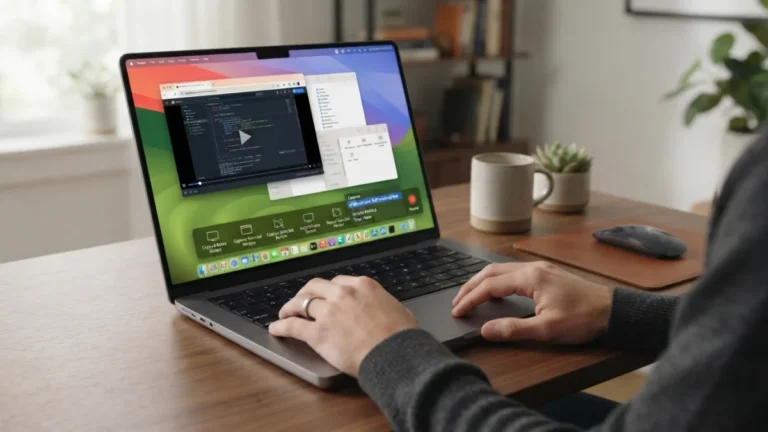
If you sync your Mac with iCloud, you might have another safety net. iCloud Drive has its own trash folder, separate from your Mac’s local Trash. Visit iCloud.com, sign in, open iCloud Drive, and check the “Recently Deleted” folder, where files typically stay recoverable for about 30 days. The same idea applies to other cloud services like Dropbox or Google Drive if you use them to store or back up files. These services often keep deleted items in a recoverable state longer than your local Trash does, which makes cloud storage a genuinely useful backup layer, even if you didn’t set it up specifically for that purpose. Keeping recover deleted files on mac in mind here will save you time later on.
When to Consider Professional Recovery Services
Sometimes software just isn’t enough, particularly when the drive itself is physically damaged, making clicking or failing to mount properly. In these cases, stop trying DIY fixes, since repeated attempts can worsen the damage and reduce the chances of professional recovery later. Data recovery specialists use cleanroom environments and specialized hardware to extract data from physically compromised drives. This route costs more, sometimes several hundred dollars, but it’s often the only option for critical files like irreplaceable family photos or essential business documents. Before paying for a service, ask about their success rate with your specific drive type and whether you pay only if they successfully recover your data. You might also find our article on How to Transfer Everything to a New iPhone Without Losing Data helpful here. This detail matters more than it seems once recover deleted files on mac comes up again.
Tips to Prevent Future Data Loss
Recovering files once is a relief, but avoiding the problem altogether is far less stressful. Building a few habits now can save you from repeating this experience. It is one of those small things that makes recover deleted files on mac easier to manage overall.
- Enable Time Machine backup and connect your drive regularly, not just once.
- Use a cloud storage service as a secondary backup for important files.
- Empty the Trash only after confirming you no longer need the files inside.
- Keep a data recovery software tool installed so you’re ready if something goes wrong.
- Label and organize files clearly to reduce accidental deletions in the first place.
None of these steps take much effort, but together they create multiple layers of protection against the kind of mistake that feels disastrous in the moment. This is a common part of dealing with recover deleted files on mac, and it is worth keeping in mind.
Final Thoughts
Losing files feels alarming, but Mac users have more recovery options than they often realize. Between the Trash, Time Machine backup, cloud storage, and dedicated recovery software, most accidental deletions turn out to be fixable. The biggest factor working against you is time, so acting quickly and avoiding unnecessary disk activity gives you the best shot at success. Even when files seem permanently deleted, it’s worth attempting a scan before assuming defeat. And once you’ve recovered what you needed, take the incident as a nudge to set up backups properly, so the next scare turns into a quick fix instead of a crisis. Many people run into this exact issue with recover deleted files on mac at some point.
Frequently Asked Questions
Can I recover deleted files on Mac without any software?
Yes, if the file is still in the Trash or you have a Time Machine backup, you can restore it without installing anything extra. Software becomes necessary mainly when both of those options have failed. For a related walkthrough, check out How to Uninstall Apps Properly on a Mac. Keeping recover deleted files on mac in mind here will save you time later on.
How long do deleted files stay recoverable on a Mac?
There’s no fixed timeframe. It depends on how much you continue using the drive after deletion. The less you use it, the longer the files remain recoverable before new data overwrites them. This detail matters more than it seems once recover deleted files on mac comes up again.
Does recovering files from an SSD work the same way as from a hard drive?
Not exactly. SSDs use a feature called TRIM that clears deleted data more aggressively than traditional hard drives, which often makes recovery from SSDs less reliable, especially after some time has passed. It is one of those small things that makes recover deleted files on mac easier to manage overall.
Is free data recovery software safe to use?
Many reputable options offer safe free versions with limited scanning or recovery capacity. Stick to well-known names, read reviews, and avoid downloading from unfamiliar websites to protect your Mac from malware. This is a common part of dealing with recover deleted files on mac, and it is worth keeping in mind.
What should I do if my external drive won’t mount at all?
Stop trying to force it open or run repeated repair attempts. This often signals physical damage, and continuing to use the drive can make things worse. Contact a professional data recovery service instead. Many people run into this exact issue with recover deleted files on mac at some point.

One Comment
Comments are closed.