
How to Set Up a New Windows Computer Step by Step
Unboxing a new laptop or desktop feels like Christmas morning, but that shiny screen won’t do much until you get through the setup process. Setting up a new windows computer the right way from day one saves you headaches down the road, from security gaps to sluggish performance. Whether you just bought a budget laptop or splurged on a high-end desktop, this windows setup guide walks you through every step so you can start using your machine with confidence rather than confusion.
Before You Turn It On: Initial Computer Setup Basics
Before you even press the power button, take a minute to prepare. Find a comfortable, well-lit spot near an outlet, since your first update session can take a while and you don’t want your battery dying mid-setup. Have your Wi-Fi password ready, along with the email address and password for the Microsoft account you plan to use, since Windows 11 setup often requires signing in online before you can finish. If you’re transferring files from an old machine, consider backing them up to an external drive or cloud storage now. A little preparation here means fewer interruptions once you’re actually clicking through screens. If you want to dig deeper, our guide on How to Fix a Windows Computer That Won't Start covers this in more detail. This is a common part of dealing with new windows computer, and it is worth keeping in mind.
Powering On and Choosing Your Language
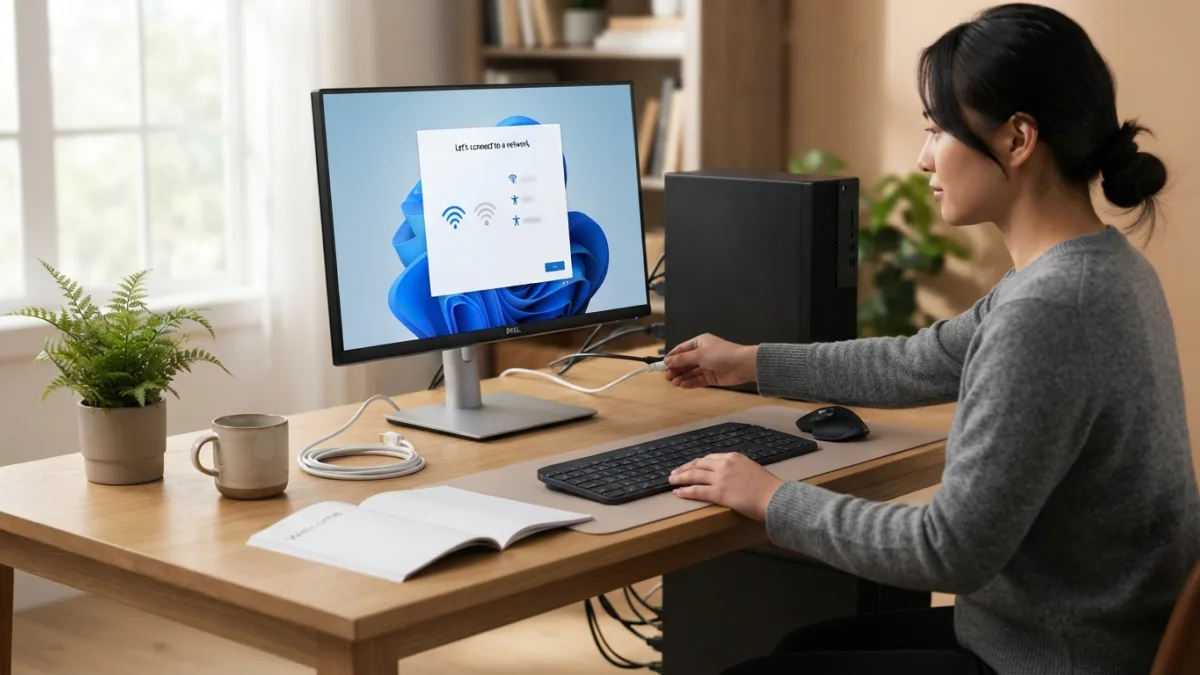
Once you hit the power button, the machine walks you through a series of introductory screens. You’ll be asked to pick your region, keyboard layout, and language preferences. These choices affect more than just the interface text; they influence date formats, currency symbols, and even which apps show up by default in your region. Take your time here, since changing these settings later is possible but a bit tedious. After confirming these basics, the system moves on to network setup, which is arguably the most important early step in the entire process. Many people run into this exact issue with new windows computer at some point.
Connecting to Wi-Fi and Signing In
Connecting your new windows computer to the internet unlocks the full setup experience, including automatic updates and account syncing. Select your network from the list, enter the password, and wait for the connection to confirm. Next comes the Microsoft account sign-in screen. You can technically set up a local account without internet access, but signing in with a Microsoft account gives you access to OneDrive backup, the Microsoft Store, and settings that sync across devices. If you don’t already have an account, you can create one on the spot using an existing email address or a new Outlook address. Keeping new windows computer in mind here will save you time later on.
Setting Privacy and Personalization Preferences
After signing in, Windows presents a batch of privacy toggles covering things like location tracking, diagnostic data sharing, and personalized advertising. Review each one rather than clicking “accept all” out of habit. Turning off options you don’t need doesn’t break anything, and it gives you more control over what data leaves your machine. You’ll also be asked whether this is a personal or work device, which affects some default configurations. Once you’ve clicked through these screens, Windows finalizes your profile and lands you on the desktop for the first time, usually with a welcome animation and a few default apps already pinned to the taskbar. This connects closely with another common issue — see How to Set Up a New Android Phone Step by Step for more on that. This detail matters more than it seems once new windows computer comes up again.
Running Windows Updates Right Away
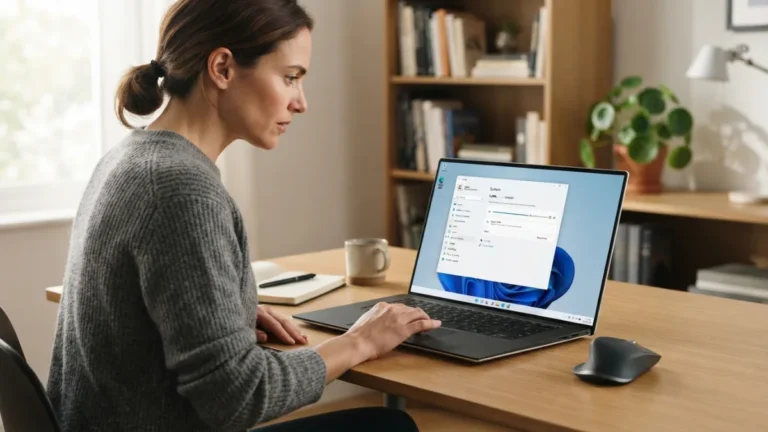
Even a brand-new machine rarely ships with the latest software installed, since it may have sat in a warehouse or on a store shelf for weeks or months. Open the Settings app, head to Windows Update, and click check for updates. Let it download and install everything offered, including optional driver updates, then restart when prompted. It’s common to need two or three rounds of updates before the system reports that it’s fully current. This step matters because updates patch security vulnerabilities and often fix bugs affecting battery life, graphics performance, and Wi-Fi stability. Skipping this early on is one of the most common computer setup tips people ignore, and it usually causes problems later. It is one of those small things that makes new windows computer easier to manage overall.
Removing Bloatware and Unwanted Apps
Many computers, especially ones bought from big retail chains, arrive loaded with trial software, toolbars, and promotional apps you’ll never use. This is sometimes called bloatware, and it can slow down startup times and clutter your Start menu. Go through your installed apps list in Settings and uninstall anything you don’t recognize or need, such as duplicate antivirus trials or manufacturer-specific utilities you won’t use. Here’s a quick way to approach this cleanup:
- Open Settings, then go to Apps, then Installed Apps.
- Sort by name or install date to spot unfamiliar programs quickly.
- Uninstall trial software, duplicate browsers, and promotional games.
- Keep anything related to drivers or hardware control panels from the manufacturer.
Doing this early keeps your system lean before you start installing the programs you actually plan to use. This is a common part of dealing with new windows computer, and it is worth keeping in mind.
Installing Essential Software and Setting Defaults
With the clutter gone, it’s time to add what you actually need. Most people install a preferred web browser, a document editor, a PDF reader, and maybe a media player, since Windows’ built-in tools are functional but basic. Download software only from official sites to avoid bundled junk hiding inside installers. Once your programs are in place, head back to Settings and set your default apps, choosing which browser opens links and which program handles PDFs or photos. This small step avoids the annoyance of Windows constantly opening files in whatever app it decided was default, which is rarely the one you’d choose yourself. You might also find our article on How to Set Up a Backup Routine You'll Actually Stick To helpful here. Many people run into this exact issue with new windows computer at some point.
Setting Up Security From the Start
Windows 11 comes with Windows Defender built in, and for most users it offers solid protection without needing a separate paid antivirus. Make sure it’s active by checking Windows Security in your Settings app, and confirm real-time protection is turned on. Enable Windows Update automatic installs so security patches arrive without you having to remember. It’s also smart to turn on device encryption if your hardware supports it, protecting your files if the laptop is ever lost or stolen. Finally, set up Windows Hello if your machine has a fingerprint reader or camera compatible with facial recognition, since biometric sign-in is faster and arguably safer than typing a password every time. Keeping new windows computer in mind here will save you time later on.
Personalizing Your Desktop and Final Touches
Now comes the fun part: making the computer feel like yours. Adjust your desktop background, arrange your Start menu tiles, and pin your most-used apps to the taskbar for quick access. Check your display settings to make sure text isn’t too small or too large for your screen size, and adjust scaling if needed. If you use multiple monitors, this is the moment to configure their arrangement and resolution. Take a few minutes to explore power settings too, especially on laptops, since tweaking sleep timers and battery saver options early can noticeably extend battery life over time. These new pc setup steps might feel minor, but they add up to a smoother daily experience. This detail matters more than it seems once new windows computer comes up again.
Setting up a new computer doesn’t have to feel overwhelming once you break it into manageable stages. Start with the basics like language and network connection, move through updates and security, then finish with the personal touches that make the machine genuinely yours. Following this order avoids common mistakes, like installing software before updates are finished or skipping privacy settings you’ll wish you’d changed later. Once everything is in place, your new windows computer will feel fast, organized, and ready for whatever work or entertainment you have planned. A little patience during setup pays off every single time you turn the machine on afterward. For a related walkthrough, check out How to Spot a Fake Delivery or Package Scam Text. It is one of those small things that makes new windows computer easier to manage overall.
Frequently Asked Questions
How long does it take to fully set up a new Windows computer?
Most people finish the core setup, including updates, in under an hour. However, installing all your personal software and transferring files can stretch the process out over a day or two, depending on how much data you’re moving. This is a common part of dealing with new windows computer, and it is worth keeping in mind.
Do I need a Microsoft account to set up Windows 11?
Windows 11 strongly encourages signing in with a Microsoft account during setup, and some editions require internet connectivity to proceed. You can switch to a local account later through Settings if you prefer, though you’ll lose some syncing features. Many people run into this exact issue with new windows computer at some point.
Should I remove pre-installed software immediately?
Yes, it’s a good idea to remove trial programs and unnecessary apps early, before you start installing your own software. This keeps your system running efficiently and reduces clutter in your Start menu and taskbar. Keeping new windows computer in mind here will save you time later on.
Is Windows Defender enough, or do I need separate antivirus software?
For most everyday users, Windows Defender provides reliable protection when kept updated. Only consider additional antivirus software if you have specific needs, such as advanced parental controls or business-level security features. This detail matters more than it seems once new windows computer comes up again.
What’s the first thing I should do after turning on a new PC?
Connect to Wi-Fi as soon as possible, since this unlocks account sign-in, automatic updates, and cloud backup options. Running Windows Update right after should be your very next priority before installing anything else. It is one of those small things that makes new windows computer easier to manage overall.
4 Comments
Comments are closed.