Reset Forgotten Windows Password: 5 Easy Steps to Unlock
You sit down at your laptop, type the password you have used a hundred times, and nothing happens. Access denied. If you have ever stared at that login screen in frustration, you already know how urgent it feels to reset forgotten windows password problems right away, especially when you need your files for work or school. The good news is that Microsoft built several ways to recover access without wiping your data, whether you run Windows 10 or Windows 11. This guide walks you through five practical methods, from built-in Windows tools to third-party recovery software, so you can get back into your account today.
Why Getting Locked Out of Windows Happens More Than You Think
Forgetting a password is far more common than most people admit, and Windows makes the situation a bit more confusing because there are two very different types of accounts involved. A local account stores your password directly on the computer, while a Microsoft account ties your sign-in to an online profile linked to email, OneDrive, and other services. People often forget which type they set up, especially after a Windows update or a new PC setup that nudged them toward signing in with an email address instead of a simple local username. Add in shared family computers, old passwords saved months ago, and forgotten PINs, and it is easy to see why so many users search for ways to unlock a windows account every single day. If you want to dig deeper, our guide on How to Fix Sound Not Working on Windows covers this in more detail. This is a common part of dealing with reset forgotten windows password, and it is worth keeping in mind.
5 Easy Steps to Reset Forgotten Windows Password
Before you panic or consider paying for expensive tech support, know that most lockouts can be solved at home with tools you already have or can download safely. The methods below are listed roughly in order of simplicity, starting with the easiest option and moving toward more advanced fixes for stubborn cases. Try each one in sequence, since skipping ahead to a drastic step like reinstalling Windows is rarely necessary. Depending on whether you use a local account or a Microsoft account, some steps will apply more directly to your situation than others, so read through each one before deciding where to start. Many people run into this exact issue with reset forgotten windows password at some point.
Step 1: Use a Password Reset Disk You Created Earlier
If you were proactive enough to create a password reset disk back when you first set up your local account, this is by far the quickest fix. Windows usually prompts users to make one during setup, and it typically lives on a USB drive rather than an actual disk these days. Plug that USB drive into your locked computer, and when you enter the wrong password, click the reset link that appears below the password field. Windows will launch a wizard that lets you create a brand new password in under a minute, with zero data loss. Unfortunately, this only works if you made the disk before forgetting your password, so it will not help everyone, but it is worth checking your drawer of old USB sticks before moving on to other options. Keeping reset forgotten windows password in mind here will save you time later on.
Step 2: Reset Your Microsoft Account Password Online
Most modern Windows installations use a Microsoft account rather than a local one, which actually makes recovery easier because the process happens entirely online. From another device, such as a phone or a different computer, visit the official Microsoft account portal and select the option to reset your password. You will need access to the recovery email or phone number linked to that account to verify your identity. Once verified, create a new password, then return to your locked PC and sign in with the updated credentials. This method to reset windows 10 password or a Windows 11 password works because your login information lives on Microsoft’s servers, not just on your local hard drive. This connects closely with another common issue — see How to Fix Bluetooth Not Working on Windows for more on that. This detail matters more than it seems once reset forgotten windows password comes up again.
Step 3: Sign In With Another Administrator Account
If your PC has more than one user account and one of them has administrator privileges, you are in luck. Simply log in using that second account, then head to Settings, followed by Accounts, and select Family and Other Users. Find the locked account in the list, click on it, and choose the option to change the account type or reset the password directly. This approach works well on shared family computers or office machines where an IT administrator or a parent set up multiple profiles from the start. It will not help if yours is the only account on the device, but it is one of the fastest solutions when it does apply, and it avoids any need for external tools or USB drives. It is one of those small things that makes reset forgotten windows password easier to manage overall.
Step 4: Try a Windows Password Reset Tool
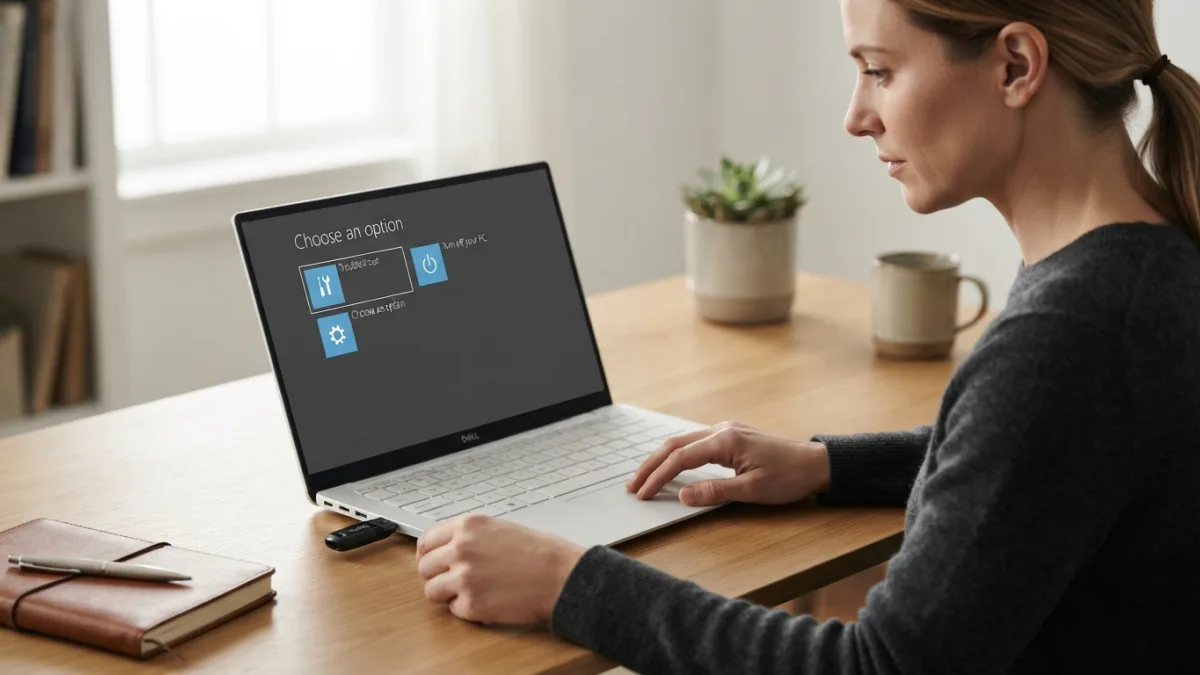
When neither a reset disk nor a second admin account is available, a dedicated windows password reset tool can step in. These programs typically create a bootable USB drive from another working computer, which you then plug into the locked machine to boot from instead of the normal hard drive. Once running, the tool scans the Windows installation and lets you clear or change the password for any local account it finds. Stick to well-known, widely reviewed software rather than obscure downloads from unfamiliar websites, since this category of tool has understandably attracted some shady imitators. Reading recent user reviews and checking that the developer has an established reputation will help you avoid installing something harmful while trying to fix an already stressful situation. This is a common part of dealing with reset forgotten windows password, and it is worth keeping in mind.
Step 5: Reinstall Windows as a Last Resort
If every other option fails, or if the computer is old enough that you would rather start fresh anyway, reinstalling Windows will always get you past the login screen. This is genuinely a last resort because it wipes your personal files unless you first remove the hard drive and back up the data using another computer, or unless your files are already saved to cloud storage. You can create Windows installation media using Microsoft’s own tools, boot from it, and choose a clean install. It takes longer than any of the previous methods, often an hour or more, but it guarantees a working, password-free login by the time you finish, ready for you to set up new credentials from scratch. You might also find our article on How to Set Up a New Windows Computer Step by Step helpful here. Many people run into this exact issue with reset forgotten windows password at some point.
Simple Ways to Avoid This Problem Again
Once you regain access, spend ten minutes setting up safeguards so you never have to repeat this stressful process. A little preparation now saves a lot of frustration later, particularly if you rely on your computer for work deadlines or important personal documents. Consider these practical habits: Keeping reset forgotten windows password in mind here will save you time later on.
- Create a password reset disk immediately after setting up any new local account.
- Add a recovery phone number and email address to your Microsoft account.
- Set up Windows Hello with a PIN, fingerprint, or facial recognition as a backup sign-in method.
- Write down a password hint that means something only to you, without spelling out the actual password.
A password manager is probably the single most effective tool for preventing lockouts long term, since it stores and autofills complex passwords so you never need to memorize them. Many free and paid options sync across your phone and computer, meaning your Windows password stays accessible even if your memory fails you. If you prefer not to use third-party software, Windows Hello reduces your reliance on typed passwords altogether by letting biometric data or a PIN handle daily logins. Security researchers, including guidance published in the NIST digital identity guidelines, generally recommend longer, unique passphrases over short complex strings, since length tends to matter more than obscure symbols for resisting attacks. This detail matters more than it seems once reset forgotten windows password comes up again.
It is also smart to be cautious about where you download any windows password recovery software, since this niche unfortunately attracts scammers who bundle malware with tools that promise instant fixes. Stick to established vendors, read independent reviews before downloading anything, and avoid tools that ask for unusual permissions or payment through untraceable methods. The concept behind these tools is not new or suspicious on its own; in fact, self-service password reset systems are widely used in corporate environments to reduce IT support costs. The problem lies only with poorly made or malicious knockoffs, so a little research before downloading protects both your data and your device from further headaches. For a related walkthrough, check out How to Fix a Windows Computer That Won't Start. It is one of those small things that makes reset forgotten windows password easier to manage overall.
Losing access to your own computer feels alarming in the moment, but as you can see, there is almost always a practical path back in. Whether you rely on a saved reset disk, an online Microsoft account recovery, a second administrator profile, a trusted reset tool, or a full reinstall as a final option, one of these five methods should get you logged back in without permanent data loss. For more official guidance on account recovery and security settings, Microsoft’s own support pages offer step-by-step walkthroughs tailored to your exact version of Windows through Microsoft’s official Windows support resources. Take a few minutes today to set up a backup login method, and the next time you sit down to type a password, you will not have to worry about getting locked out again. This is a common part of dealing with reset forgotten windows password, and it is worth keeping in mind.
Frequently Asked Questions
What is the fastest way to reset a forgotten Windows password?
If you already made a password reset disk, that is the quickest fix, taking under a minute. Otherwise, resetting through your Microsoft account online from another device is usually the next fastest option. Many people run into this exact issue with reset forgotten windows password at some point.
Can I reset a Windows password without losing my files?
Yes. Using a password reset disk, another administrator account, a Microsoft account reset, or a reputable password reset tool all preserve your files. Only a full reinstall risks data loss unless you back up first. Keeping reset forgotten windows password in mind here will save you time later on.
What is a password reset disk and do I need one?
It is a USB drive you create in advance that lets you reset a forgotten local account password instantly. You only need one if you use a local account rather than a Microsoft account, and it must be made before you get locked out. This detail matters more than it seems once reset forgotten windows password comes up again.
Are third-party Windows password reset tools safe to use?
Reputable, well-reviewed tools are generally safe and widely used for legitimate password recovery. Avoid unfamiliar downloads with poor reviews or unusual permission requests, since this category does attract some malicious software. It is one of those small things that makes reset forgotten windows password easier to manage overall.
What if I don’t have another administrator account on my PC?
Then focus on the Microsoft account online reset if applicable, or download a trusted windows password reset tool from another working computer to create bootable recovery media. This is a common part of dealing with reset forgotten windows password, and it is worth keeping in mind.