How to Fix a Linux Computer That Won’t Start
Nothing tests your patience like pressing the power button on your laptop and watching it go absolutely nowhere. A blank screen, a frozen logo, or a wall of error text can make you think you’ve lost everything on that machine. The good news is that most of the time, you can fix a Linux computer that refuses to start without losing a single file. Boot failures usually come from a handful of common culprits, and once you know where to look, the fix is often quicker than ordering a replacement part or reinstalling the whole system. This guide walks through the most reliable troubleshooting steps, from the simplest checks to more advanced recovery methods, so you can get your machine back up and running with confidence.
Why Your Linux Computer Won’t Start in the First Place
Before you touch a single command, it helps to understand what typically causes a machine to stall during startup. Linux boot problems generally fall into a few categories: a corrupted bootloader, a damaged or misconfigured filesystem, a kernel that failed to load properly, a driver conflict after an update, or a genuine hardware fault. Sometimes the issue is as simple as a loose cable or a failing power supply, and other times it’s a software update that didn’t finish installing correctly. Knowing which category you’re dealing with narrows down your next steps significantly. Pay attention to what you were doing right before the problem started, whether that was a system update, a new hardware installation, or an unexpected power outage, because that context often points straight to the cause. If you want to dig deeper, our guide on How to Install Linux Alongside Windows (Dual Boot) covers this in more detail. This is a common part of dealing with fix a linux computer, and it is worth keeping in mind.
First Steps to Troubleshoot Linux Startup
Start with the basics before assuming the worst. Unplug any USB drives, external hard disks, or peripherals that were recently connected, since a misbehaving device can sometimes block the boot process entirely. Check that all internal cables are properly seated if you’re comfortable opening the case, and confirm the power supply is delivering electricity. If you’re on a laptop, try removing the battery briefly if possible, then reconnect it and attempt to power on again. These small steps solve more startup failures than people expect. Once you’ve ruled out obvious physical issues, it’s time to move on to software-level troubleshooting, which usually means booting into a special diagnostic mode built directly into most Linux distributions. Many people run into this exact issue with fix a linux computer at some point.
How to Fix a Linux Computer Stuck at a Black Screen
A black screen after the boot logo is one of the most common complaints, and it’s often tied to graphics driver issues rather than a dead system. Try pressing keyboard shortcuts like Ctrl+Alt+F2 to switch to a text-based terminal; if that screen appears, your system is actually running fine and the problem lies specifically with the graphical display. From there, you can log in with your username and password and investigate display drivers or restart the display manager service. If nothing responds at all, even after several attempts, the issue may be deeper in the boot sequence rather than isolated to graphics. In that case, you’ll need to access recovery tools built into the system to diagnose what’s actually failing before the desktop ever has a chance to load. Keeping fix a linux computer in mind here will save you time later on.
Using Linux Recovery Mode to Regain Control
Most distributions include a Linux recovery mode accessible from the boot menu, and it’s one of the most useful tools you have. Restart the computer and hold Shift or Esc during startup to reach the GRUB menu, then select the recovery or advanced options entry. This typically loads a minimal environment with a root shell, letting you run diagnostic commands without the full desktop getting in the way. From recovery mode you can: This connects closely with another common issue — see How to Install Software on Linux Without Using the Terminal for more on that. This detail matters more than it seems once fix a linux computer comes up again.
- Check system logs for the exact error that occurred
- Repair broken packages with your package manager
- Reset a forgotten password
- Remount the filesystem as writable to make changes
This single menu often resolves the majority of everyday startup failures without any advanced technical knowledge required. It is one of those small things that makes fix a linux computer easier to manage overall.
How to Fix a Linux Boot Error Related to GRUB
If your screen shows a message like “GRUB rescue” or “error: no such partition,” the bootloader itself is likely damaged. This happens frequently after dual-booting with Windows, since Windows updates sometimes overwrite the boot sector without warning. To fix a Linux computer with this specific problem, boot from a live USB drive containing your distribution’s installer, open a terminal, and use the chroot command to access your installed system’s files. From there, reinstalling GRUB with the appropriate command for your distribution usually restores normal booting. It sounds intimidating the first time, but most distributions have detailed community documentation walking through each command step by step, and the process rarely takes more than fifteen minutes once you’re inside the live environment. This is a common part of dealing with fix a linux computer, and it is worth keeping in mind.
Checking Your Filesystem for Disk Errors
A corrupted filesystem is another frequent reason a Linux computer won’t boot, especially after an improper shutdown or a sudden power loss. Most distributions run an automatic disk check on startup, but if that check fails repeatedly or the system drops into an emergency shell, you’ll need to run the filesystem check tool manually from a live USB session. This tool scans your drive’s partitions for structural errors and attempts to repair them automatically. It’s important to run this check on an unmounted partition to avoid causing further damage. If the tool reports that it fixed multiple errors, restart normally afterward and see if the system boots. Persistent filesystem errors after repeated repairs can be an early warning sign that the physical drive itself is beginning to fail. You might also find our article on How to Choose the Right Linux Version for Beginners helpful here. Many people run into this exact issue with fix a linux computer at some point.
Kernel Panics and How to Handle Them
A kernel panic looks alarming, usually displaying a block of white or colored text explaining that the system encountered a fatal error it couldn’t recover from. This often happens after installing a new kernel update or a third-party driver that isn’t fully compatible with your hardware. The fix is usually straightforward: reboot, enter the GRUB menu, and select an older, previously working kernel version from the advanced options list. Once you’re back in a working system, you can remove the problematic driver or hold off on updating the kernel until a patched version becomes available. Keeping at least one older kernel installed as a fallback is a smart habit, since it gives you an immediate way back into your system whenever a new update causes trouble. Keeping fix a linux computer in mind here will save you time later on.
Hardware Problems That Mimic Software Failures
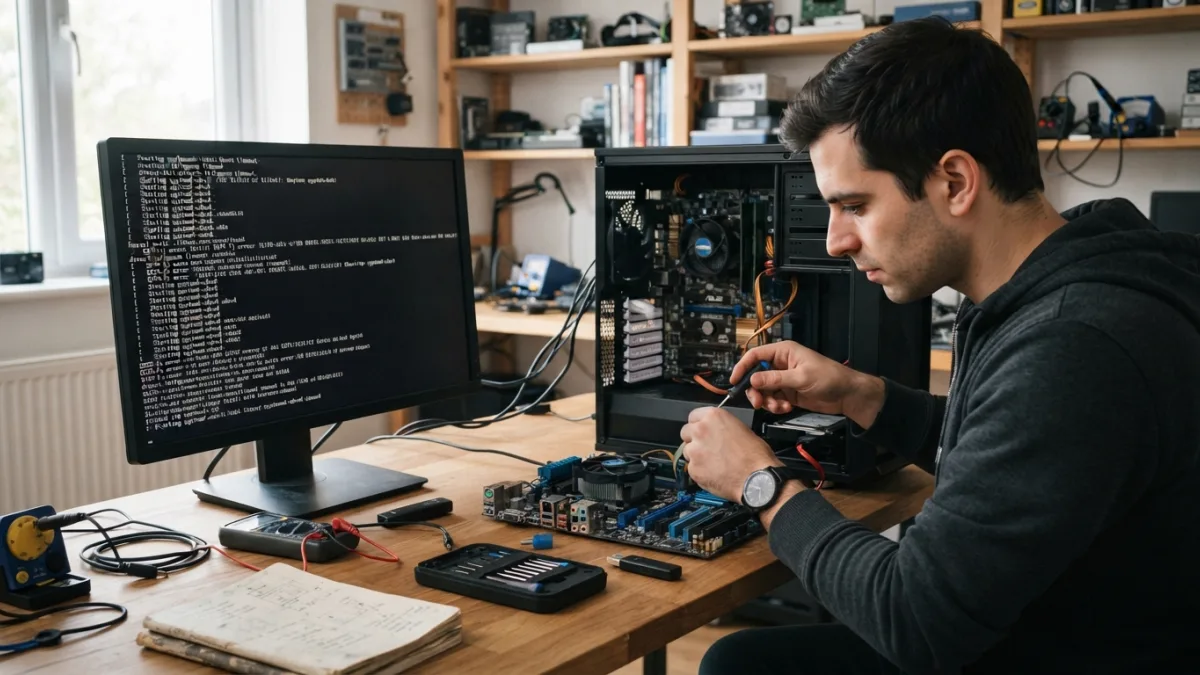
Not every boot failure is actually a software problem, even when the symptoms look identical to a corrupted system. Failing RAM, an overheating processor, or a dying hard drive can all produce boot errors, freezes, or repeated crashes that look exactly like a broken installation. Running a memory test tool from your boot menu can rule out RAM issues within a few minutes. Listening for unusual clicking or grinding noises from a mechanical hard drive is another quick diagnostic clue worth paying attention to. If your machine shuts down unexpectedly during heavy use or feels unusually hot to the touch, overheating could be preventing a clean boot. Testing with a live USB session on a known-good drive can help you separate hardware failure from a software-level configuration issue. This detail matters more than it seems once fix a linux computer comes up again.
When Reinstalling or Restoring From Backup Makes Sense
Sometimes the damage is extensive enough that repairing individual pieces takes longer than starting fresh. If you’ve tried recovery mode, GRUB repair, filesystem checks, and kernel rollbacks without success, a clean reinstallation might genuinely be the fastest path forward. Before doing this, boot from a live USB and copy your important documents, photos, and configuration files to an external drive if you haven’t already backed them up elsewhere. Many distributions also offer a “reinstall while keeping personal files” option during setup, which can save considerable time. Reinstalling isn’t a failure on your part; it’s simply the most practical solution once troubleshooting has clearly reached its limits and you need the system usable again for daily tasks. For a related walkthrough, check out What Is Linux and Should You Try It? A Simple Explanation. It is one of those small things that makes fix a linux computer easier to manage overall.
Comparing Your Recovery Options
| Method | Best For | Risk of Data Loss |
|---|---|---|
| Recovery Mode | Minor errors, password resets, package fixes | Very low |
| Live USB Repair | GRUB errors, filesystem checks, chroot fixes | Low |
| Kernel Rollback | Kernel panics after updates | Very low |
| Clean Reinstall | Severe corruption or repeated failures | High without backup |
Working through boot problems methodically saves you time and stress in the long run, even when the process feels slow in the moment. Start with the simplest explanations, like loose cables or leftover USB drives, before assuming your entire installation is broken. Recovery mode and live USB sessions give you enough access to diagnose almost any issue without needing to reinstall anything right away. Keep a bootable USB drive with your distribution’s installer ready at all times, since it’s the single most useful tool for these situations. With a bit of patience and the steps outlined here, you can fix a Linux computer that won’t start in most cases and get back to your normal routine without losing your files or your afternoon. This is a common part of dealing with fix a linux computer, and it is worth keeping in mind.
Frequently Asked Questions
Why does my Linux computer show a black screen instead of booting?
A black screen is often caused by a graphics driver conflict rather than a full system failure. Try switching to a text terminal with Ctrl+Alt+F2 to check if the system is actually running in the background. Many people run into this exact issue with fix a linux computer at some point.
How do I access Linux recovery mode?
Restart your computer and hold Shift or Esc during startup to open the GRUB menu, then select the recovery or advanced options entry from the list shown on screen. Keeping fix a linux computer in mind here will save you time later on.
What should I do if I see a GRUB error on startup?
Boot from a live USB drive, use the chroot command to access your installed system, and reinstall the GRUB bootloader from within that environment to restore normal startup. This detail matters more than it seems once fix a linux computer comes up again.
Can a failing hard drive cause Linux boot problems?
Yes, a failing drive can produce symptoms nearly identical to software corruption, including freezes, repeated filesystem errors, and failed boots. Running a live USB session on the same hardware helps confirm whether the drive itself is at fault. It is one of those small things that makes fix a linux computer easier to manage overall.
Is reinstalling Linux the only option if nothing else works?
Not always, but it becomes reasonable after recovery mode, GRUB repair, and filesystem checks have all failed. Back up your files from a live USB first, then reinstall while keeping your personal data if your distribution supports that option. This is a common part of dealing with fix a linux computer, and it is worth keeping in mind.