
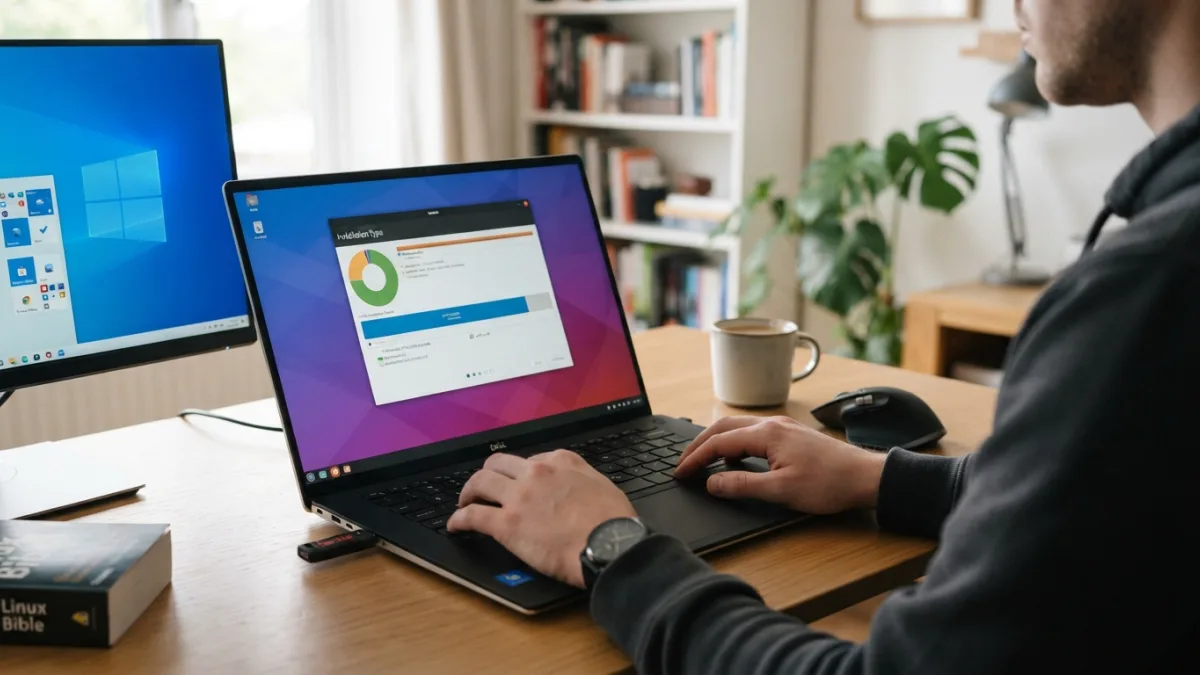
How to Install Linux Alongside Windows (Dual Boot)
Ever felt like your Windows PC needs a serious upgrade in flexibility, but you’re not ready to give up the operating system you already know? You’re not alone. Thousands of users search every month for ways to install Linux alongside Windows, and the good news is that it’s more approachable than most people assume. With a spare partition, a USB drive, and about an hour of your time, you can run two completely different operating systems on the same machine and switch between them whenever you like. This guide walks you through the entire dual boot setup guide from start to finish, covering preparation, partitioning, installation, and the boot loader configuration that ties it all together.
Why Dual Boot Instead of Choosing One System?
Dual booting gives you the best of both worlds without forcing a compromise. You keep Windows for gaming, work software, or programs that simply don’t run well on Linux, while gaining access to a fast, customizable, and often more secure operating system for coding, learning, or everyday browsing. Many developers dual boot Windows and Linux because certain tools, like server environments or command-line utilities, behave more naturally on Linux. Students studying computer science also benefit, since many courses expect familiarity with Linux commands. Unlike running Linux in a virtual machine, a genuine dual boot setup gives you full access to your computer’s hardware, meaning better performance for demanding tasks like video editing, 3D rendering, or gaming on Linux through compatibility layers. If you want to dig deeper, our guide on What Is Linux and Should You Try It? A Simple Explanation covers this in more detail. This is a common part of dealing with install linux alongside windows, and it is worth keeping in mind.
Before You Start: Preparation and Backups
Before touching your hard drive, take a few precautions that will save you a massive headache later. Back up your important files to an external drive or cloud storage, because partitioning mistakes, while rare, can occasionally wipe data. Check how much free storage you have available, since most Linux distributions recommend at least 20 to 25 gigabytes, though more is always better if you plan to install extra software. Make sure your laptop is plugged into power throughout the entire process, and confirm your Windows installation is fully updated, since pending updates can sometimes interfere with partition changes. Finally, write down or photograph your Wi-Fi password and any product keys, just in case something needs to be reinstalled. Many people run into this exact issue with install linux alongside windows at some point.
Checking Your System Requirements
Most modern Linux distributions run comfortably on hardware that’s several years old, which is part of their appeal. As a general guideline, look for at least 4GB of RAM, though 8GB makes the experience noticeably smoother, especially if you multitask. You’ll also want at least two gigabytes of free space beyond your intended Linux partition, just for temporary installation files. Check whether your computer uses UEFI or the older BIOS firmware, since this affects how you’ll create your bootable USB drive later. You can find this information in Windows by opening System Information and looking for “BIOS Mode.” Knowing this detail now prevents confusion during the installation stage. Keeping install linux alongside windows in mind here will save you time later on.
How to Partition Your Hard Drive for Linux
To partition hard drive for Linux, open Windows and search for “Disk Management” in the Start menu. Find your main drive, usually labeled C:, right-click it, and select “Shrink Volume.” Windows will calculate the maximum amount of space it can free up, but you don’t need to use all of it. Enter the amount you want to allocate to Linux, measured in megabytes, and click Shrink. This creates unallocated space on your drive without deleting any existing files. Leave this space untouched for now; the Linux installer will handle formatting it during setup. Avoid creating a new partition manually in Windows, since Linux installers generally prefer to configure this space themselves during installation. This detail matters more than it seems once install linux alongside windows comes up again.
Choosing a Linux Distribution
Linux distribution installation starts with picking the right version for your needs, and this choice matters more than beginners expect. Some distributions prioritize ease of use, while others focus on customization or cutting-edge software. If you’re new to Linux, a beginner-friendly option will save you frustration and make the transition smoother. This connects closely with another common issue — see How to Fix Sound Not Working on Windows for more on that. It is one of those small things that makes install linux alongside windows easier to manage overall.
| Distribution | Best For | Difficulty Level |
|---|---|---|
| Ubuntu | General use, beginners, wide software support | Easy |
| Linux Mint | Users coming from Windows, familiar layout | Easy |
| Fedora | Developers wanting newer software versions | Moderate |
| Pop!_OS | Gamers and creative professionals | Easy to Moderate |
| Manjaro | Users wanting flexibility and rolling updates | Moderate |
Ubuntu and Linux Mint remain the most recommended options for first-timers because of their large communities, extensive documentation, and straightforward installers. This is a common part of dealing with install linux alongside windows, and it is worth keeping in mind.
Creating a Bootable USB Drive
Once you’ve chosen your distribution, download its ISO file directly from the official website to avoid tampered or outdated versions. Next, you’ll need a USB drive with at least 8GB of storage, since the installation files can be fairly large. Use a tool like Rufus on Windows to write the ISO onto the USB drive, selecting the correct device and ISO file before starting the process. This step erases everything currently on the USB drive, so back up anything important beforehand. The process usually takes ten to twenty minutes, depending on your drive’s speed. Once finished, keep the USB drive plugged in, since you’ll need it to boot into the installer in the next stage. Many people run into this exact issue with install linux alongside windows at some point.
Adjusting BIOS and UEFI Settings
Restart your computer and enter the BIOS or UEFI settings menu, typically by pressing a key like F2, F10, F12, Delete, or Esc during startup, depending on your manufacturer. Inside, disable “Fast Startup” and “Secure Boot” temporarily, since both can prevent Linux installers from booting correctly, though most modern distributions support Secure Boot reasonably well now. Locate the boot order settings and move your USB drive to the top of the list, so your computer boots from it rather than the internal hard drive. Save your changes and exit, which will restart your computer automatically. If everything is configured correctly, you should see the Linux installer’s boot menu appear within a few seconds. Keeping install linux alongside windows in mind here will save you time later on.
How to Install Linux Alongside Windows: The Installation Process
When the installer loads, select “Try or Install” and follow the on-screen prompts, choosing your language, keyboard layout, and time zone. When you reach the installation type screen, most distributions will detect your existing Windows installation and offer an option labeled something like “Install alongside Windows,” which handles the partitioning automatically using the unallocated space you created earlier. This is the safest and simplest route for most users. If you prefer more control, choose “Something else” or “Manual partitioning” to assign specific partitions for root, home, and swap space yourself. Once you’ve confirmed your selections, the installer copies files, sets up your user account, and configures the system, a process that typically takes fifteen to thirty minutes. You might also find our article on How to Fix Bluetooth Not Working on Windows helpful here. This detail matters more than it seems once install linux alongside windows comes up again.
Setting Up the GRUB Boot Loader
Near the end of installation, most distributions automatically install and configure GRUB, the boot loader responsible for letting you choose between Windows and Linux each time you turn on your computer. This grub boot loader setup usually requires no manual input, since the installer detects both operating systems and adds them to the boot menu automatically. After installation finishes and you restart, you should see a simple menu listing your Linux distribution and Windows Boot Manager, with the option to select either one using your arrow keys. If GRUB doesn’t appear or Windows boots directly without showing a menu, you may need to run a tool called “Boot Repair,” available on most Linux live USB environments, to fix the boot order. It is one of those small things that makes install linux alongside windows easier to manage overall.
Troubleshooting Common Dual Boot Issues
Occasionally, things don’t go perfectly on the first try, but most problems have straightforward fixes. If Windows updates later overwrite the boot loader and skip straight to Windows, boot from your Linux USB again and run Boot Repair to restore GRUB. If your Wi-Fi doesn’t work immediately after installation, check whether your distribution has proprietary driver options available in its settings menu. Some laptops with hybrid graphics cards experience screen flickering, which can often be resolved by updating graphics drivers after installation completes. If your system clock shows the wrong time after switching between operating systems, this happens because Windows and Linux handle hardware clocks differently, and a quick command-line fix or settings adjustment usually resolves it permanently. This is a common part of dealing with install linux alongside windows, and it is worth keeping in mind.
Final Thoughts on Running Two Operating Systems
Setting up a dual boot system might sound intimidating if you’ve never touched a partition menu before, but the process has become remarkably beginner-friendly over the past few years. Modern installers guide you through nearly every step, and the Linux community offers extensive forums and documentation if you hit a snag along the way. Once everything is running, you’ll appreciate having the flexibility to boot into Windows for specific software and switch to Linux whenever you want a faster, more customizable computing experience. Take your time during setup, follow each step carefully, and don’t skip the backup stage. With a little patience, you’ll have a smoothly running dual boot system and a genuinely expanded set of options for how you use your computer every day. Many people run into this exact issue with install linux alongside windows at some point.
Frequently Asked Questions
Will installing Linux delete my Windows files?
No, as long as you follow the shrink-partition method described above and choose “Install alongside Windows” during setup, your existing files and programs remain untouched. Problems only occur if you accidentally select the wrong drive or choose to erase the entire disk during installation, so always double-check your selections before confirming. For a related walkthrough, check out How to Set Up a New Windows Computer Step by Step. Keeping install linux alongside windows in mind here will save you time later on.
How much space do I need to dual boot Windows and Linux?
Most distributions recommend a minimum of 20 to 25GB, though allocating 50GB or more gives you comfortable room for applications, updates, and personal files. If you plan to install large programs or games, consider allocating even more space upfront. This detail matters more than it seems once install linux alongside windows comes up again.
Can I remove Linux later and return to only Windows?
Yes, you can delete the Linux partition through Windows Disk Management and extend your Windows partition to reclaim the space. However, you’ll also need to restore the Windows boot loader using a Windows installation USB, since removing Linux typically leaves GRUB in place and breaks the boot process temporarily. It is one of those small things that makes install linux alongside windows easier to manage overall.
Do I need to disable Secure Boot permanently?
Not necessarily. Many current Linux distributions, including Ubuntu and Fedora, support Secure Boot out of the box. You can often re-enable it after installation without issues, though if you encounter boot problems, disabling it again usually resolves them. This is a common part of dealing with install linux alongside windows, and it is worth keeping in mind.
Which is easier for beginners, Ubuntu or Linux Mint?
Both are excellent choices, but Linux Mint’s interface feels closer to traditional Windows, which some newcomers find more comfortable. Ubuntu has a larger community and more available tutorials, making it easier to find help if you run into trouble during or after installation. Many people run into this exact issue with install linux alongside windows at some point.
3 Comments
Comments are closed.