
How to Install Software on Linux Without Using the Terminal
If you’ve ever felt intimidated by Linux because everyone seems to talk about typing mysterious commands into a black screen, here’s some good news: you can install software on Linux without ever touching the terminal. Modern Linux distributions have come a long way, and most of them now offer polished, point-and-click tools that feel just as friendly as the app stores on your phone. Whether you’re switching from Windows, macOS, or just curious about open-source systems, this guide walks you through every graphical method available so you never have to memorize a single command line instruction.
Why You Don’t Need the Terminal to Install Software on Linux
The terminal has a reputation for being the “real” way to use Linux, but that reputation is outdated. Distributions like Ubuntu, Linux Mint, Fedora, and Zorin OS were specifically designed with newcomers in mind, and their developers spent years building graphical tools that handle downloading, installing, and updating programs automatically. These tools quietly run the same commands in the background that a terminal user would type manually, so you get the same result without memorizing syntax or risking a typo that breaks something. For anyone exploring Linux for beginners, this is genuinely reassuring. You get full control over your software library through clean menus, search bars, and buttons, which makes the whole experience feel much closer to using a smartphone than operating a complicated command-line machine. If you want to dig deeper, our guide on How to Install Linux Alongside Windows (Dual Boot) covers this in more detail. This is a common part of dealing with install software on linux, and it is worth keeping in mind.
Getting Familiar with a Graphical Package Manager
A graphical package manager is the visual version of the tools Linux uses internally to install, remove, and update software. Instead of typing commands, you open an application, search for the program you want, and click an install button. Popular examples include Synaptic Package Manager, GNOME Software, and KDE Discover, each tied to different desktop environments but functioning in a similar way. These programs connect to your distribution’s software repositories, which are trusted online libraries containing thousands of vetted applications. Because everything comes from these repositories, a graphical package manager also handles dependencies automatically, meaning you won’t need to hunt down extra files just to get a program running. It’s arguably the safest and most beginner-friendly way to manage your entire software collection. Many people run into this exact issue with install software on linux at some point.
Using Your Linux App Store
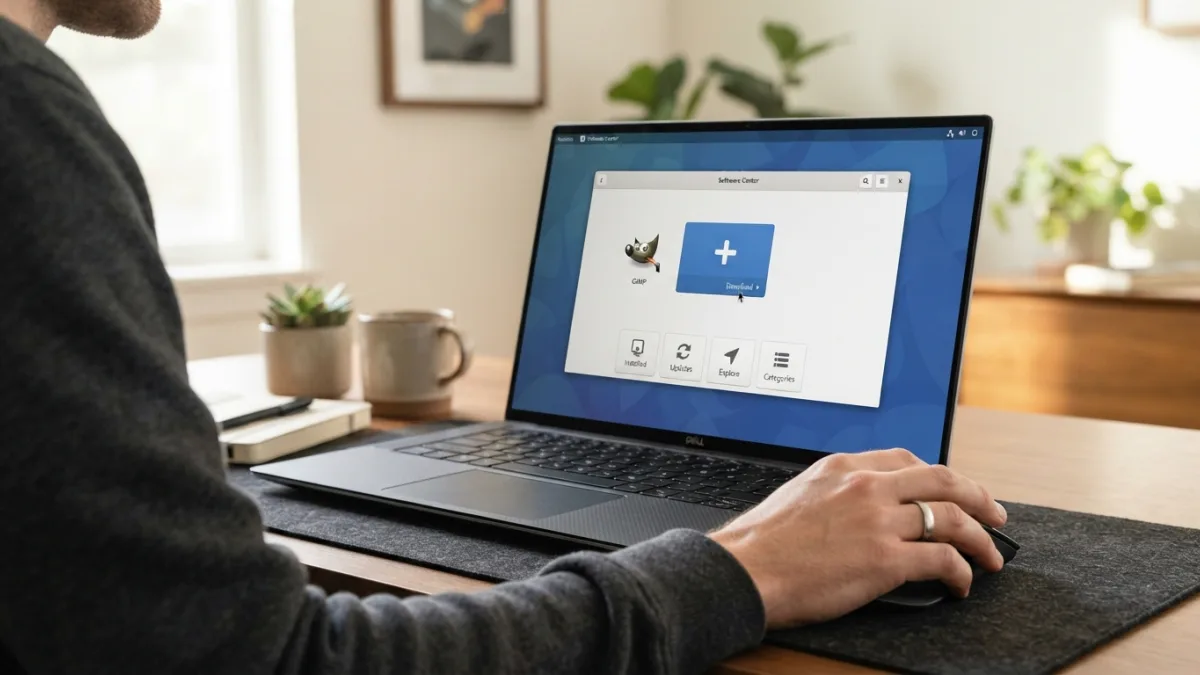
Most major distributions ship with something that functions exactly like a Linux app store, and honestly, that comparison isn’t much of a stretch. Ubuntu has its Software app, Fedora includes GNOME Software, and Linux Mint offers the Software Manager, all featuring categories, screenshots, user ratings, and one-click installation buttons. You simply open the app, type the name of the program you’re looking for, such as GIMP, LibreOffice, or Spotify, and press install. The app store downloads everything automatically and even notifies you later when updates become available. This approach removes the guesswork entirely, since you’re browsing curated, tested software rather than downloading random files from unfamiliar websites. For someone new to Linux, spending ten minutes exploring this store is often the best starting point of all. Keeping install software on linux in mind here will save you time later on.
Installing .deb Files with a Simple Double-Click
Sometimes a program isn’t available in your app store, and you’ll instead download a file ending in .deb directly from a developer’s website. This format is common on Debian-based systems like Ubuntu and Linux Mint. The good news is that you can install deb files without opening a terminal at all. Just double-click the downloaded file, and it should automatically open in a graphical installer such as GDebi or the Software Center, showing you the program’s name, description, and size before installation. Click install, enter your password when prompted, and wait a few moments while the system unpacks everything. This method is especially handy for software companies that haven’t yet listed their apps in official repositories, giving you a safe, visual way to get their programs running anyway. This connects closely with another common issue — see How to Choose the Right Linux Version for Beginners for more on that. This detail matters more than it seems once install software on linux comes up again.
Installing .rpm Files on Fedora-Based Systems
If you’re running Fedora, openSUSE, or another RPM-based distribution, you’ll occasionally come across files ending in .rpm instead of .deb. The process feels nearly identical. Double-click the downloaded file, and your system typically opens it in GNOME Software or a similar graphical tool that displays details about the application before asking you to confirm installation. From there, you just click the install button and provide your administrator password. Behind the scenes, the system checks for any required dependencies and downloads them automatically, so you rarely run into errors. This makes installing software on these systems just as approachable as it is on Debian-based ones, proving that regardless of which Linux family you choose, graphical installation remains consistently simple and accessible. It is one of those small things that makes install software on linux easier to manage overall.
Universal Formats: Flatpak, Snap, and AppImage
Beyond traditional package formats, Linux now supports universal packaging systems that work across almost any distribution. Flatpak and Snap packages come bundled with everything they need to run, reducing compatibility issues between different versions of Linux. Many app stores, including GNOME Software, support installing these formats directly through the same familiar search-and-click interface. AppImage files work a bit differently since they don’t require installation at all; you simply download the file, right-click it, mark it as executable through a properties menu, and double-click to launch the program immediately. These formats have become increasingly popular because developers only need to package their software once instead of creating separate versions for every distribution, which ultimately benefits everyday users looking for hassle-free options. This is a common part of dealing with install software on linux, and it is worth keeping in mind.
Comparing the Main Graphical Installation Methods
With so many options available, it helps to see them side by side before deciding which approach fits your needs. The table below breaks down the most common graphical methods for getting new programs onto your system, along with their typical use cases and general ease of use for someone still learning the ropes. You might also find our article on What Is Linux and Should You Try It? A Simple Explanation helpful here. Many people run into this exact issue with install software on linux at some point.
| Method | Best For | Ease of Use |
|---|---|---|
| App Store / GNOME Software | Everyday apps, beginners | Very easy |
| Synaptic Package Manager | Advanced control over packages | Moderate |
| .deb file installer | Software not in repositories | Easy |
| .rpm file installer | Fedora/openSUSE users | Easy |
| Flatpak/Snap via store | Cross-distribution apps | Very easy |
| AppImage | Portable, no-install apps | Easy |
Practical Tips for Linux Beginners
If you’re just starting out, a few small habits will make your experience much smoother. Always check your official app store first before downloading files from external websites, since repository software has already been reviewed for safety and compatibility. Keep your system updated regularly through the same graphical tool, as updates often include important security fixes. Read the description and permissions listed for any application before installing it, particularly if it comes from outside the official repositories. Don’t be afraid to uninstall programs you no longer need; most graphical package managers let you remove software just as easily as you installed it. Finally, take a little time to explore your desktop environment’s settings menu, since many distributions bundle helpful onboarding tools specifically designed for people new to Linux. Keeping install software on linux in mind here will save you time later on.
Staying Safe When You Install Software on Linux
Avoiding the terminal doesn’t mean avoiding responsibility for what you install. Stick to your official app store or trusted developer websites whenever possible, and be cautious about downloading .deb or .rpm files from sources you don’t recognize. Before installing anything, take a moment to check reviews, ratings, or comments if they’re available, since community feedback often reveals problems early. It’s also wise to avoid disabling security prompts that ask for your administrator password, as these serve as a built-in checkpoint against accidental or malicious changes. Sandboxed formats like Flatpak and Snap add an extra layer of protection because they isolate applications from the rest of your system. Following these habits keeps your computer secure while still letting you enjoy the simplicity of graphical installation. This detail matters more than it seems once install software on linux comes up again.
Linux has genuinely evolved into a system that welcomes newcomers rather than intimidating them. Between app stores, graphical package managers, and simple double-click installers for .deb and .rpm files, there’s rarely a reason to open a terminal unless you specifically want to. These tools handle the technical heavy lifting quietly in the background, letting you focus on finding and enjoying the software you actually need. As more developers adopt universal formats like Flatpak and AppImage, the gap between Linux and other operating systems keeps narrowing even further. Whether you’re rediscovering an old laptop or setting up a brand-new system, you now have everything you need to confidently install software on Linux using nothing but your mouse and a few clicks. For a related walkthrough, check out How to Uninstall Apps Properly on a Mac. It is one of those small things that makes install software on linux easier to manage overall.
Frequently Asked Questions
Can I really install every program on Linux without the terminal?
Most popular software is available through graphical tools like app stores, .deb or .rpm installers, and formats like Flatpak or Snap. A small number of specialized or developer-focused tools may still require terminal commands, but these are increasingly rare for everyday use. This is a common part of dealing with install software on linux, and it is worth keeping in mind.
What is the safest way to install new software on Linux?
Using your distribution’s official app store or graphical package manager is generally the safest option, since the software listed there has already been reviewed and tested for compatibility and security. Many people run into this exact issue with install software on linux at some point.
What’s the difference between .deb and .rpm files?
Both are package formats used to install software graphically. .deb files work on Debian-based systems like Ubuntu and Linux Mint, while .rpm files are used on Fedora, openSUSE, and similar distributions. Keeping install software on linux in mind here will save you time later on.
Do Flatpak and Snap apps work on any Linux distribution?
Yes, that’s their main advantage. These universal formats are designed to run across different distributions without needing separate versions, making installation more consistent regardless of which Linux system you use. This detail matters more than it seems once install software on linux comes up again.
Is Linux difficult for someone who has never used it before?
Not anymore. Many distributions are built specifically with beginners in mind, offering simple interfaces, app stores, and guided setup tools that make the transition from Windows or macOS much easier than most people expect. It is one of those small things that makes install software on linux easier to manage overall.
One Comment
Comments are closed.