
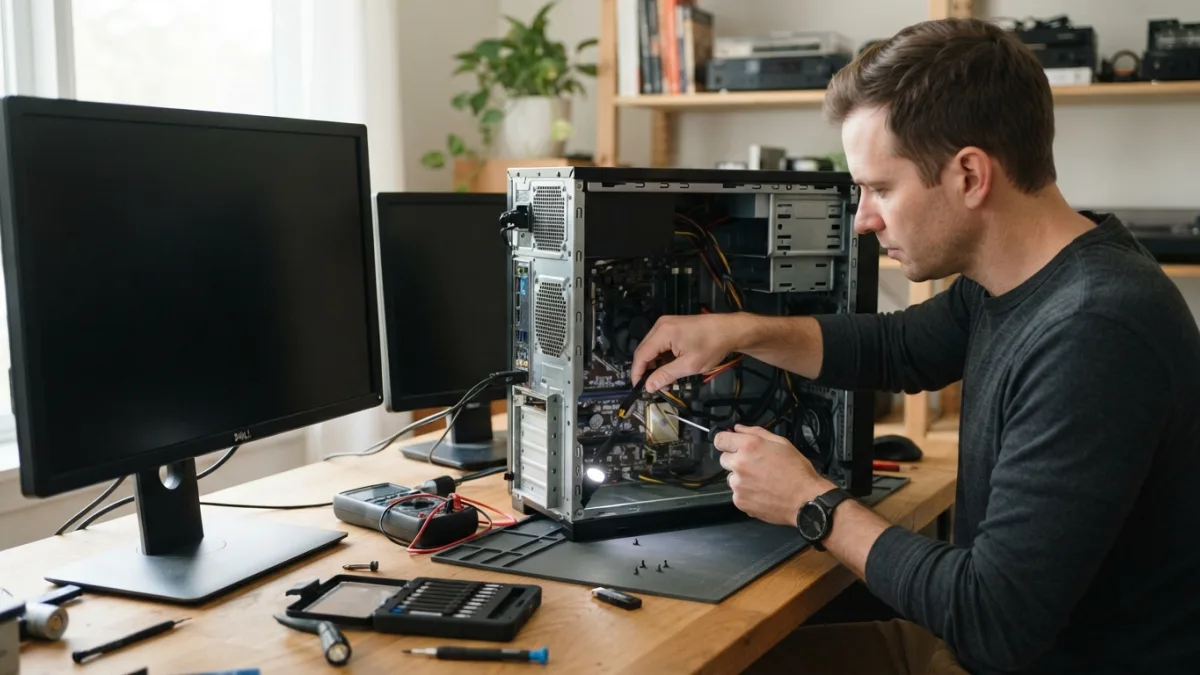
How to Fix a Windows Computer That Won’t Start
That sinking feeling when you press the power button and nothing happens the way it should is something almost every computer owner has experienced. Whether you’re staring at a black screen, stuck in an endless boot loop, or watching your machine power on but never actually load Windows, a windows computer wont start is one of the most stressful tech problems people face. The good news is that most of these issues have straightforward fixes you can try yourself before spending money on a repair shop. This guide walks you through practical, step-by-step solutions, starting with the simplest checks and moving toward more advanced repair tools built into Windows itself.
Start With the Basics Before You Panic
Before assuming the worst, rule out the simple stuff. A surprising number of “dead” computers are actually just power or connection issues. Check that the power cable is firmly plugged into both the wall outlet and the computer, and try a different outlet if you have one nearby. If you’re using a laptop, remove the charger, take out the battery if possible, hold the power button for about thirty seconds, then reconnect everything and try again. This drains any residual electrical charge that sometimes causes startup glitches. For desktop users, confirm the power strip or surge protector is actually switched on, since a tripped switch is an embarrassingly common culprit behind a computer that won’t turn on. If you want to dig deeper, our guide on How to Fix an iPhone That Won't Turn On covers this in more detail. This is a common part of dealing with windows computer wont start, and it is worth keeping in mind.
Check Your Monitor and Cables Too
Sometimes the computer itself is working fine, but the display isn’t showing anything, which can look exactly like a startup failure. Make sure the monitor is powered on and set to the correct input source. Check that the video cable connecting your monitor to the computer is firmly seated on both ends. If you’re using a desktop with a graphics card, try plugging the monitor cable directly into the card rather than the motherboard’s video port, since that’s typically the correct connection point when a dedicated graphics card is installed. Swapping in a different cable or trying a second monitor, if you have access to one, can quickly confirm whether the problem lies with the display or the computer itself. Many people run into this exact issue with windows computer wont start at some point.
Understanding a Black Screen Error
A black screen error can appear at different stages of startup, and where it happens gives you clues about the cause. If the screen stays black immediately after pressing power, with no lights, fans, or sounds at all, you’re likely dealing with a hardware or power supply issue rather than a Windows problem. If you see the manufacturer’s logo appear but then the screen goes black before Windows loads, the issue might involve a failing hard drive, corrupted boot files, or a driver conflict. If Windows appears to load partially, showing a cursor or background but nothing else, this often points to a software or graphics driver problem rather than something physical. Identifying which scenario matches your situation helps you skip irrelevant troubleshooting steps and focus on what’s actually likely to work. Keeping windows computer wont start in mind here will save you time later on.
Listen for Beeps and Watch the Lights
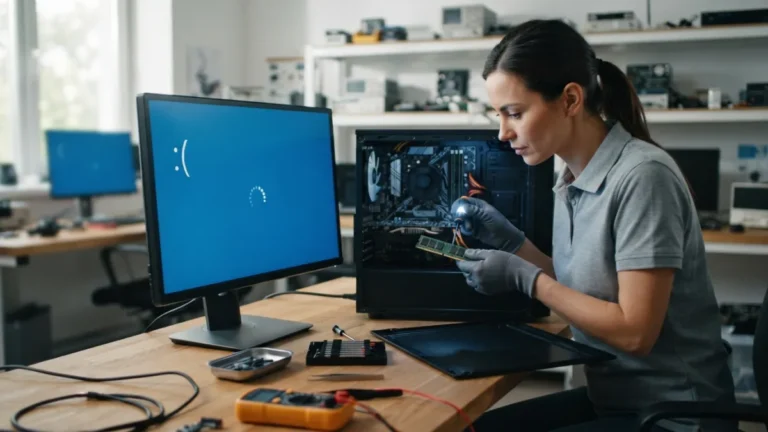
Modern computers communicate hardware problems through beep codes and light patterns, even when the screen shows nothing at all. If your desktop beeps several times in a specific pattern when you power it on, that pattern usually corresponds to a specific hardware failure, such as a memory stick that has come loose or a graphics card that isn’t seated properly. Check your motherboard manufacturer’s website for a beep code chart matching your particular model, since these codes vary between manufacturers. Laptops often use blinking LED lights near the power button instead of beeps to signal similar problems. Reseating your RAM sticks by removing them and firmly clicking them back into their slots resolves a surprising number of these hardware-related startup failures, and it costs nothing but a few minutes of your time. This connects closely with another common issue — see How to Fix an Android Phone That Won't Turn On for more on that. This detail matters more than it seems once windows computer wont start comes up again.
Using Windows Recovery Mode to Diagnose Problems
When your windows computer wont start normally after two or three attempts, Windows automatically triggers something called windows recovery mode, also known as the Windows Recovery Environment. This built-in toolkit is specifically designed to fix startup problems without needing a working desktop. From this screen, you’ll typically see options like “Troubleshoot,” which leads to further choices including Startup Repair, System Restore, and Command Prompt access. If recovery mode doesn’t launch automatically, you can force it by turning the computer on and off three times in a row during the boot process, or by using a Windows installation USB drive on another computer to create bootable recovery media. This environment works even when the main operating system files are too damaged to boot normally. It is one of those small things that makes windows computer wont start easier to manage overall.
Running Startup Repair
Startup repair windows tools are specifically built to scan for and fix common issues preventing your system from booting correctly. Once you’re in the Windows Recovery Environment, select Troubleshoot, then Advanced Options, then Startup Repair. Windows will scan your system files, boot configuration, and disk structure for errors automatically. This process can take anywhere from a few minutes to half an hour depending on how much needs checking, and your computer may restart multiple times during the process. Don’t interrupt it even if it seems to be taking a while, since forcing a shutdown mid-repair can create new problems on top of the existing ones. If Startup Repair fixes the issue, your computer will boot normally into Windows the next time you turn it on, and you likely won’t need to take any further steps. This is a common part of dealing with windows computer wont start, and it is worth keeping in mind.
Dealing With a Boot Loop
A boot loop fix is needed when your computer keeps restarting over and over without ever fully loading Windows, cycling through the manufacturer logo repeatedly. This frustrating pattern usually stems from corrupted system files, a recent problematic update, or a driver that’s causing a conflict during startup. Start by accessing Windows Recovery Environment as described earlier, then try System Restore to roll your computer back to a point before the problem started. If you recently installed an update or new hardware right before the loop began, that’s your prime suspect. Booting into Safe Mode, which loads Windows with only essential drivers and services, can also break the cycle long enough for you to uninstall a problematic update or driver through the Settings or Control Panel once you’re inside. You might also find our article on How to Fix an Android Phone That Won't Turn On helpful here. Many people run into this exact issue with windows computer wont start at some point.
When the Hard Drive Might Be the Problem
Sometimes the issue isn’t Windows at all but the physical storage drive holding your operating system. If you hear repetitive clicking sounds coming from your desktop tower, that’s often a warning sign of mechanical hard drive failure and deserves immediate attention. From the Command Prompt within Windows Recovery Environment, you can run a command called chkdsk, which checks your drive for errors and attempts to repair them automatically. Type “chkdsk C: /f /r” and press Enter, then allow the scan to complete, which may take a considerable amount of time on larger or older drives. If chkdsk reports serious errors it cannot fix, or if the drive isn’t detected by the computer at all, you may be looking at a failing drive that needs replacement, at which point recovering your personal files becomes the priority before anything else. Keeping windows computer wont start in mind here will save you time later on.
Rebuilding the Boot Configuration Data
Occasionally, Windows fails to start because the boot configuration data, which tells your computer how to locate and load the operating system, becomes corrupted or goes missing entirely. This produces error messages mentioning things like “BOOTMGR is missing” or similar boot-related text on a black screen. Fixing this requires the Command Prompt within Windows Recovery Environment again. You’ll need to run a series of commands including “bootrec /fixmbr,” “bootrec /fixboot,” and “bootrec /rebuildbcd” in sequence, pressing Enter after each one and waiting for confirmation before moving to the next. These commands rebuild the essential files Windows needs to find and start itself properly. This process sounds technical, but following the exact commands step by step usually resolves the issue without needing any additional software or expertise beyond careful typing. This detail matters more than it seems once windows computer wont start comes up again.
Safe Mode as a Diagnostic Tool
Safe Mode deserves special mention because it’s one of the most useful tools for figuring out what’s actually wrong. By loading Windows with a minimal set of drivers and background programs, Safe Mode often allows a computer to start when it won’t boot normally, which tells you the core operating system is intact and the problem lies with a specific driver, program, or setting. Once inside Safe Mode, you can uninstall recently added software, roll back a graphics driver update, or run antivirus scans to check for malware that might be interfering with normal startup. Access Safe Mode through the same Advanced Options menu in Windows Recovery Environment, selecting Startup Settings and then restarting to choose Safe Mode from the list presented. If your computer boots fine in Safe Mode but not normally, that’s a strong clue pointing toward third-party software as the culprit. For a related walkthrough, check out How to Fix Common Error Codes You See on Your Screen. It is one of those small things that makes windows computer wont start easier to manage overall.
When to Call in Professional Help
Not every startup problem can or should be fixed alone, and knowing when to stop troubleshooting is just as valuable as knowing the fixes themselves. If you’ve tried the software-based solutions above and your computer still won’t start, or if you’re hearing unusual noises, smelling burning odors, or seeing physical damage to components, it’s time to consult a professional technician. Data recovery specialists can often retrieve files from a failing drive even when the computer itself is unresponsive, so avoid attempting risky repairs yourself if your files aren’t backed up elsewhere. Many manufacturers also offer warranty support or dedicated help lines for hardware failures within a certain age range, so check your warranty status before paying out of pocket. Backing up important files regularly to an external drive or cloud service remains the best protection against losing everything the next time a startup problem strikes. This is a common part of dealing with windows computer wont start, and it is worth keeping in mind.
Frequently Asked Questions
Why does my windows computer wont start even though the fans and lights turn on?
This usually means the power supply is working, but something is preventing the operating system from loading, such as corrupted boot files, a failing hard drive, or a disconnected internal cable. Try accessing Windows Recovery Environment to run Startup Repair, and check that all internal cables are properly connected if you’re comfortable opening the case. Many people run into this exact issue with windows computer wont start at some point.
How do I know if it’s a hardware problem or a software problem?
If your computer shows no lights, fans, or sounds at all, it’s likely a hardware or power issue. If it powers on, shows the manufacturer logo, but fails somewhere during or after loading Windows, the problem is more likely software-related, such as corrupted system files or a bad driver. Keeping windows computer wont start in mind here will save you time later on.
Can I fix a boot loop without losing my files?
In most cases, yes. Tools like Startup Repair, System Restore, and Safe Mode are designed to fix startup issues without deleting your personal files. However, it’s always wise to back up important documents and photos whenever your computer becomes accessible, just in case a more serious repair becomes necessary later. This detail matters more than it seems once windows computer wont start comes up again.
What should I do if Startup Repair doesn’t fix the problem?
Try running the chkdsk command to check for drive errors, followed by the bootrec commands to rebuild your boot configuration data. If none of these work, booting into Safe Mode to uninstall recent updates or drivers is another solid option before considering a full system reset or professional repair. It is one of those small things that makes windows computer wont start easier to manage overall.
Is it safe to force restart my computer if it’s frozen during startup?
Occasionally forcing a restart by holding the power button is fine, especially if the screen is completely frozen and unresponsive for several minutes. However, avoid doing this repeatedly or during an active repair process, since interrupting file writes or system updates can sometimes cause additional corruption. This is a common part of dealing with windows computer wont start, and it is worth keeping in mind.

2 Comments
Comments are closed.