
Reset Your iPhone: 7 Easy and Safe Steps for Beginners
Your screen freezes in the middle of an important call. You tap, swipe, and press every button, but nothing happens. Before you panic, know this: you can often reset your iPhone in less than a minute, and you rarely lose data if you choose the right method. The trick is matching the fix to the problem. A simple restart clears small glitches. A deeper reset changes settings. A full wipe erases everything. Each option carries a different risk, and mixing them up can cost you photos, messages, and hours of setup time. This guide walks you through seven clear steps, from the gentlest fix to the last resort. Follow them in order, and you can solve most problems without a trip to the store. You will also learn how to protect your data first.
Restart, Reset, Restore: What Is the Difference?
Before you reset your iPhone, it helps to know what the common terms mean. People use them as if they were the same thing, but they are not. A restart simply turns the phone off and on again. Nothing gets deleted. A reset changes or clears a specific group of settings, such as saved Wi-Fi networks. A full wipe, often called a restore, returns the phone to a clean, out-of-the-box state. Picture a ladder: you begin at the bottom and climb only when the problem demands it. Apple’s own iPhone support pages follow a similar logic, with simple fixes first. This matters because every higher rung puts more of your data at risk if you skip a backup. Most costly mistakes happen when a frustrated owner jumps straight to the top. Each step below explains what it does, when to use it, and what to check before you tap anything.
7 Steps to Reset Your iPhone Safely
Step 1: Restart Your iPhone the Normal Way
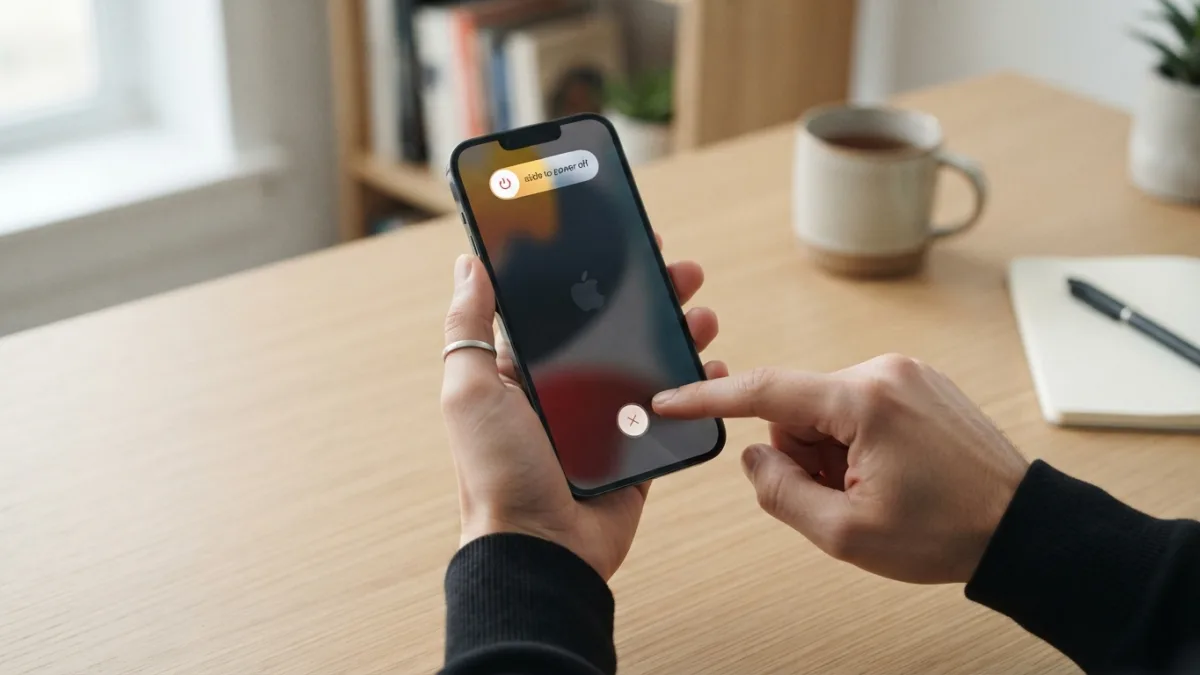
Start here, always. A regular restart is the softest way to reset your iPhone, and it puts no data at risk. It clears small glitches, closes stuck processes, and often fixes sluggish apps, strange battery drain, or a camera that won’t open. Many people skip this step because it feels too simple. That is a mistake. Restarting is the standard first move in most troubleshooting guides, and it takes less time than searching for a fancier answer. Leave the phone off for about 30 seconds before turning it back on. If the problem disappears, you are done. If it returns quickly, move to the next step. The exact buttons depend on your model, so use the list below.
- iPhone with Face ID: Hold the side button and either volume button until the power-off slider appears. Drag it, wait, then hold the side button until the Apple logo shows.
- iPhone with a Home button: Hold the side (or top) button until the slider appears, then follow the same steps.
- Any model: Open Settings, tap General, scroll down, and tap Shut Down.
Step 2: Force Restart iPhone When It Stops Responding
If the screen is frozen and the power-off slider will not appear, a normal restart is impossible. A force restart cuts the running software and starts fresh using only the buttons. It does not delete your photos, apps, or messages, so you can use it without worry. The steps differ by model, and the order of the presses matters. Do each press quickly and precisely, and keep holding the last button even if the screen goes dark. The Apple logo can take several seconds to appear, so be patient before you try again.
- iPhone 8 and later (including the second- and third-generation SE): Press and quickly release volume up. Press and quickly release volume down. Then hold the side button until the Apple logo appears.
- iPhone 7: Hold the volume down button and the side button together until you see the logo.
- iPhone 6s and the first-generation SE: Hold the Home button and the side (or top) button together until the logo appears.
Step 3: Try a Frozen iPhone Screen Fix Before Going Further
If the screen freezes again and again, a restart only hides the problem. Look for the cause first. Before you reset your iPhone more deeply, work through this short checklist. Most repeated freezes come from one misbehaving app, an outdated system, or a phone that has almost no free space left. Each fix takes a few minutes, and none of them erases anything.
- Close the app that froze, then update it in the App Store.
- Install the newest iOS in Settings > General > Software Update.
- Check Settings > General > iPhone Storage and delete what you no longer need. A nearly full phone often runs badly.
- Remove a thick case or a damaged screen protector that may block touch.
- Clean the screen and dry your hands, since moisture can confuse the display.
If one app causes every freeze, delete it and download it again. Your account data usually returns when you sign in.
Step 4: Reset Network Settings for Wi-Fi and Bluetooth Problems
Slow Wi-Fi, dropped calls, or Bluetooth devices that refuse to connect often come from network settings, not broken hardware. That is when you should reset network settings. It is a gentle way to reset your iPhone’s connections without touching your files. This step clears saved Wi-Fi networks and passwords, Bluetooth pairings, and cellular and VPN settings. It does not delete photos, apps, or messages. Open Settings, tap General, choose Transfer or Reset iPhone, tap Reset, and select the network option. Enter your passcode and confirm. The phone restarts by itself. Afterward, reconnect to your Wi-Fi, so keep the password nearby, and pair your headphones, speakers, or car system again. Because this step is mild, it makes sense before any bigger wipe. If the trouble remains, contact your carrier or check your router.
Step 5: Backup iPhone Before Reset
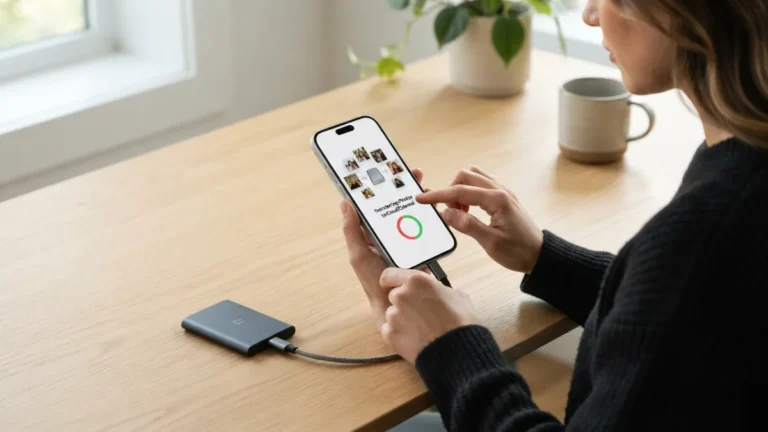
Now comes the step that protects everything else. Before you reset your iPhone in any serious way, make a fresh backup, even if you think you made one last week. Photos, contacts, app data, and settings all depend on it. You have two main options, and you can use both for extra safety. Afterward, check that the backup shows today’s date and time. A backup that failed halfway is worse than none, because it gives you false comfort.
- iCloud: Connect to Wi-Fi, open Settings, tap your name, then iCloud, then iCloud Backup, and choose Back Up Now. Apple gives you 5 GB of free iCloud storage, which may not be enough if you have many photos.
- Computer: On a Mac, use Finder. On Windows, use the Apple Devices app or iTunes. Choose the encrypted option if you want Health data and saved passwords included.
Step 6: Factory Reset iPhone and Erase All Content
This is the big one. A full wipe makes sense when you sell the phone, give it to someone, or fix deep software problems that nothing else solved. It is also what many people mean by a factory reset. Never reset your iPhone this way until your backup is complete, because the process removes your data from the device. Open Settings, tap General, choose Transfer or Reset iPhone, and tap Erase All Content and Settings. Follow the prompts and enter your passcode. The phone will also ask for your Apple ID password so it can turn off Find My and Activation Lock. That step matters if the phone is changing owners, since the next person cannot set it up without it. The wipe takes a few minutes. When it ends, you will see the Hello screen, as on a new phone.
Step 7: Use iPhone Recovery Mode as the Last Resort
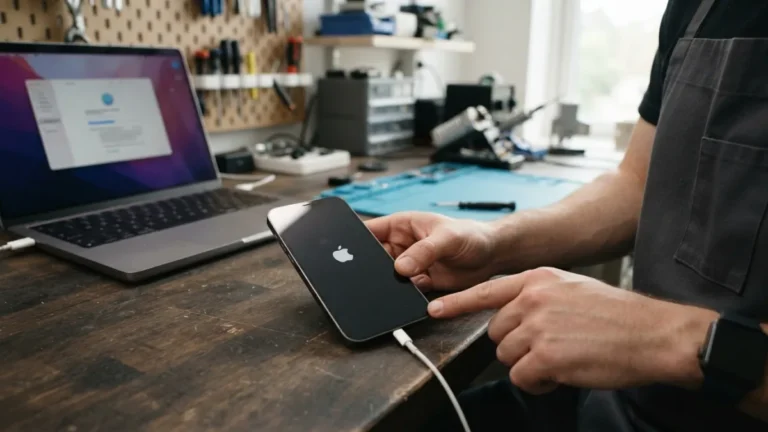
Sometimes the phone is stuck on the Apple logo, restarts in a loop, or cannot finish an update. That is when recovery mode, a special repair state, can help. You need a computer and a charging cable. Connect the phone, then open Finder on a Mac, or the Apple Devices app or iTunes on Windows. On an iPhone 8 or later, press and release volume up, press and release volume down, then hold the side button until the recovery screen appears, which shows a cable image. Your computer will then offer a choice. Always pick Update first. It tries to reinstall iOS without erasing your data. Restore wipes everything, so use it only if Update fails. If the download takes too long, the phone may leave recovery mode, and you can simply repeat the steps. Older models use different buttons, so check Apple’s support site.
What to Do When the Phone Seems Completely Dead
When your iPhone wont turn on, start with the basics before you fear the worst. A drained battery is the most common cause, and a deeply drained one can take a while to show any sign of life. Plug the phone into a wall outlet with a good cable and adapter, then wait 30 minutes to an hour. Try a different cable and outlet, too, since cables wear out. Check the charging port for lint, and clean it gently with a wooden toothpick, never a sharp metal tool. Once the phone has some charge, try a force restart as in Step 2. If the screen stays black or the logo never appears, try recovery mode from Step 7. When none of this works, the problem may be hardware, such as a damaged battery or water damage. Book a visit with Apple or an authorized repair provider.
After the Reset: Set Up Safely and Stay Prepared
Once the phone is back, take a few minutes to set it up the right way. During setup, choose to restore from your iCloud or computer backup, then sign in with your Apple ID. Install any pending iOS updates, since they fix bugs and security holes. Next, turn on automatic iCloud Backup so you never face this stress unprepared. Keep your Apple ID details private, and be careful with messages that urge you to “verify” your account on strange websites. Whenever something goes wrong again, remember the ladder: restart first, then force restart, then network settings, and only then a full wipe. If you need to reset your iPhone in the future, you will already know the safest path. Patience and a good backup are your best tools.
FAQ: Resetting Your iPhone Safely
Does restarting my iPhone delete any data?
No. A normal restart and a force restart only turn the phone off and on. Your photos, apps, messages, and settings stay exactly where they are.
Can you reset your iPhone without losing photos?
Yes, if you choose a mild method. Restarts and network resets do not remove photos. A full wipe does remove them from the phone, so make a backup first and check that it finished.
How often should I restart my iPhone?
There is no strict rule. Restart it when it feels slow, an app misbehaves, or a connection acts strangely. Many people also restart now and then as a simple habit.
What happens to my Wi-Fi passwords after a network reset?
The phone forgets them. You will need to choose your Wi-Fi network again and type the password. Bluetooth pairings and VPN settings are cleared as well, but your files stay safe.
What if I forgot my passcode and cannot get into the phone?
You can use recovery mode with a computer to erase the phone and set it up again. You will lose anything not backed up, and you will need your Apple ID details to finish. Visit Apple’s iPhone support for model-specific steps.
Related guide: How to Transfer Everything to a New iPhone Without Losing Data





2 Comments
Comments are closed.