
Windows PC Keeps Freezing: 7 Proven Fixes to Try Today
Few things kill your productivity faster than watching your cursor freeze mid-sentence while a document sits unsaved. If your windows pc keeps freezing at random moments, you’re dealing with one of the most frustrating computer problems out there, right up there with a sudden blue screen error or a fan that won’t stop screaming. The good news is that most freezing issues come from a handful of common culprits, and you don’t need to be a tech expert to fix them. This guide walks you through seven proven fixes that address everything from outdated drivers to overheating components, so you can get back to work without constantly wondering if your machine is about to lock up again.
Understanding Why Your Windows PC Keeps Freezing
Before jumping into solutions, it helps to understand what’s actually happening under the hood. A freeze usually means your system ran out of resources it needed at that exact moment, whether that’s memory, processing power, or a response from a piece of hardware. Sometimes the cause is software related, like a buggy program hogging your CPU or a corrupted system file. Other times it’s physical, such as a failing hard drive or a cooling fan clogged with dust. System crashes randomly when there’s an underlying conflict between hardware and software, and freezing is often an early warning sign before a full crash happens. Knowing this helps you approach the problem methodically instead of guessing. If you want to dig deeper, our guide on How to Fix a Windows Computer That Won't Start covers this in more detail. This is a common part of dealing with windows pc keeps freezing, and it is worth keeping in mind.
1. Update Windows and Your Drivers
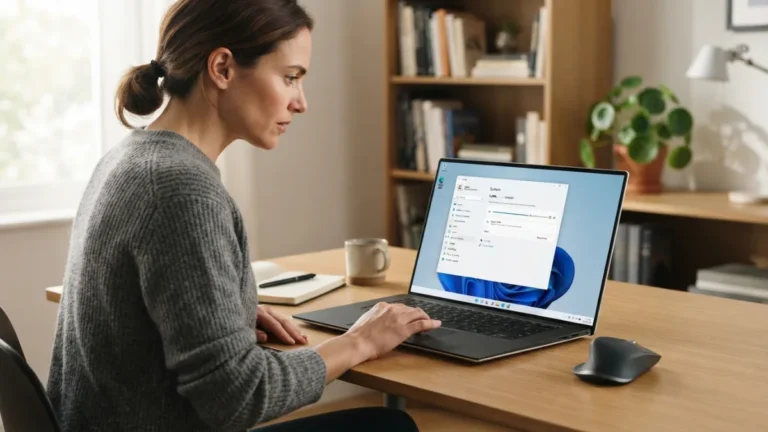
Outdated software is one of the most common reasons a computer starts acting sluggish or locking up entirely. Microsoft regularly releases patches that fix bugs, security holes, and compatibility issues that can cause freezing. Go to Settings, then Windows Update, and check for any pending updates you haven’t installed yet. While you’re at it, update your graphics card, network adapter, and chipset drivers through Device Manager or the manufacturer’s website, since outdated drivers are a frequent trigger for lockups during gaming or video playback. You can find official guidance on keeping your system current through Microsoft’s Windows Update support page. This single step resolves a surprising number of freezing complaints on its own. Many people run into this exact issue with windows pc keeps freezing at some point.
2. Check for Overheating Computer Problems
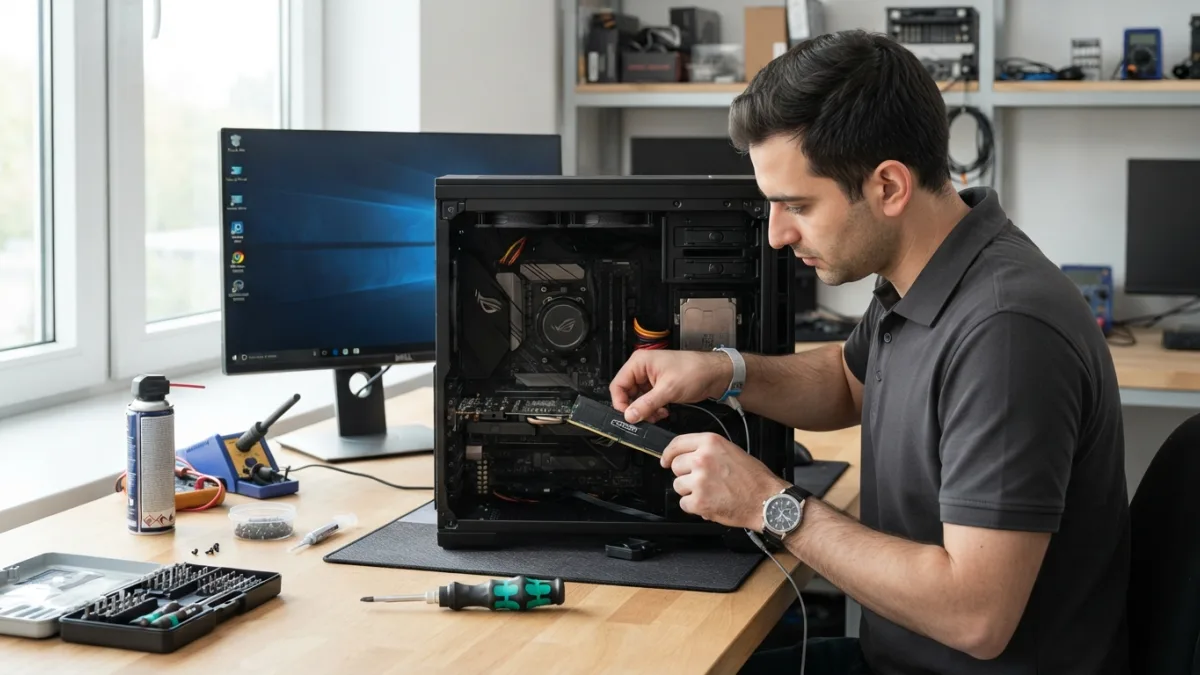
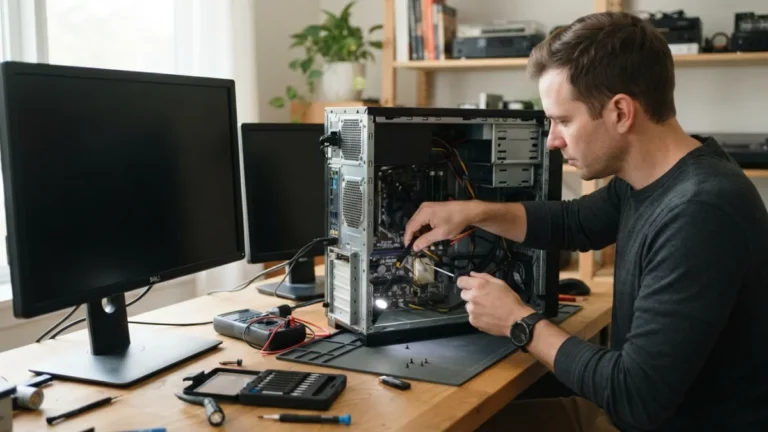
Heat is a silent performance killer. When internal components get too hot, Windows can throttle performance or freeze entirely to protect the hardware from damage. Dust buildup inside the case is the usual suspect, especially if your PC sits on carpet or in a dusty room. Open the case (after unplugging it, of course) and use compressed air to clean out the fans, heatsinks, and vents. Laptop users should avoid working on soft surfaces like beds or couches, which block airflow from underneath. If you suspect overheating computer problems, download a free monitoring tool to watch your CPU and GPU temperatures while you use the machine normally. Consistently high readings, especially above 85 degrees Celsius under load, point directly to a cooling issue that needs attention. Keeping windows pc keeps freezing in mind here will save you time later on.
3. Run a Memory and Disk Check
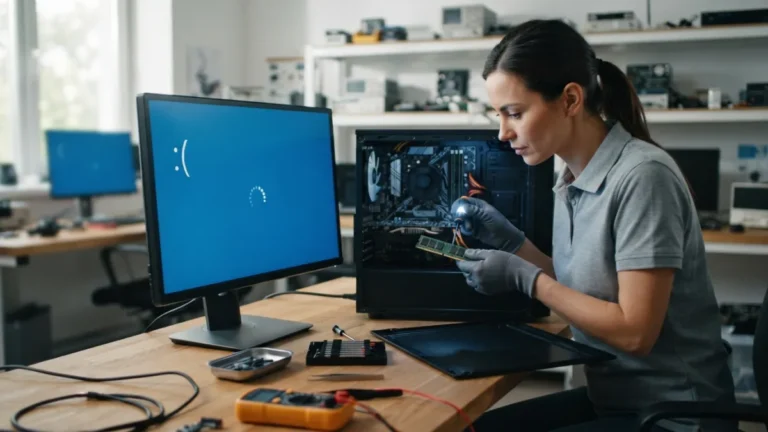
Faulty RAM or a failing hard drive can cause freezing that seems completely random and hard to reproduce. Windows includes a built-in tool called Windows Memory Diagnostic, which you can find by typing “memory” into the Start menu search bar. Let it run a full scan and restart your computer when prompted. For storage issues, open Command Prompt as an administrator and run the check disk command by typing chkdsk /f /r followed by Enter, then restart when asked. If you want a more thorough memory test, tools like the free Memtest86 utility can catch problems the built-in Windows tool sometimes misses. Replacing a failing stick of RAM or a dying hard drive often eliminates freezing for good. This connects closely with another common issue — see How to Set Up a New Windows Computer Step by Step for more on that. This detail matters more than it seems once windows pc keeps freezing comes up again.
4. Scan for Malware and Unwanted Software
Viruses and malicious programs don’t always announce themselves with pop-up ads. Some run quietly in the background, consuming CPU cycles and memory until your system grinds to a halt. Run a full scan using Windows Security, which comes built into every modern version of Windows, or a reputable third-party antivirus program if you prefer. It’s also worth checking your list of installed programs for anything unfamiliar, since bundled software from free downloads can sneak onto your system and cause conflicts. Removing junk programs and confirming your machine is clean is a basic but essential part of any windows troubleshooting guide, and it’s a step people skip far too often when their computer starts misbehaving. It is one of those small things that makes windows pc keeps freezing easier to manage overall.
5. Free Up Startup Programs and Background Processes
Too many programs launching at startup is a classic reason your machine feels sluggish and eventually locks up. Open Task Manager by pressing Ctrl, Shift, and Escape at the same time, then click the Startup tab to see everything set to launch automatically. Disable anything you don’t need running constantly, like chat apps, cloud sync tools, or software update checkers you rarely use. While you’re in Task Manager, check the Processes tab sorted by CPU and Memory usage to spot any single application eating up an unusual share of resources. Closing or uninstalling that culprit often solves pc performance issues immediately. A leaner startup list means faster boot times and fewer resources fighting for attention once you’re actually working. This is a common part of dealing with windows pc keeps freezing, and it is worth keeping in mind.
6. Investigate Blue Screen Error Logs
If your computer freezes and then crashes to a blue screen before restarting, Windows actually keeps a record of what went wrong. Open Event Viewer by searching for it in the Start menu, then look under Windows Logs and System for entries marked as errors around the time of the crash. These logs often name the specific driver or file responsible, which saves you a lot of guesswork. You can learn more about how these crashes work on the Wikipedia page covering the blue screen error, including common stop codes and what they typically indicate. Searching the exact error code online usually leads you straight to a known fix, whether that’s a driver rollback or a specific Windows patch. You might also find our article on How to Fix Bluetooth Not Working on Windows helpful here. Many people run into this exact issue with windows pc keeps freezing at some point.
7. Reset or Reinstall Windows as a Last Resort
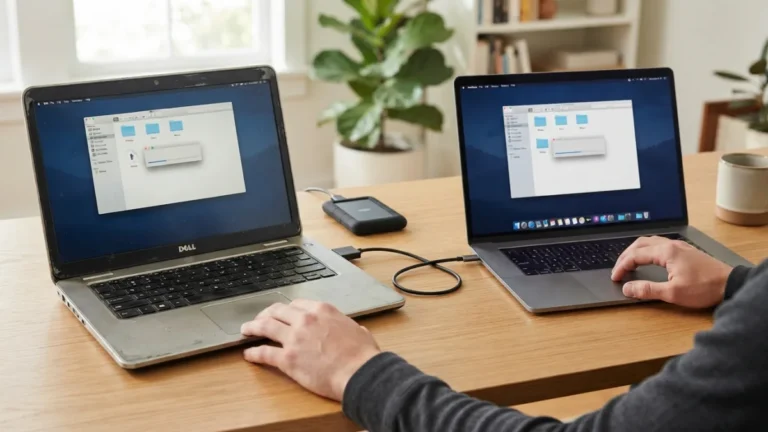
If none of the previous steps solved the problem, it might be time for a clean start. Windows includes a built-in reset feature under Settings, then System, then Recovery, which lets you reinstall the operating system while optionally keeping your personal files. This wipes out corrupted system files, leftover malware, and years of software clutter in one move. Back up your important documents and photos to an external drive or cloud storage first, just in case something goes wrong during the process. A fresh installation resolves even stubborn freezing issues that resist every other fix, because it eliminates whatever software-level conflict was causing the trouble in the first place, giving your machine a genuinely clean slate to work from. Keeping windows pc keeps freezing in mind here will save you time later on.
Preventing Future Freezes
Once your computer is running smoothly again, a little maintenance goes a long way toward keeping it that way. Restart your PC regularly instead of leaving it in sleep mode for weeks at a time, since a full restart clears memory leaks that build up over long sessions. Keep at least fifteen percent of your storage drive free, since a nearly full disk slows down everyday tasks and increases the odds of instability. Dust your hardware every few months, especially if you have pets or live somewhere dusty. Finally, avoid installing software from unfamiliar sources, and keep your antivirus definitions current. These small habits reduce the odds you’ll be back here searching for another computer freezing fix six months from now. This detail matters more than it seems once windows pc keeps freezing comes up again.
Dealing with a machine that locks up unpredictably is exhausting, but it’s rarely a mystery once you work through the possibilities systematically. Start with the simple software fixes, like updates and malware scans, before moving on to hardware checks like temperature monitoring and memory tests. Most people find their answer within the first three or four steps, and the rest serve as a safety net for trickier cases. If you’ve tried everything here and your windows pc keeps freezing anyway, it may be time to consult a professional repair technician, since persistent freezing despite a clean install can sometimes point to a genuine hardware failure that needs replacement parts rather than software troubleshooting. For a related walkthrough, check out Reset Forgotten Windows Password: 5 Easy Steps to Unlock. It is one of those small things that makes windows pc keeps freezing easier to manage overall.
Frequently Asked Questions
Why does my windows pc keep freezing even after a restart?
This usually points to a deeper issue than a temporary software glitch, such as failing RAM, an overheating processor, or a corrupted system file that survives the restart. Running the diagnostic steps in this guide, particularly the memory and disk checks, should help narrow down the cause. This is a common part of dealing with windows pc keeps freezing, and it is worth keeping in mind.
Is overheating a common cause of computer freezing?
Yes, overheating is one of the most frequent causes, especially in laptops and PCs that haven’t been cleaned in a while. Dust blocking airflow and dried-out thermal paste on the processor are both common triggers worth checking. Many people run into this exact issue with windows pc keeps freezing at some point.
Can a full hard drive make my computer freeze?
Absolutely. When your storage drive gets too full, Windows struggles to manage temporary files and virtual memory properly, which can cause noticeable slowdowns and freezing, particularly on older mechanical hard drives rather than solid-state drives. Keeping windows pc keeps freezing in mind here will save you time later on.
Should I worry about a blue screen error if my PC only freezes occasionally?
Occasional freezing without a full crash is still worth investigating, since it often precedes more serious blue screen error crashes. Checking Event Viewer logs early can help you catch and fix the underlying issue before it worsens. This detail matters more than it seems once windows pc keeps freezing comes up again.
When should I take my computer to a professional instead of fixing it myself?
If you’ve tried updating drivers, scanning for malware, checking your memory and disk, and reinstalling Windows without success, a professional technician can run deeper hardware diagnostics, especially for suspected motherboard or power supply failures. It is one of those small things that makes windows pc keeps freezing easier to manage overall.

One Comment
Comments are closed.