
iPhone Is Disabled: 5 Easy Ways to Fix It and Get Back In
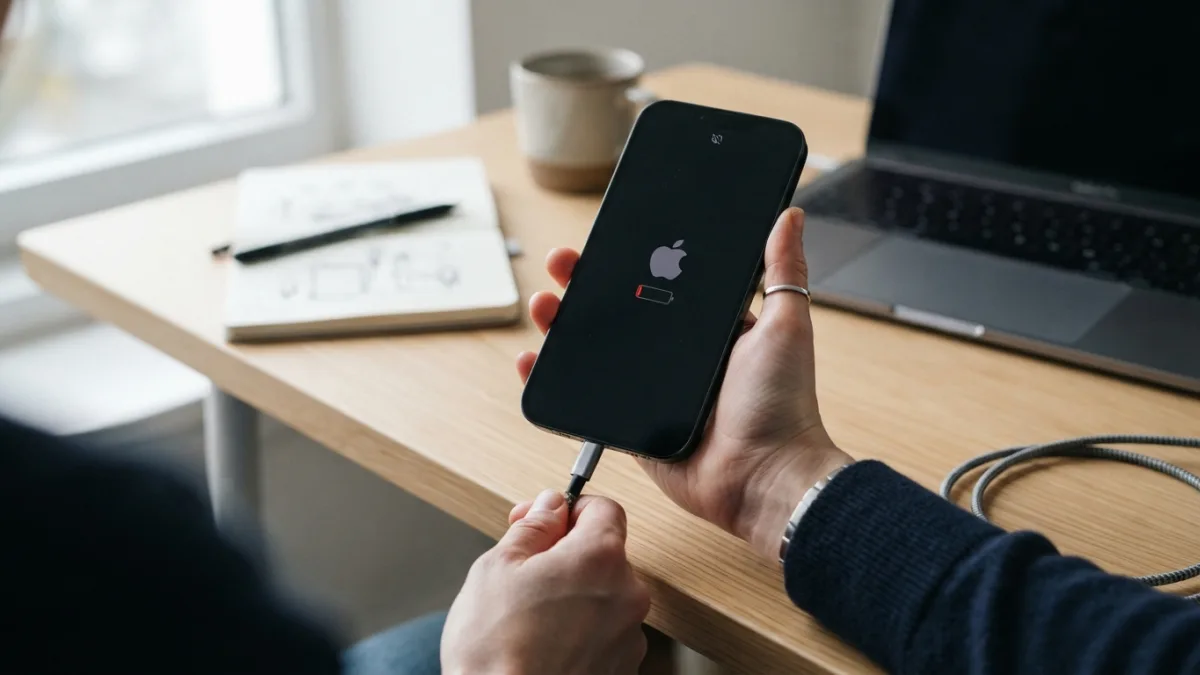
You pick up your phone, type what you think is your passcode, and a message you hoped never to see appears: iPhone is disabled, connect to iTunes. Your stomach drops. Every photo, message, and contact suddenly feels locked behind a door with no key. Take a breath. This problem is common, and you can usually fix it in under an hour. There is one hard truth, though. Apple designs iPhones to protect your data, so no secret trick lets you skip the passcode and keep everything on the phone. You have to reset your iPhone and set it up again. This guide covers five reliable methods, explains how to bring your data back, and shows you how to avoid the same headache next time.
Why an iPhone Is Disabled After Too Many Wrong Guesses
Your phone locks itself after too many passcode attempts, and that is a deliberate security feature. Each wrong guess makes the waiting time longer. The first lockouts are short, but the delays grow quickly. Eventually the screen stops accepting guesses and tells you to connect to a computer. Depending on your iOS version, you may see “iPhone Unavailable” or “Security Lockout” instead. A curious toddler, a button pressed in your pocket, or a new passcode you never memorized can all trigger it. The message does not mean you have a virus or a broken phone. It means your iPhone is protecting your data from a possible thief. The fix is the same however the lockout happened: erase the phone, then set it up again.
Forgot iPhone Passcode? Check These Things First
Before you erase anything, spend two minutes on a quick check, because the best method depends on what you have at hand. Gather these items:
- Your Apple ID and password. The phone asks for them to confirm that you own the device.
- An internet connection. Wi-Fi or mobile data helps with the first two methods.
- A computer and a cable. You need these for methods three and four.
- A recent backup. It lets you recover your data after the reset.
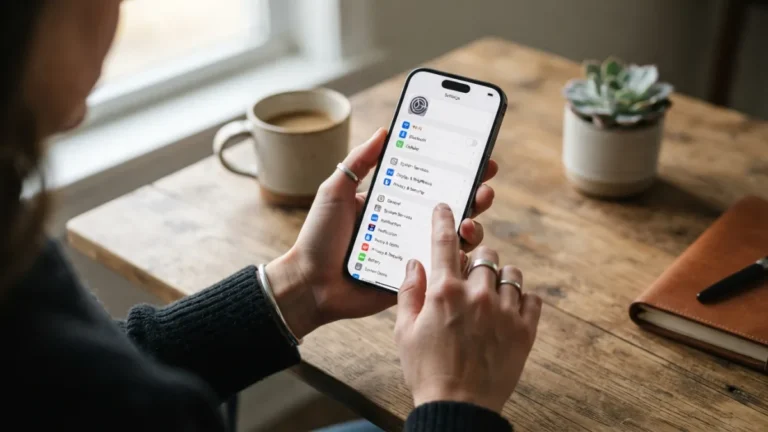
Then look at the lock screen. If your iPhone is disabled for only a short time, a timer shows how long to wait. Use that time to think, not to guess, because each wrong try makes the delay longer. If you still can’t remember the code, Apple’s official iPhone support page has guidance, and the steps below follow the same basic idea.
5 Easy Ways to Fix It When Your iPhone Is Disabled
Start with method one and move down the list only if a method fails or doesn’t fit your situation. The first two methods need no cable at all. Methods three and four use a computer and a special startup state called recovery mode, which we explain right after the list. Method five is your safety net if everything else goes wrong. Every method except the last one wipes the phone, so your data disappears from the device. That sounds scary, but a backup brings most of it back. If you never made one, you will start fresh. When an iPhone is disabled, a clean slate is the only way back in, so it helps to accept that early and pick the easiest path.
Method 1: Unlock iPhone Without Computer Using Erase iPhone
This is the quickest route, and it works on iPhones running iOS 15.2 or later. The phone must be connected to Wi-Fi or a mobile network, and you need your Apple ID password. When the lockout screen appears, look for an Erase iPhone option in the bottom corner. Then follow these steps:
- Tap Erase iPhone on the lockout screen.
- Tap Erase iPhone again to confirm.
- Enter your Apple ID password to sign out of your account.
- Wait while the phone erases itself and restarts.
- Follow the on-screen setup, and choose a passcode you will remember.
If you don’t see the Erase option, your iOS version may be too old. Move on to method two.
Method 2: Erase iPhone With iCloud
If you can reach a browser or another Apple device, you can erase iPhone with iCloud from anywhere. This works only if Find My was turned on before the lockout and the phone can get online. Open a browser on any computer or tablet and go to iCloud Find My. Sign in with your Apple ID, choose All Devices, and select your locked iPhone. Then click Erase This Device and follow the prompts. You may need to confirm your identity with a verification code sent to another trusted device. You can also use the Find My app on a friend’s or family member’s iPhone or iPad. After the erase finishes, the phone restarts and shows the setup screen. If the phone is offline, the erase starts as soon as it reconnects.
Method 3: Reset iPhone Using Finder on a Mac
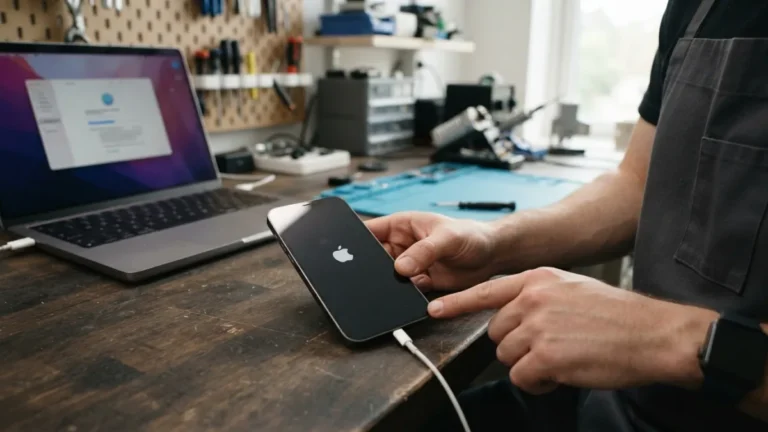
When the first two methods are not available, a computer will do the job. On a Mac running macOS Catalina or later, you can reset iPhone using Finder. First, put the phone into recovery mode with the steps in the next section. Then follow this order:
- Connect the iPhone to your Mac with a cable.
- Open a Finder window and select your iPhone in the sidebar.
- When Finder says there is a problem with the iPhone, click Restore. Don’t click Update, because choosing to update your iPhone keeps the passcode in place.
- Wait while your Mac downloads the software and installs it.
- Keep the cable connected until the setup screen appears.
Be patient here. The download can take a while on a slow connection.
Method 4: Use iTunes on a Windows PC or Older Mac
The old message says “connect to iTunes” for a reason. Windows PCs and Macs running macOS Mojave or earlier still use iTunes to manage iPhones. You can get the app from Apple’s iTunes page. Install it, open it, and put your phone into recovery mode. Connect the cable, then wait for iTunes to show a message that it found an iPhone in recovery mode. Choose Restore and confirm. The program downloads the latest iOS and installs it, erasing the passcode along with your data. If the download takes more than 15 minutes, the iPhone leaves recovery mode on its own. Don’t panic. Let the download finish, then repeat the recovery mode steps and click Restore again.
Method 5: Ask Apple for Help
Sometimes none of the above works. Maybe you forgot iPhone passcode details and your Apple ID password too, or the side buttons are broken, or you have no computer. In those cases, contact Apple Support or visit an Apple Store or authorized service provider. Staff can check the device, guide you through the process, and help you recover access to your Apple ID if needed. Expect to be asked to show that the phone is yours. Bring your phone, any receipt or box if you have them, and a photo ID. Don’t pay anyone who promises to bypass the passcode and keep all your data. Those offers are often scams, and they can put your personal information at risk.
iPhone Recovery Mode Steps for Methods 3 and 4
Recovery mode lets a computer talk to a locked iPhone and reinstall its software. The exact button combination depends on your model, so pick the one that matches your phone. Connect the iPhone to the computer first, then do the following:
- iPhone 8 and later, including iPhone SE (2nd and 3rd generation): Press and quickly release Volume Up. Press and quickly release Volume Down. Then hold the Side button until the recovery screen appears.
- iPhone 7 and 7 Plus: Hold the Volume Down and Side buttons together until you see the recovery screen.
- iPhone 6s or earlier, and iPhone SE (1st generation): Hold the Home button and the Side or Top button together until you see the recovery screen.
Keep holding past the Apple logo. You are looking for a screen that shows a cable and a computer. Once it appears, release the buttons and switch to your computer, where the Restore option will be waiting.
How to Restore iPhone From Backup After the Reset
Once the phone shows the Hello screen, you can bring your data back. Follow the setup prompts until you reach the Apps & Data screen. There, choose to restore from an iCloud backup, or from a Mac or PC if you saved one on a computer. Sign in with your Apple ID and pick the most recent backup in the list. The phone downloads your data and may take a while, so keep it on Wi-Fi and plugged in. Anything stored only on the phone after the last backup is gone for good. Photos, contacts, and notes that sync with iCloud usually return when you sign in. If you have no backup, don’t worry. Set the phone up as new, sign in to your accounts, and start saving your data safely from today.
How to Prevent iPhone Lockout in the Future
A few simple habits can prevent iPhone lockout and spare you a stressful afternoon. Choose a passcode you can remember but others can’t guess, and don’t change it right before a busy week. Use Face ID or Touch ID so you rarely type the code. Store your passcode in a trusted password manager, or write it down and keep it at home. Turn on iCloud Backup so a fresh copy of your data is always available. Keep Find My switched on, and make sure your Apple ID recovery details are up to date. Finally, keep the phone away from small children, because they cause too many passcode attempts more often than most people expect. Ten minutes of setup today saves hours later.
Final Thoughts
Seeing that your iPhone is disabled is frustrating, but it is rarely the end of the road. Check what you have, try the lock screen erase option first, and move on to iCloud, a computer, or Apple Support if needed. Always choose Restore, not Update, when a computer asks. Then bring back your data from a backup and set a passcode you can recall. With a bit of preparation, you can prevent iPhone lockout from ever ruining your day again.
FAQ: Fixing an iPhone That Says “Disabled”
What does “iPhone is disabled, connect to iTunes” mean?
It means someone entered the wrong passcode too many times in a row. The phone locks itself to protect your data. To get back in, you must erase the device using a method like the ones above, then set it up again.
Can I fix a disabled iPhone without losing my data?
Usually not. If a timer is still counting down, you can wait and try the correct passcode. Once the phone stops accepting guesses, you must erase it. A recent backup lets you recover most of your data afterward.
Can I unlock iPhone without computer?
Yes, in many cases. On iOS 15.2 or later, tap Erase iPhone on the lockout screen and enter your Apple ID password. You can also erase the phone remotely through Find My from another device, as long as the phone is online.
How long does an iPhone stay disabled?
Early lockouts last only a short time, and the delay grows with each wrong guess. After the final attempt, waiting doesn’t help anymore. The phone needs to be erased before you can use it again.
Do I still need iTunes to fix an iPhone?
Only on a Windows PC or a Mac running macOS Mojave or earlier. On macOS Catalina and later, Finder does the same job. If you can reach Find My or the Erase iPhone option on the lock screen, you may not need a computer at all.
Related guide: How to Transfer Everything to a New iPhone Without Losing Data



One Comment
Comments are closed.