
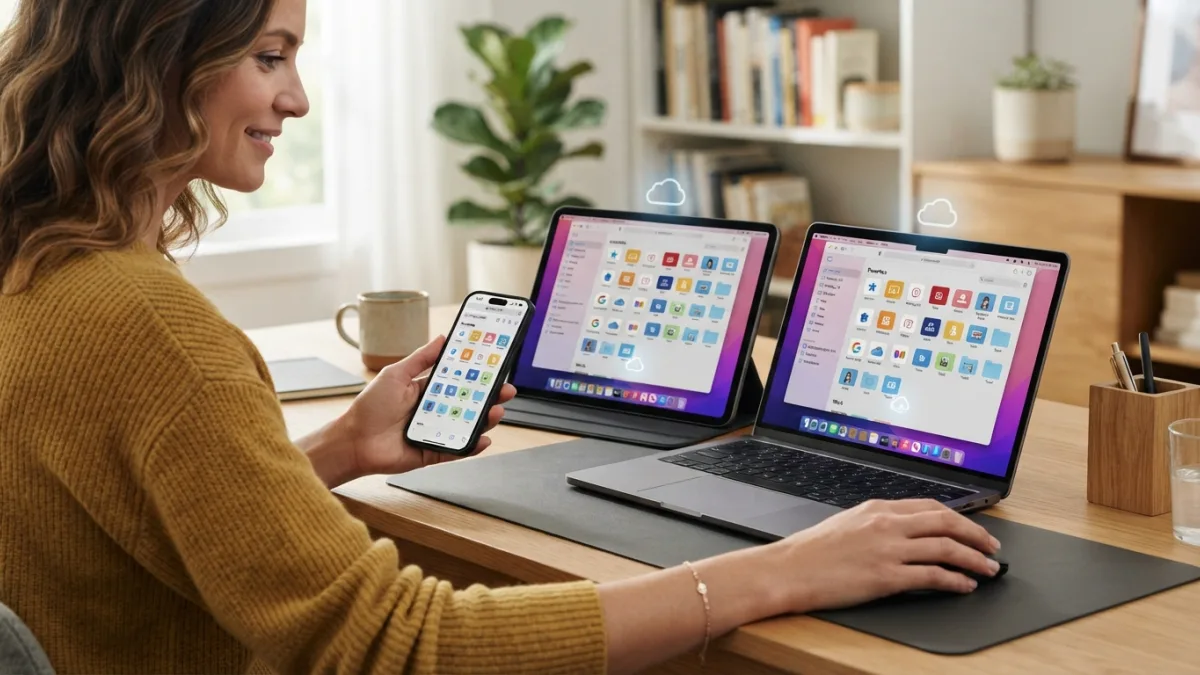
Sync Your Bookmarks Across Devices: 5 Easy Steps in 2026
Picture this: you find the perfect recipe on your laptop, save it for later, and then stand in the grocery store an hour later with your phone in hand, only to realize the bookmark never made it there. It’s a small frustration, but it happens to millions of people every day. The good news is that you can sync your bookmarks across your phone, tablet, and computer in just a few minutes, and once it’s set up, you’ll never lose a saved page again. Whether you’re a student researching a paper, a professional juggling multiple projects, or someone who just wants their favorite recipes handy, getting your bookmarks in order across devices makes life noticeably easier.
Why Syncing Your Bookmarks Actually Matters: Sync your bookmarks
Most of us don’t think twice about bookmarking a page, but the moment we switch from a laptop to a phone, that saved link often disappears into thin air. Cross-device bookmarks solve this by keeping every saved page, folder, and reading list updated no matter which screen you’re looking at. This matters more than ever now that people regularly switch between three or four devices in a single day. A student might research on a library computer, continue on a laptop at home, and check notes on a phone during a commute. Without synced bookmarks, that workflow falls apart. With it, everything just follows you, quietly and automatically, so you spend less time hunting for that one article you swore you saved somewhere. If you want to dig deeper, our guide on How to Fix Common Error Codes You See on Your Screen covers this in more detail. This is a common part of dealing with sync your bookmarks, and it is worth keeping in mind.
Step 1: Pick One Browser Ecosystem and Commit to It
The single easiest way to sync bookmarks is to use the same browser everywhere, whether that’s Chrome, Firefox, Safari, or Edge. Each of these browsers offers built-in browser bookmark sync tied to a free account, and it works remarkably well once it’s turned on. The catch is that mixing browsers, say Chrome on your laptop and Safari on your iPhone, creates two separate bookmark libraries that don’t talk to each other automatically. Before diving into settings, take a moment to decide which browser you’ll use on your phone, tablet, and desktop. This one decision saves a lot of headache later, since it means you only need to sign into one account rather than managing sync settings across multiple platforms. Many people run into this exact issue with sync your bookmarks at some point.
Step 2: Turn On Built-In Browser Bookmark Sync
Once you’ve settled on a browser, turning on sync is usually just a matter of signing in. In Chrome, open the menu, click your profile picture, and sign in with a Google account; sync typically switches on by default afterward. Firefox users can create a free Firefox Account and enable sync through the settings menu, a feature Mozilla explains in detail on its support site. Safari relies on your Apple ID and iCloud, syncing bookmarks automatically across every Apple device signed into the same account. Edge works similarly, using a Microsoft account to link bookmarks, history, and even open tabs between devices. Keeping sync your bookmarks in mind here will save you time later on.
How This Works on Major Browsers
Here’s a quick breakdown of what to check on each platform: This detail matters more than it seems once sync your bookmarks comes up again.
- Chrome: Settings > You and Google > Sync and Google services, then make sure “Bookmarks” is toggled on.
- Firefox: Settings > Sync, sign in, and confirm bookmarks are included in the sync selection.
- Safari: iPhone or iPad Settings > your name > iCloud > Safari, then toggle it on; on a Mac, check System Settings > Apple ID > iCloud.
- Edge: Settings > Profiles > Sync, sign in, and enable bookmarks specifically.
Give it a few minutes after enabling sync, since it doesn’t always update instantly, especially on a slower connection. This connects closely with another common issue — see How to Tell If a Website Is Legit Before You Enter Your Card Details for more on that. It is one of those small things that makes sync your bookmarks easier to manage overall.
Step 3: Try a Dedicated Bookmark Manager App
Built-in sync works great if you stick to one browser, but plenty of people bounce between different apps for different reasons. That’s where a bookmark manager app comes in handy. Tools like Raindrop.io, Pocket, and Toby let you save links from any browser and access them through a dedicated app or extension, independent of which browser you happen to be using at the moment. These apps often add extra features too, such as tagging, folders, full-text search, and the ability to save articles for offline reading. Some even let you highlight text or add notes to saved pages, turning a simple bookmark into something closer to a personal research library. For anyone managing hundreds of saved links, a dedicated manager can feel far more organized than a browser’s basic bookmark bar. This is a common part of dealing with sync your bookmarks, and it is worth keeping in mind.
Step 4: Sync Bookmarks Between Different Browsers
If switching to a single browser isn’t realistic, you can still sync bookmarks between browsers using export and import tools or third-party services. Most browsers let you export your entire bookmark collection as an HTML file, which can then be imported into another browser through its settings menu. This isn’t automatic, so you’d need to repeat the process whenever you add a lot of new bookmarks. For something closer to real-time syncing, bookmark manager apps mentioned earlier double as a bridge between browsers, since they run as extensions in Chrome, Firefox, Edge, and Safari alike. This approach takes a bit more setup upfront, but it means you’re not locked into one browser just to keep your bookmarks consistent. Many people run into this exact issue with sync your bookmarks at some point.
Step 5: Set Up a Cloud Bookmark Backup
Syncing keeps your bookmarks updated across devices, but backing them up protects you from losing everything if an account gets locked out or a device breaks. A cloud bookmark backup is essentially an extra safety net. Many browsers already store synced bookmarks on their servers, but it’s smart to also export a backup file every few months and save it to a cloud storage service like Google Drive, iCloud Drive, or Dropbox. This way, even if something goes wrong with your syncing account, you have a recent copy you can import back in. It only takes a couple of minutes, and it’s the kind of small habit that saves a lot of stress later, especially if you’ve built up years of saved links, articles, and research pages. Keeping sync your bookmarks in mind here will save you time later on.
Comparing Your Bookmark Syncing Options
With several ways to keep bookmarks consistent across devices, it helps to see them side by side. The table below breaks down the main options by ease of setup, cost, and flexibility. You might also find our article on How to Cast Your Phone Screen to a TV helpful here. This detail matters more than it seems once sync your bookmarks comes up again.
| Method | Best For | Cost | Cross-Browser Support |
|---|---|---|---|
| Built-in browser sync | Users who stick to one browser | Free | No |
| Bookmark manager app | Users switching between browsers or devices | Free with paid upgrades | Yes |
| Manual export/import | Occasional syncing needs | Free | Yes, but not automatic |
| Cloud backup file | Long-term safety net | Free (with existing storage) | N/A |
Common Sync Problems and How to Fix Them
Sometimes bookmarks refuse to sync even after you’ve followed every step correctly. The most common culprit is being signed into different accounts on different devices, so it’s worth double-checking that you’re using the same Google, Microsoft, or Apple ID everywhere. A weak or interrupted internet connection can also delay syncing, so give it a minute and try refreshing. If sync still isn’t working, signing out and back into your account often resets the connection. On rare occasions, a browser update can temporarily disrupt sync settings, in which case checking for the latest version usually resolves it. If you’re using a bookmark manager app, make sure the browser extension is installed and enabled on every device you use. It is one of those small things that makes sync your bookmarks easier to manage overall.
Keeping Your Synced Bookmarks Secure
Bookmarks might seem harmless, but they can reveal a surprising amount about your browsing habits, from banking sites to personal accounts. Since synced bookmarks are tied to your account, it’s important to use a strong, unique password and enable two-factor authentication wherever it’s offered. This is especially true for Google and Microsoft accounts, which often link far more than just bookmarks, including saved passwords and search history. According to guidance from the Cybersecurity and Infrastructure Security Agency, using unique passwords across accounts significantly reduces the risk of a breach spreading to your other synced data. Taking a few minutes to review your account security settings alongside your bookmark sync setup is a smart habit that protects more than just saved links. This is a common part of dealing with sync your bookmarks, and it is worth keeping in mind.
Bookmarks have come a long way since the early days of the web, when saving a favorite page simply meant adding it to a static list, a concept you can read more about on Wikipedia’s overview of digital bookmarks. Today’s syncing tools turn that simple idea into something far more powerful, connecting your reading habits and research across every screen you own. Setting this up doesn’t require technical expertise, just a few minutes spent choosing the right combination of browser settings, apps, and backups that fit how you actually work. Once it’s running smoothly, you’ll likely forget it’s even there, which is exactly the point. Many people run into this exact issue with sync your bookmarks at some point.
Final Thoughts
Getting your bookmarks to follow you across devices isn’t complicated once you understand the handful of tools available. Start with the built-in sync feature on your main browser, add a bookmark manager app if you regularly switch between browsers, and keep a cloud backup as insurance against anything going wrong. These five steps together create a setup that’s reliable, low-maintenance, and genuinely convenient. In 2026, with more people than ever splitting their time between phones, tablets, and laptops, having your saved pages ready wherever you go isn’t a luxury anymore. It’s a small piece of digital organization that quietly makes everyday browsing a lot less frustrating. For a related walkthrough, check out How to Set Up a Backup Routine You'll Actually Stick To. Keeping sync your bookmarks in mind here will save you time later on.
Frequently Asked Questions
Do I need a paid account to sync bookmarks?
No. Built-in sync through Chrome, Firefox, Safari, and Edge is free with a standard account. Most bookmark manager apps also offer free plans that cover basic syncing needs, with paid tiers reserved for extra storage or advanced features. This detail matters more than it seems once sync your bookmarks comes up again.
Can I sync bookmarks between an Android phone and an iPhone?
Yes, as long as you use the same browser and account on both devices, such as Chrome signed into the same Google account, or a cross-platform bookmark manager app that works on both operating systems. It is one of those small things that makes sync your bookmarks easier to manage overall.
Why did my bookmarks disappear after switching devices?
This usually happens when sync wasn’t enabled before switching, or you’re signed into a different account on the new device. Checking your sync settings and confirming the correct account is signed in typically brings them back. This is a common part of dealing with sync your bookmarks, and it is worth keeping in mind.
Is it safe to store bookmarks in the cloud?
Generally yes, especially with major providers like Google, Apple, and Microsoft, which use encryption to protect account data. Adding two-factor authentication further reduces the risk of unauthorized access to your synced information. Many people run into this exact issue with sync your bookmarks at some point.
What’s the difference between browser sync and a bookmark manager app?
Browser sync keeps bookmarks consistent within the same browser across devices, while a bookmark manager app works independently of any single browser, letting you save and access links no matter which browser you’re currently using. Keeping sync your bookmarks in mind here will save you time later on.
3 Comments
Comments are closed.