clean your devices: 7 simple tips to keep screens safe
Your phone goes everywhere with you, from kitchen counters to gym benches, and your laptop collects fingerprints, dust, and crumbs every single day. If you want to clean your devices without leaving scratches or causing damage, you need a gentler approach than most people use. Many of us grab paper towels, tissues, or window cleaner and wipe quickly, but those everyday products can strip protective coatings and push dirt deeper into edges. Screens look cloudy, keyboards feel sticky, and charging ports stop working reliably. The good news is that safe cleaning does not take much time or special skill. With a few low-cost tools and the right technique, you can make everything look and feel new again while protecting your investment. You will also reduce germs that build up on surfaces you touch all day.
Before You clean your devices: What to Gather and What to Avoid
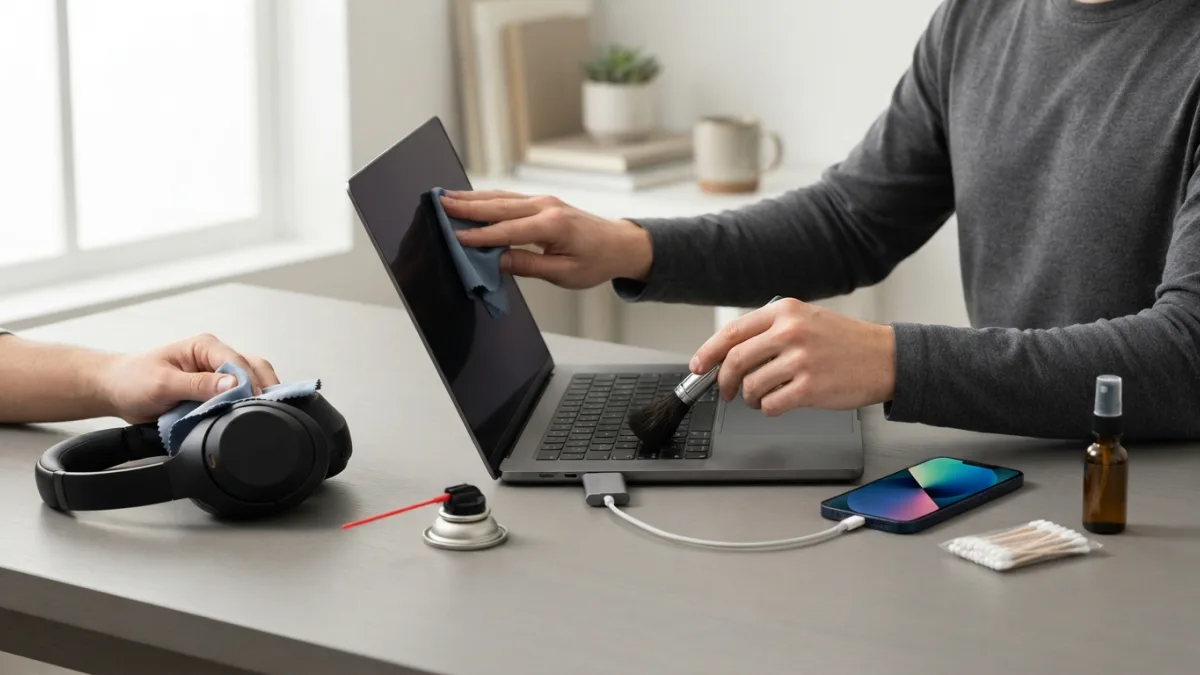
Start by powering down completely and unplugging everything from the wall. This protects you and prevents short circuits if a little moisture gets inside. Let laptops and tablets cool for a few minutes if they feel warm, because heat plus liquid can leave streaks. Gather the right tools before you touch any screen. You will want a soft microfiber cloth, a small soft-bristle brush or clean toothbrush, cotton swabs, and, if needed, a small bottle of 70% isopropyl alcohol. Avoid paper towels, which shed fibers and can scratch, and skip harsh cleaners like bleach, ammonia, or window spray. Those chemicals can damage oleophobic coatings that help screens resist fingerprints. If you are unsure about a product, check the manufacturer’s cleaning guidance first. When you clean your devices with these gentle tools, you avoid most common damage. If you want to dig deeper, our guide on Sync Your Bookmarks Across Devices: 5 Easy Steps in 2026 covers this in more detail. This is a common part of dealing with clean your devices, and it is worth keeping in mind.
- Soft, lint-free microfiber cloth (have at least two)
- Small soft-bristle brush or clean, dry toothbrush
- Cotton swabs for edges and ports
- Distilled water and 70% isopropyl alcohol if needed
- Wooden or plastic toothpick for ports – never metal
7 Simple Tips to Keep Screens Safe
1. Power Down and Unplug Everything First
Turning your device off makes it much easier to see dust and smudges on a dark screen, and it also keeps you safe while you clean. Unplug charging cables, headphones, and any USB accessories so you can reach every edge without strain. If you use a laptop, close unnecessary apps and shut it down fully rather than just closing the lid. For phones and tablets, hold the power button until the screen goes black. This simple step also prevents accidental taps that can open apps or change settings while you wipe. Once the device is off, place it on a clean, flat surface with good light. You will have better control, and you can avoid dropping it if your cloth catches on a corner. This pause helps you clean your devices more thoroughly and safely. Take your time here; a stable setup prevents slips. Many people run into this exact issue with clean your devices at some point.
2. Use a Dry Microfiber Cloth to clean laptop screen and Other Displays
A dry microfiber cloth is the safest tool to clean laptop screen surfaces, phone displays, and tablets without chemicals. The tiny fibers lift dust and fingerprints instead of dragging them across the glass. Fold the cloth into a square so you have several clean sides to work with, and wipe in one direction using light, even pressure. Avoid circles that can create swirl marks, and never press hard on the center of the screen. For large monitors, work from top to bottom so dust falls away instead of settling back on cleaned areas. If you need to clean your devices that have a matte or anti-glare coating, dry wiping is often enough for daily care. Wash your microfiber cloths regularly without fabric softener, which can leave residue and make them less effective. Keeping clean your devices in mind here will save you time later on.
3. Dampen, Don’t Soak, for Stubborn Smudges
When dry wiping does not remove oily spots, lightly dampen your cloth instead of spraying liquid directly on the screen. Spraying can let moisture seep into speakers, hinges, and bezels where it can cause damage. Add a small amount of distilled water or a 50/50 mix of distilled water and 70% isopropyl alcohol to the cloth until it feels just barely damp. The isopropyl alcohol page on Wikipedia explains why this concentration is commonly used for electronics, as it evaporates quickly and helps lift oils. Wipe gently in straight lines and let the surface air-dry for a minute before closing a laptop lid. Never use tap water, which can leave mineral spots, and never use hydrogen peroxide or acetone on screens. This method lets you clean your devices without risking liquid damage. If streaks remain, flip to a dry side of the cloth and buff lightly. This connects closely with another common issue — see How to Fix Common Error Codes You See on Your Screen for more on that. This detail matters more than it seems once clean your devices comes up again.
4. Disinfect Keyboard Safely Without Damaging Keys
Keyboards collect crumbs, skin oils, and germs faster than almost any other part of your setup, so learning to disinfect keyboard surfaces safely matters. Start by turning the keyboard upside down and shaking it gently over a trash bin to dislodge loose debris. For laptops, hold the device at a slight angle so particles fall out instead of deeper inside. Next, use a soft brush or compressed air in short bursts to clear dust between keys, keeping the can upright to avoid spraying liquid propellant. To clean your devices that you touch constantly, lightly dampen a cloth or cotton swab with 70% isopropyl alcohol and wipe key tops and the spaces around them. Do not pour or spray disinfectant directly onto keys, and avoid soaking the cloth. Let everything dry fully before typing again. It is one of those small things that makes clean your devices easier to manage overall.
5. Shake and Brush Out Crumbs the Right Way
Even if you disinfect the tops of keys, crumbs and dust hiding underneath can make keys stick or feel mushy. After your initial shake, run a soft-bristle brush along the rows to sweep out what remains. Work from one side to the other so you do not just push debris back and forth. For mechanical keyboards with removable keycaps, check the manual before pulling anything off, because some designs break easily. A cotton swab lightly moistened with isopropyl alcohol can help lift grime around the edges of each key. The Apple guide to cleaning your devices recommends gentle methods and warns against excessive moisture or harsh sprays, which is good advice for any brand. Finish by wiping the palm rest and outer frame with a dry microfiber cloth so the whole area feels fresh. This is a common part of dealing with clean your devices, and it is worth keeping in mind.
6. Carefully clean charging port and Other Small Openings
Lint, dust, and pocket fluff love to settle inside the small openings on phones and laptops, and that buildup can stop cables from connecting properly. To clean charging port areas safely, first power off the device and make sure no cable is connected. Use a dry, soft brush or a wooden or plastic toothpick to gently loosen debris, and avoid metal tools that can scratch contacts or cause a short. Hold the device so the port faces down so particles fall out with gravity. A quick puff of air can help, but keep compressed air cans at a distance and use only short bursts to avoid pushing moisture inside. If you regularly clean your devices, check ports every few weeks rather than waiting until charging becomes unreliable. Never insert wet cotton swabs or drip liquid into any port, because corrosion can happen quickly. You might also find our article on How to Cast Your Phone Screen to a TV helpful here. Many people run into this exact issue with clean your devices at some point.
7. Clean Your Case, Cables, and Accessories Too
Your device does not stay clean for long if the case and accessories around it stay dirty. Remove phone cases and wash silicone or plastic ones with warm soapy water, then rinse and dry them completely before putting them back on. For fabric or leather cases, follow the maker’s instructions and test any cleaner on a small hidden area first. Wipe cables with a dry or slightly damp microfiber cloth, paying attention to the ends where fingers leave oils. Earbuds and headphones need special care: remove silicone tips and clean them separately with soapy water, and use a dry swab for speaker grilles. When you clean your devices as a set, you prevent dirt from transferring right back. Keep cases off for a few minutes after wiping so trapped moisture can evaporate fully. Keeping clean your devices in mind here will save you time later on.
Common Mistakes That Damage Devices
Many costly repairs start with a well-meaning but risky cleaning habit. Spraying glass cleaner or all-purpose spray directly on a screen can strip coatings and leave permanent haze, while paper towels and tissues can leave tiny scratches that build up over time. Pressing hard with a fingertip wrapped in cloth does not clean better; it just increases the chance of cracking a display or pushing liquid under the bezel. Another frequent error is using undiluted bleach or high-strength alcohol above 90% without water, which can discolor plastics and dry out rubber seals. If you want to clean your devices safely, less is more. Use light pressure, minimal moisture, and gentle tools. When in doubt, test on a small corner first and check the manual. A careful habit now saves you from expensive screen replacements later. This detail matters more than it seems once clean your devices comes up again.
How Often Should You Clean?
You do not need to deep clean every day, but a quick daily wipe and a more thorough weekly routine keep buildup under control. Each evening, give your phone screen and case a quick dry wipe with a microfiber cloth to remove fingerprints and daily dust. Once a week, take a few extra minutes to disinfect keyboard surfaces, brush out debris, and inspect ports for lint. If you share devices with family or coworkers, or if someone at home has been sick, clean more often and wash your hands before and after use. A simple schedule helps you clean your devices regularly without overdoing it. The CDC guidance on hygiene and hand cleaning reminds us that clean hands and clean surfaces work together to reduce germs. Keep a dedicated microfiber cloth in your desk drawer so the habit stays easy and you are not tempted to grab a rough paper towel. For a related walkthrough, check out Replace Your Phone: 7 Signs to Avoid Wasting Money. It is one of those small things that makes clean your devices easier to manage overall.
Final Checklist for Safe Cleaning
Before you finish, run through a short safety checklist so every clean ends well. Confirm the device is powered off and unplugged, and that your cloth is clean and only slightly damp if you used any liquid. Check that no moisture sits near speakers, hinges, or ports, and give screens a final buff with a dry side of the microfiber cloth for a streak-free shine. Return cases and cables only when everything feels completely dry to the touch. Store your cleaning supplies together in a small pouch so you can clean your devices quickly next time without hunting for tools. With consistent, gentle care, your screens will stay clear, your keyboards will feel responsive, and your ports will connect reliably. Safe habits protect both your health and the life of the gear you rely on every day. This is a common part of dealing with clean your devices, and it is worth keeping in mind.
Frequently Asked Questions
Can I use window cleaner or household spray to clean laptop screen?
No. Window cleaners often contain ammonia or other harsh chemicals that can damage screen coatings and leave a haze. Use a dry microfiber cloth, and for stubborn spots, lightly dampen the cloth with distilled water or a 50/50 mix of distilled water and 70% isopropyl alcohol. Many people run into this exact issue with clean your devices at some point.
How do I disinfect keyboard without harming the keys?
Power off and unplug the keyboard, shake out loose debris, then wipe key tops with a cloth or cotton swab lightly dampened with 70% isopropyl alcohol. Do not spray liquid directly on the keyboard and let it dry fully before use. Keeping clean your devices in mind here will save you time later on.
What is the safest way to clean charging port?
Power off the device, hold it with the port facing down, and gently loosen lint with a dry soft brush or wooden/plastic toothpick. Avoid metal pins, wet swabs, and strong blasts of compressed air. Use only short, distant puffs if you use air at all. This detail matters more than it seems once clean your devices comes up again.
Can I use paper towels or tissues instead of a microfiber cloth?
It is best not to. Paper towels and tissues can scratch screens and leave fibers behind. A clean, soft microfiber cloth lifts dust and oils safely and can be washed and reused many times. It is one of those small things that makes clean your devices easier to manage overall.
How often should I clean my phone and laptop?
Wipe screens and cases with a dry microfiber cloth daily, and do a deeper clean weekly for keyboards, ports, and cases. Clean more often if you share devices or during cold and flu season, and always wash your hands before and after.